
- WordPress
How to Write Your First Post & Page in WordPress (Gutenberg Basics)
By Ehasanul Haque
Posted on August 4, 2026
You’ve installed WordPress, you’ve poked around the dashboard, and now comes the moment that actually matters: putting words on the page. But then the block editor opens, you see a blank screen with a little “+” button, and you think… now what?
Relax — publishing your first post in WordPress is genuinely easy, and the block editor is friendlier than it first looks. WordPress uses an editor called Gutenberg, where everything on the page is a “block” — a paragraph, an image, a heading, a button. Once that clicks, building content feels like stacking Lego. The Gutenberg block editor lets you build posts and pages by adding one content block at a time, no code required.
In this guide I’ll show you how to write and publish your first post, then your first page, and explain the difference so you always know which to use. Not sure how you got here? My dashboard tour covers the menus we’ll use.
Key Takeaways
- WordPress content is built from “blocks” — add them with the “+” button in the Gutenberg editor.
- Posts are dated blog articles; Pages are static content like About or Contact.
- You publish in three steps: add a title, add your blocks, click Publish.
- You can always save a draft and preview before going live — nothing publishes until you say so.
Posts vs Pages: Which One Are You Making?
Before you write, know which type of content you need. Posts are dated, categorized blog articles that appear in a feed (like this guide). Pages are static, standalone content that doesn’t change often — your Home, About, Contact, and Services pages. Use a Post for anything blog-like, and a Page for permanent sections of your site.
The editor works almost identically for both, so once you learn one, you know the other. Let’s start with a post.
How to Write Your First Post in WordPress
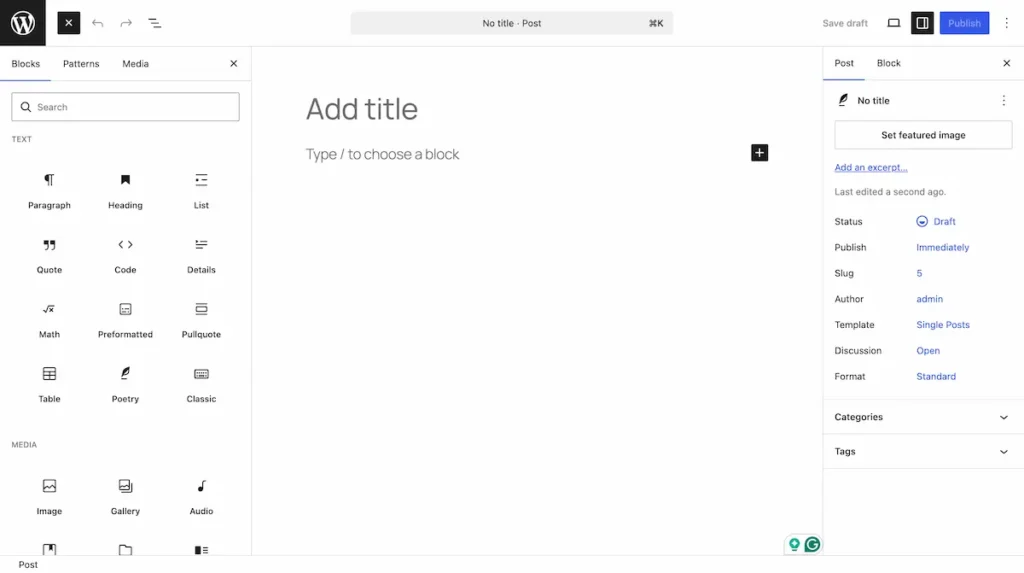
Creating a post is a quick, three-part rhythm: open the editor, add your content in blocks, and publish. Here’s the full step-by-step:
- Open the editor. From your dashboard, go to Posts > Add New. The Gutenberg block editor opens with a blank canvas.
- Add your title. Click where it says “Add title” and type your post’s headline.
- Write your first paragraph. Click below the title and just start typing — a paragraph block is created automatically.
- Add a new block. Press Enter for a new paragraph, or click the “+” button to insert a different block type (heading, image, list, quote, and more).
- Add a heading. Click “+”, choose Heading, and use headings to break your post into sections — good for readers and for SEO.
- Add an image. Click “+”, choose Image, then upload a file or pick one from your Media Library.
- Preview it. Click Preview (top right) to see how it’ll look live.
- Publish. Happy with it? Click Publish, confirm, and your post is live.
That’s the whole loop. Every post you ever write follows these same steps.
Working with Blocks (the Gutenberg Basics)
The block is the single idea behind the whole editor: each piece of content is its own movable, editable block. Click the “+” to add one, click a block to edit it, and use the toolbar that appears above it to format text, align images, or change settings. You can drag blocks up or down to reorder them, or delete one with the three-dot menu.
The blocks you’ll use most as a beginner:
- Paragraph — your normal text.
- Heading — section titles (H2, H3).
- Image — photos and graphics.
- List — bulleted or numbered lists.
- Quote — pull quotes.
- Button — clickable calls to action.
Don’t feel you need to learn all of them. Master those six and you can build almost any post or page.
How to Create Your First Page
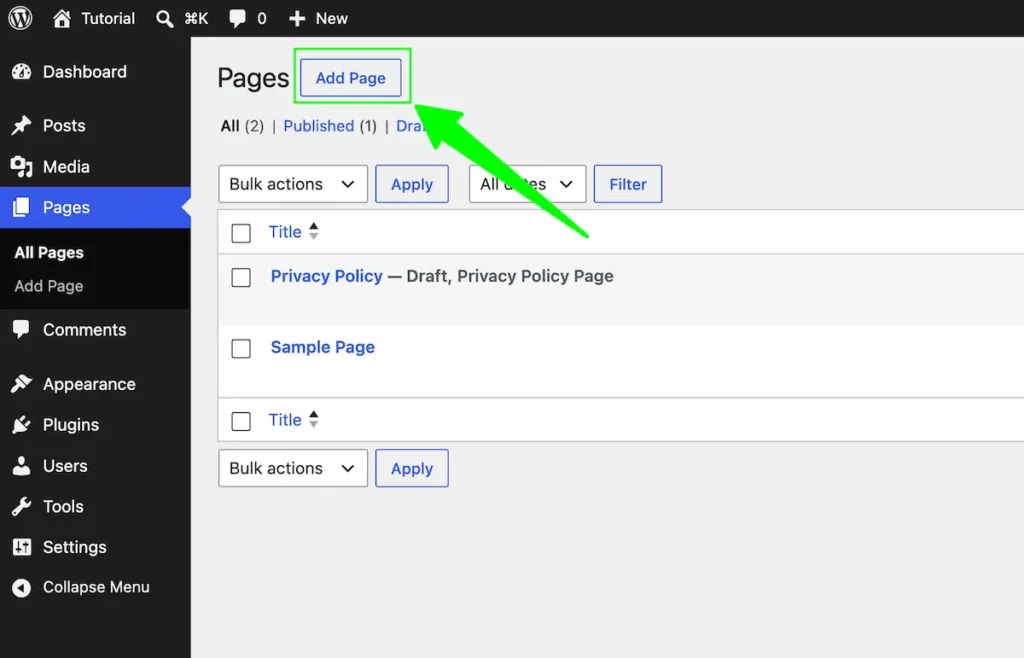
Creating a page works exactly like a post — you just start in a different menu. Go to Pages > Add New, and you’ll see the same Gutenberg editor. Add a title (like “About”), build your content with blocks, and click Publish.
The one difference: pages don’t use categories or tags, because they’re not part of your blog feed. Otherwise, everything you just learned applies. Once your key pages exist, you can add them to your site’s navigation under Appearance > Menus — and a good theme will display them cleanly.
A Few Beginner Tips Before You Publish
A little polish goes a long way, and it helps you avoid some common beginner mistakes. Before you hit Publish:
- Add a clear, keyword-friendly title — it becomes your headline and helps SEO.
- Break content into short paragraphs and headings — walls of text scare readers off.
- Always add alt text to images for accessibility and SEO.
- Save a draft if you’re not finished — your work stays private until you publish.
- Preview on mobile — most visitors read on their phones.
When I write a post, I draft everything first, then go back and add headings and images last. Find a rhythm that works for you.
Conclusion
There’s nothing mysterious about the block editor once you’ve built one post with it. Title, blocks, publish — that’s the entire craft, whether you’re writing a blog article or building an About page. Everything else is just discovering new blocks as you need them.
So don’t overthink it. Open Posts > Add New, write something small, and hit Publish. The fastest way to learn Gutenberg is to make your first post right now.
Frequently Asked Questions
How do I create a new post in WordPress?
Go to Posts > Add New in your dashboard, add a title, write your content using blocks, then click Publish. Preview it first if you’d like.
What is the Gutenberg block editor?
Gutenberg is WordPress’s default content editor. It builds posts and pages from individual “blocks” — paragraphs, headings, images, and more — with no code required.
What’s the difference between a post and a page?
Posts are dated blog articles organized by categories and tags. Pages are static, standalone content like About or Contact that isn’t part of your blog feed.
How do I add an image to a WordPress post?
Click the “+” button, choose the Image block, then upload a file or select one from your Media Library. Add alt text for SEO and accessibility.
Can I save a post without publishing it?
Yes. Click “Save draft” to keep your work private. Nothing goes live until you click Publish.
How do I add a page to my website menu?
Publish the page, then go to Appearance > Menus, add the page to a menu, and save. Your theme will display it in the navigation.
You May Also Like
-

What Is Web Hosting
Want a website but have no idea where it actually… -
WordPress File Types Explained
Your WordPress site is made of files. Dozens of them,… -
What Is a JSON File?
You clicked a download button, and out came a file…