
- WP Plugins
- |
- WordPress
Top 6 WordPress Caching & Speed Plugins
By Ehasanul Haque
Posted on September 12, 2026
In my guide to speeding up WordPress, I called a caching plugin the single fastest, highest-impact fix most beginners can make. That’s still true — but “install a caching plugin” is only useful advice once you know which one, and this category has more genuinely different options than almost any other plugin type on your site.
Some of these are premium, effortless, and built for beginners. Others are free, powerful, and built for people willing to dig into settings. None of them are bad — they’re just built for different comfort levels. Here’s how they actually compare.
Key Takeaways
- WP Rocket is the easiest, most beginner-friendly option — premium, but works well immediately with no configuration.
- W3 Total Cache and LiteSpeed Cache are the most powerful free options, but reward a bit more setup effort.
- Caching plugins and image/script optimization solve different problems — some plugins do both, some don’t.
- Only run one caching plugin at a time — like security plugins, stacking them causes conflicts.
What Caching & Speed Plugins Actually Do
A caching plugin saves a ready-made copy of your pages so WordPress can serve them instantly instead of rebuilding each page from scratch for every visitor — that alone is usually the biggest speed win available. Some plugins on this list go further, also minifying code (shrinking CSS/JavaScript files) or optimizing how scripts load. Together, these are the tools behind most of the speed checklist I recommend.
How We Chose
I compared these six on how much configuration they require, whether the free tier is genuinely useful, how much of the speed checklist each one covers on its own, and compatibility (some work best on specific hosting setups). All six are well-established, actively maintained options.
1. WP Rocket — The Set-and-Forget Option

WP Rocket is the premium plugin I recommend when a beginner wants results without touching a single settings toggle.
Why It Stands Out
WP Rocket activates smart defaults the moment you install it — page caching, some minification, and lazy loading are on out of the box. For beginners who find performance settings intimidating, this “it just works” approach is worth the price on its own.
Key Features
- Page caching enabled automatically on activation
- Built-in lazy loading and file minification
- One-click compatibility with popular CDNs
Best for: beginners who want strong results with zero configuration.
2. W3 Total Cache — The Power User’s Toolkit
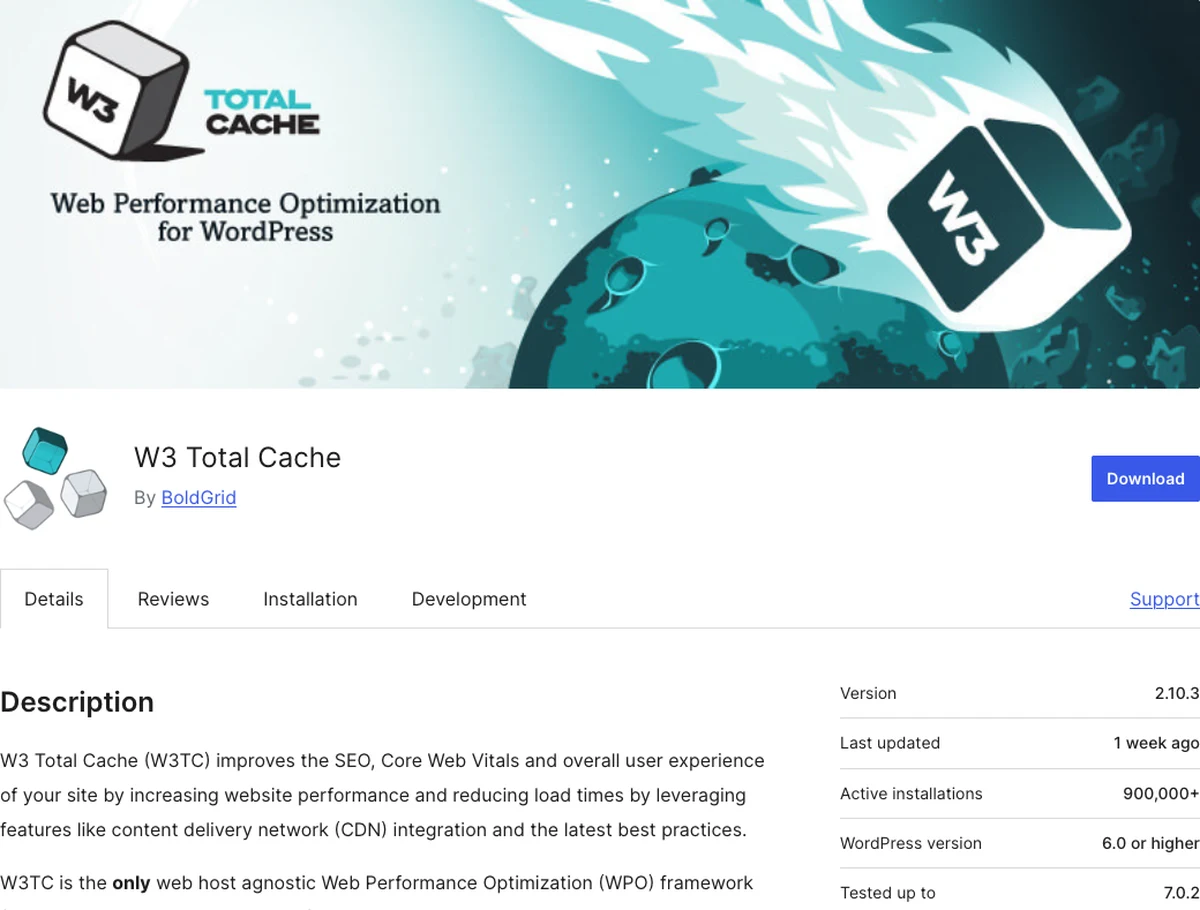
W3 Total Cache is free and extremely capable — arguably the most feature-complete caching plugin available — but it asks more of you in return.
Why It Stands Out
W3 Total Cache offers deep control over every layer of caching (page, browser, database, object), plus CDN integration, all without a price tag. The trade-off is a denser settings screen that rewards patience over instant simplicity.
Key Features
- Multiple caching layers (page, browser, database, object)
- Free CDN integration
- Extensive fine-tuning options for advanced users
Best for: beginners willing to spend a bit more setup time in exchange for a completely free, powerful toolkit.
3. WP Super Cache — The Simple Free Option
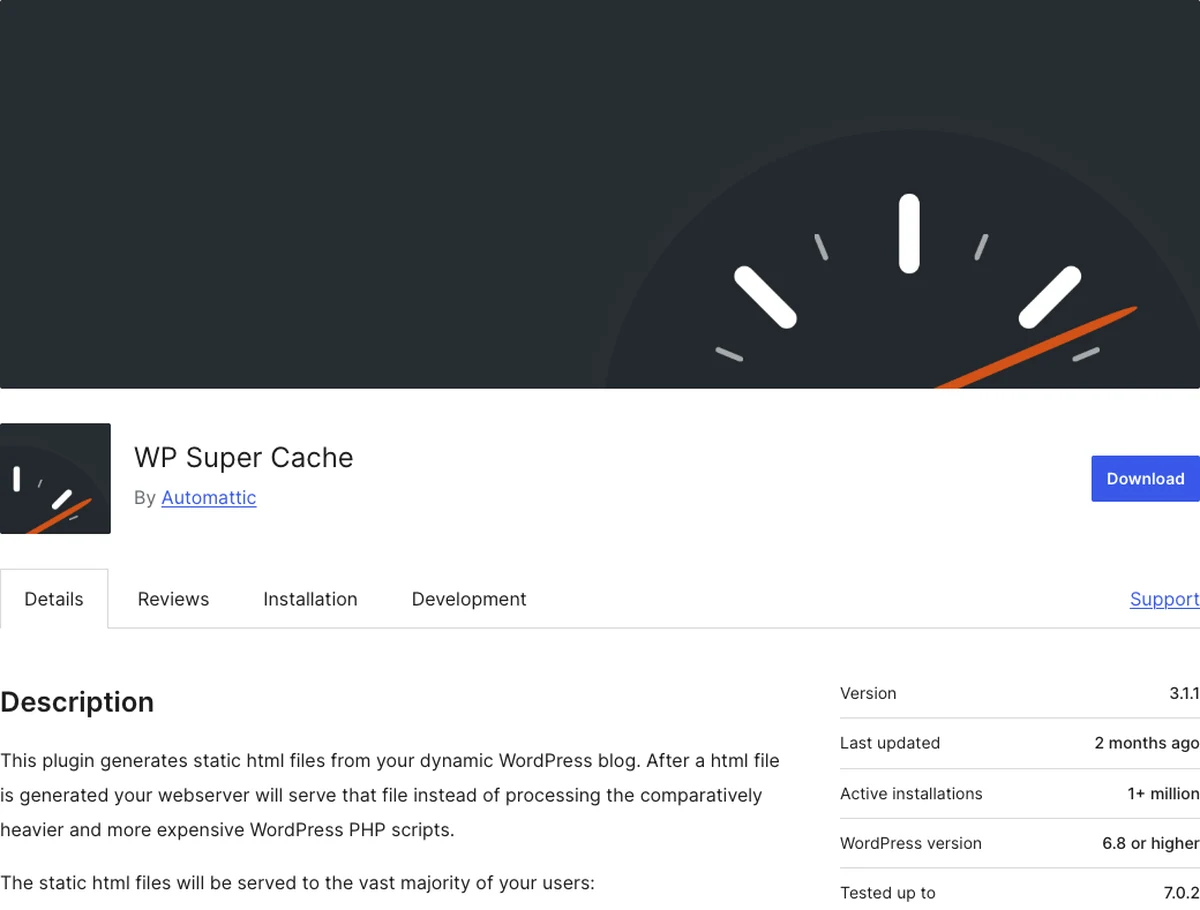
Built by Automattic (the company behind WordPress.com), WP Super Cache keeps things straightforward without W3 Total Cache’s steeper learning curve.
Why It Stands Out
WP Super Cache sticks to the fundamentals — solid static page caching — without overwhelming you with advanced options you may never touch. It’s a dependable middle ground between “premium and effortless” and “free and complex.”
Key Features
- Simple static page caching
- CDN support
- Straightforward settings with sensible defaults
Best for: beginners who want a free plugin that’s simpler to configure than W3 Total Cache.
4. LiteSpeed Cache — The Best Match for LiteSpeed Hosting
If your host runs on LiteSpeed server technology, this free plugin is close to unbeatable — it’s built specifically to work with that infrastructure.
Why It Stands Out
LiteSpeed Cache integrates directly with LiteSpeed’s server-level caching (faster than plugin-only caching), and it bundles image optimization and minification in one free package. Check your hosting provider first — this plugin’s biggest advantage only applies on LiteSpeed servers. I cover it in full depth in my LiteSpeed Cache setup guide.
Key Features
- Server-level caching on LiteSpeed hosting
- Built-in image optimization
- CSS/JS minification and lazy loading included
Best for: beginners hosted on a LiteSpeed server (check with your host) who want a fully free, all-in-one option.
5. Autoptimize — The Minification Specialist

Autoptimize isn’t a full caching plugin on its own — it specializes in one job: shrinking and streamlining your CSS, JavaScript, and HTML.
Why It Stands Out
Autoptimize is often paired with a separate caching plugin rather than used alone, since it focuses specifically on minifying and optimizing code rather than page caching itself. It’s a great add-on if your chosen caching plugin doesn’t already handle minification well.
Key Features
- CSS, JavaScript, and HTML minification
- Image lazy loading
- Google Fonts optimization
Best for: beginners who want to add stronger minification alongside a separate caching plugin.
6. Perfmatters — The Lightweight Tweaker
Perfmatters isn’t a caching plugin either — it’s a premium performance toolkit focused on disabling bloat WordPress loads by default.
Why It Stands Out
Perfmatters lets you selectively disable scripts, embeds, and features you don’t use (per page, even), trimming unnecessary weight that caching alone can’t fix. It’s a nice second step after caching is already handled.
Key Features
- Script manager to disable unused scripts per page
- Disables unused WordPress features (emojis, embeds, etc.)
- Lightweight, minimal-overhead design
Best for: beginners who already have caching sorted and want to trim extra weight on top.
Quick Comparison
| Plugin | Free Plan | Setup Effort | Best For |
|---|---|---|---|
| WP Rocket | Premium only | Very low | Zero-configuration results |
| W3 Total Cache | Yes, fully free | High | Power users wanting full control |
| WP Super Cache | Yes, fully free | Low | Simple, dependable free caching |
| LiteSpeed Cache | Yes, fully free | Low–medium | LiteSpeed-hosted sites |
| Autoptimize | Yes, fully free | Low | Add-on minification |
| Perfmatters | Premium only | Low | Trimming bloat after caching |
Which Caching Plugin Should You Choose?
Match the pick to your comfort level and hosting setup:
- Want it to just work with no settings? → WP Rocket.
- Want full free control and don’t mind some setup? → W3 Total Cache.
- Want free and simple, no deep settings? → WP Super Cache.
- Hosted on LiteSpeed servers? → LiteSpeed Cache, hands down.
- Already caching, want extra minification? → Autoptimize.
- Caching’s sorted, want to trim extra bloat? → Perfmatters.
Conclusion
Every plugin here solves the same core problem in a different way, at a different price, for a different comfort level. If you only remember one thing: pick one caching plugin and actually turn it on — that single step usually delivers the biggest visible speed win of anything in the full speed checklist.
Which one matches how much setup time you want to spend? Install it today, and watch your PageSpeed Insights score move.
Frequently Asked Questions
Do I need a paid caching plugin like WP Rocket, or is free enough?
Free is enough for most sites — W3 Total Cache, WP Super Cache, and LiteSpeed Cache all deliver real results. WP Rocket’s advantage is convenience, not raw capability.
Can I use more than one caching plugin at once?
No. Like security plugins, running multiple caching plugins at the same time causes conflicts and can actually slow your site down.
What’s the difference between a caching plugin and an image optimization plugin?
Caching speeds up how pages are served; image optimization shrinks file sizes. They solve different problems and often work well together.
Is LiteSpeed Cache worth using if I’m not on LiteSpeed hosting?
Its biggest advantage — server-level caching — only applies on LiteSpeed servers. On other hosting, other options on this list are usually a better fit.
Will a caching plugin fix all my speed problems?
It fixes the biggest one, but not everything — large images, a heavy theme, and too many plugins still matter. See the full speed checklist.
How do I know if my caching plugin is actually working?
Check your PageSpeed Insights score before and after activating it, and confirm the plugin’s dashboard shows an active cache with a reasonable hit rate.
You May Also Like
-

Kadence Blocks Default Settings
Just installed Kadence Blocks and wondering which Kadence Blocks settings… -
Kadence Blocks for WordPress
Building your WordPress site with Kadence Blocks? Good choice. It’s… -
Build a Homepage with Kadence Blocks
Ready to build a homepage with Kadence Blocks and not…