
- WordPress
Common WordPress Mistakes Beginners Make (and How to Avoid Them)
By Ehasanul Haque
Posted on September 4, 2026
WordPress powers over 40% of the internet, making it the undisputed king of website builders. Its flexibility is incredible, allowing you to build everything from a simple blog to a massive e-commerce empire. But that same flexibility also leaves the door wide open for easy-to-make, site-ruining errors.
If you are new to WordPress, it is incredibly easy to accidentally configure a setting wrong, bloat your site, or leave gaping security holes. These mistakes don’t just ruin the user experience—they actively hurt your search engine rankings and drive traffic away.
In this guide, we are going to walk through the most frequent traps new site owners fall into and, more importantly, exactly how you can fix them to ensure your site is fast, secure, and loved by Google.
Key Takeaways – Common WordPress Mistakes
- Falling for Bloated Themes: Choosing feature-heavy, flashy designs over a lightweight foundation, which instantly slows down your new site’s performance.
- Hoarding Unnecessary Plugins: Installing a heavy plugin for every minor tweak instead of keeping the site lean, leading to code conflicts and a sluggish backend.
- Overlooking Default SEO & Speed Killers: Uploading massive, uncompressed images and forgetting to fix default permalinks or uncheck the “discourage search engines” box.
- Neglecting Security & Backups: Keeping the default “admin” username and relying solely on your web host for backups, leaving your site highly vulnerable to data loss and hacks.
Mistake #1: Choosing the Wrong Theme
The Issue
It is tempting to get distracted by flashy, feature-heavy themes that look incredible on the demo page. However, many of these “multipurpose” themes are packed with thousands of lines of code you will never use. This bloats your website, drastically slowing down your page load times and frustrating your visitors.
The Fix
Prioritize performance over flash. Choose a lightweight, performance-focused theme from the start. Themes like Kadence or GeneratePress are brilliant choices. They provide a clean, incredibly fast foundation that pairs perfectly with the native block editor or your favorite page builder, giving you total design flexibility without sacrificing a millisecond of speed.
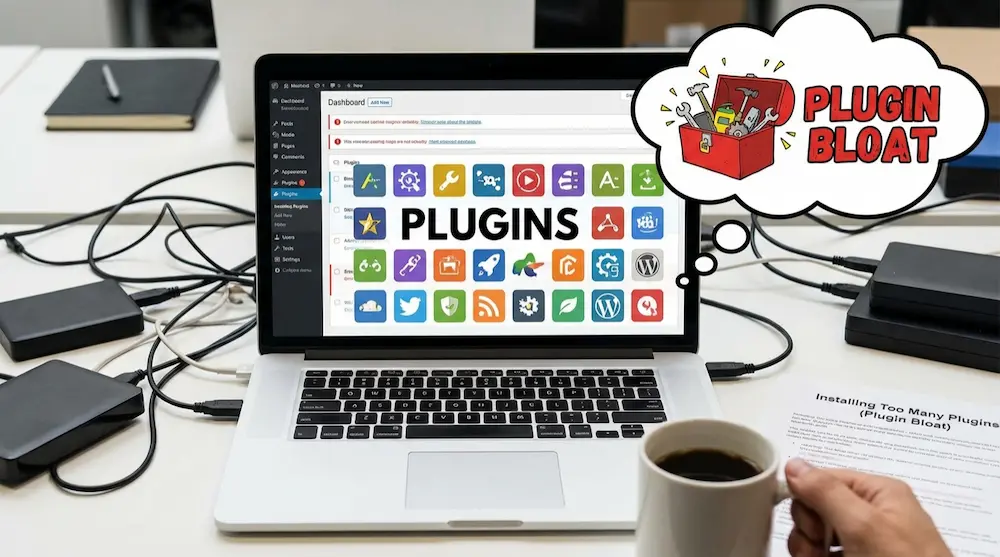
Mistake #2: Installing Too Many Plugins (Plugin Bloat)
The Issue
The beauty of WordPress is that “there’s a plugin for that.” The danger is that beginners often install dozens of plugins for every minor tweak. Running 40+ active plugins almost guarantees code conflicts, security vulnerabilities, and a sluggish backend.
The Fix
Treat plugins like a luxury, not a necessity.
- Audit regularly: Go through your plugin list today and delete (don’t just deactivate) anything you aren’t actively using.
- Code over plugins: For simple functionalities, see if you can achieve the result without a heavy third-party tool. Often, writing a lightweight custom snippet or a very simple, single-purpose plugin—like a custom dashboard greeting or a minor admin tweak—is vastly superior to installing a bulky, “do-it-all” plugin.
Mistake #3: Neglecting Security Best Practices
The Issue
This is one of the most common WordPress mistakes new clients does. Many beginners assume their small, brand-new site won’t be a target for hackers. Because of this, they leave the default “admin” username, use weak passwords, and fail to install basic security measures. Bots don’t care how big your site is; they scan the web automatically looking for easy targets.
The Fix
Optimizing your site’s security must happen on day one.
- Change the default: Never use “admin” as your username.
- Lock down logins: Use strong, generated passwords and install a tool to limit login attempts.
- Add a firewall: Utilize a reputable security plugin to set up a basic Web Application Firewall (WAF) to block malicious traffic before it hits your server.
Mistake #4: Ignoring Speed and Performance Optimization
The Issue
Google considers page speed a critical ranking factor. Uploading massive, 5MB uncompressed images straight from your phone or camera is the quickest way to guarantee high bounce rates. If your site takes more than 3 seconds to load, visitors will leave.
The Fix
Optimizing for speed requires two major habits:
- Compress everything: Compress your images before uploading them to WordPress, and serve them in next-gen formats like WebP.
- Cache your site: Set up a reliable caching mechanism to store static versions of your pages. This drastically reduces server load and delivers content to your users—especially on mobile—lightning fast.
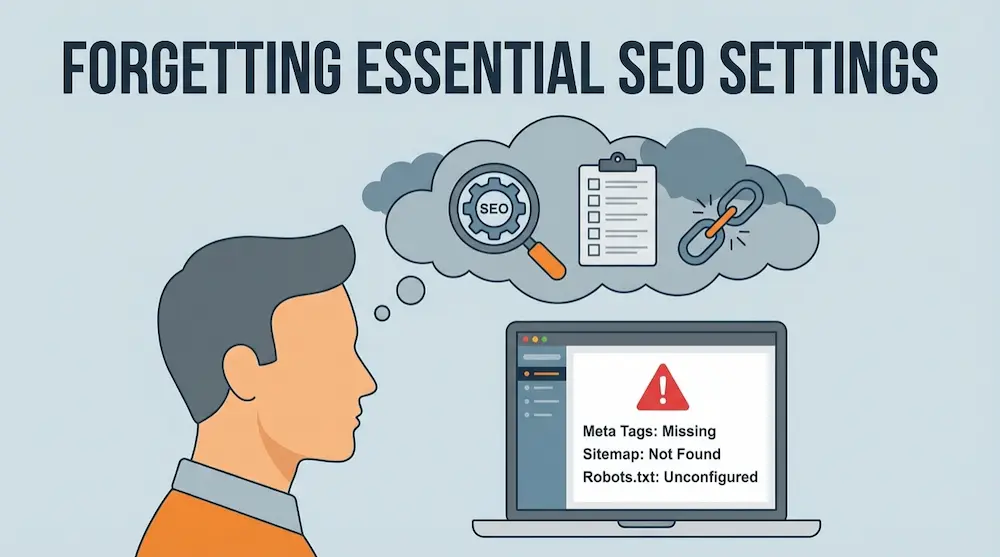
Mistake #5: Forgetting Essential SEO Settings
The Issue
WordPress is generally SEO-friendly out of the box, but a few default settings are absolute ranking killers. The biggest culprits are leaving search engine visibility turned off and keeping the default, ugly permalink structures (like yourdomain.com/?p=123).
The Fix
- Change Permalinks: Immediately go to Settings > Permalinks and change the structure to “Post name” (e.g.,
yourdomain.com/sample-post/). This tells Google exactly what the page is about. - Check Visibility: Ensure the “Discourage search engines from indexing this site” box under Settings > Reading is strictly unchecked once your site goes live.
- Use an SEO Plugin: Install a dedicated SEO tool to easily manage your XML sitemaps and write custom meta descriptions for every post.
Mistake #6: Not Having a Backup Strategy
The Issue
Relying solely on your web host for backups, or worse, having no backups at all. If a plugin update goes wrong, or you accidentally delete a critical file, you risk losing hours, days, or months of hard work.
The Fix
Take control of your own data. Implement an automated, off-site backup strategy. Use a reliable backup plugin to schedule daily or weekly backups and send those files directly to a secure cloud location like Google Drive, Dropbox, or Amazon S3.
Mistake #7: Ignoring Core, Theme, and Plugin Updates
The Issue
Seeing the red notification bubble for updates often triggers a fear that updating will “break the site.” As a result, beginners let updates sit for months. Outdated software is the number one cause of WordPress site infections, as hackers easily exploit known vulnerabilities in older versions.
The Fix
Create a safe, consistent update routine.
- Run your off-site backup.
- Update your plugins and themes.
- Update WordPress core.
- Check your live site in an incognito window to ensure everything looks correct.
Conclusion
Mastering WordPress is a learning curve, but avoiding these common pitfalls puts you miles ahead of the competition. By keeping your theme lightweight, actively fighting plugin bloat, and treating security and speed as your top priorities, you build a rock-solid foundation that both your visitors and search engines will love.
Over to you: Which of these mistakes did you make on your first WordPress site? Audit your website today, and let me know in the comments below which area you are going to fix first!
Frequently Asked Questions
How many plugins is “too many” for a WordPress site?
There is no exact number, but the quality and size of the plugins matter more than the quantity. A good rule of thumb is to keep your active plugins to the absolute minimum necessary. Instead of downloading a heavy third-party plugin for a minor feature, consider if it can be achieved with a custom code snippet. For example, coding your own lightweight dashboard greeting is far better for performance than installing a bulky admin customisation plugin.
What is the best WordPress theme for beginners concerned about speed?
Beginners should avoid heavy “multipurpose” themes that load hundreds of scripts you will never use. Opting for a clean, highly optimized theme like Kadence gives you a lightweight foundation. This allows you to design beautifully fast sites without bloating your code or sacrificing page speed.
My web host provides daily backups. Do I still need a backup plugin?
Yes! Relying solely on your host creates a single point of failure. If your server experiences a critical error or your hosting account is compromised, your backups could be lost along with your site. Always use a plugin to send an independent backup to a secure, remote cloud location like Google Drive.
Why isn’t my new WordPress website showing up on Google?
If your site is brand new, it takes time for Google to index it. However, the most common beginner mistake is accidentally leaving the “Discourage search engines from indexing this site” box checked under Settings > Reading.
You also need to ensure your permalinks are set to “Post name” so search engines can easily read your URLs.
Will updating WordPress core or plugins break my website?
It is possible for an update to cause a conflict, but the security risk of not updating is far worse. Outdated software is the most common vulnerability hackers exploit. To update safely, always run a full backup first, update your plugins one at a time, and then check your live site in an incognito window to ensure everything looks correct.
You May Also Like
-

Kadence Blocks Default Settings
Just installed Kadence Blocks and wondering which Kadence Blocks settings… -
Kadence Blocks for WordPress
Building your WordPress site with Kadence Blocks? Good choice. It’s… -
Build a Homepage with Kadence Blocks
Ready to build a homepage with Kadence Blocks and not…