

- WP Plugins
- |
- WordPress
Top 6 Image Optimization Plugins for WordPress
By Ehasanul Haque
Posted on September 16, 2026

Is your site slower than it should be?
Here’s a likely reason. The heaviest thing on most beginner sites isn’t the theme. It isn’t the plugins either. It’s one hero image on the homepage, uploaded straight from a phone, sitting there at 4 or 5 megabytes while the rest of the page adds up to less than one.
The good news: this is the easiest speed problem to fix. You don’t need to touch code. You need the right plugin and one setting.
In this post, you’ll get the best WordPress image optimization plugins compared, and one simple way to choose between them: decide where you want the compression to happen, and the right plugin falls out of that decision.
Some of these send your images to the vendor’s servers and send back smaller ones. Some do the work on your own hosting. One serves resized copies from a CDN and never touches your files. And the bonus at the end does it in your browser tab.
That single difference explains the pricing, the speed, the limits, and most of the complaints in the reviews.
Let’s dive in.
What Image Optimization Plugins Actually Do
An image optimization plugin is a tool that shrinks the file size of the images in your WordPress Media Library, usually by compressing them and converting them to a lighter format like WebP or AVIF, so pages load faster without the pictures looking noticeably worse.
Most of them also hook into new uploads. So every image you add from now on gets the same treatment automatically.
Three jobs sit under that sentence, and it helps to keep them apart:
- Compression. Throwing away image data your eyes won’t miss. “Lossy” throws away more, “lossless” throws away none and saves less. EWWW’s own listing puts lossless at about 8 percent average savings and WebP conversion at about 60 percent, which tells you where the real gains are.
- Format conversion. Turning a JPEG or PNG into WebP or AVIF. Same picture, much smaller file.
- Resizing. Scaling a 4000 pixel wide photo down to the 1200 pixels your theme actually displays. This one saves the most, and it’s the one beginners skip.
Lazy loading (not downloading images until you scroll to them) is a fourth job some of these bundle in. WordPress has done basic lazy loading on its own since version 5.5, so treat that feature as a bonus, not a reason to pick a plugin.
How We Chose
We looked at six things:
- Where the compression runs.
- Whether the free tier is usable on a real site, or just a demo.
- WebP and AVIF support.
- Whether it keeps your originals so you can undo.
- How it behaves on cheap shared hosting.
- Whether it plays nicely with the caching plugins from the speed roundup.
Every price and limit below was checked in September 2026 against the plugin’s own WordPress.org listing or pricing page. They change, so treat them as a snapshot.
1. ShortPixel: The All-Rounder

ShortPixel is the one to hand a beginner who wants the best compression and doesn’t want to think about it again.
Why It Stands Out
It runs in the cloud. You upload, ShortPixel’s servers compress, your site gets the smaller file back.
That’s why it’s fast on any hosting, including the cheap shared plans that would choke doing this work locally.
It offers three compression levels (lossy, “glossy” for photographers who hate visible loss, and lossless), converts to both WebP and AVIF, and backs up every original so you can restore anything you don’t like. Version 6.5 added “Smart Backups,” which keep only the main image and regenerate thumbnails on restore, so the backup folder stops eating your disk.
The catch is the pricing model. ShortPixel counts credits, and every image size WordPress generates (thumbnail, medium, large, plus whatever your theme adds) eats a credit. A single upload can cost five or six.
The free plan gives you 100 credits a month (WordPress.org listing, September 2026). That’s fine for a new blog posting a few images a week. It’s nowhere near enough for a library you’ve been filling since 2019. Paid plans come as monthly subscriptions or one-time credit packs.
Skimming for the free option? Past a small site, this isn’t it. Keep reading.
Key Features
- Lossy, glossy, and lossless compression levels
- WebP and AVIF conversion with automatic delivery
- Backs up originals for one-click restore
- Bulk optimizes the existing library, not just new uploads
Best for: beginners on shared hosting who want the best results with no configuration and don’t mind paying per image once the site grows.
2. Imagify: The Friendly One
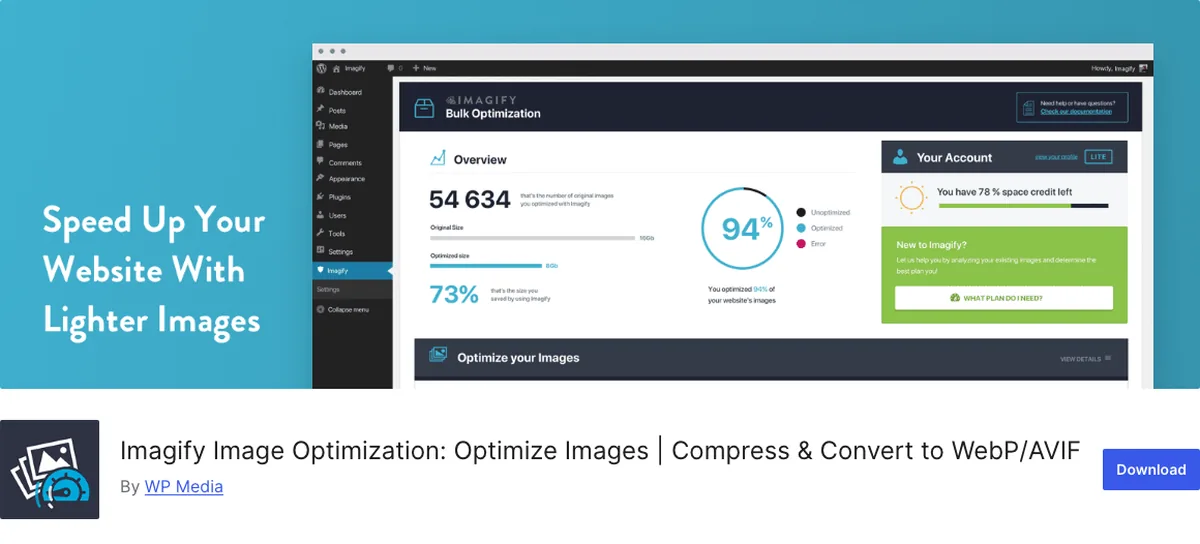
Imagify comes from WP Media, the same company that makes WP Rocket, and it shows. The interface is the cleanest of the six.
Why It Stands Out
Same cloud model as ShortPixel, so the same hosting-independent speed.
Where Imagify differs is the experience. One “Smart” compression mode picks the level for you. A very readable dashboard shows how much you’ve saved.
WebP plus AVIF conversion is a single toggle. If you’re already on WP Rocket, the two are built to sit together.
The free tier is measured in megabytes, not credits: 20 MB a month, which Imagify says is roughly 200 images, with a 2 MB cap per upload (imagify.io pricing, September 2026).
Read that 2 MB cap twice. The 4 MB phone photo from the opening won’t go through on the free plan at all.
Paid plans are $4.99 a month for 500 MB or $9.99 a month for unlimited, both billed yearly.
Key Features
- One-click Smart compression mode
- WebP and AVIF conversion
- Clean savings dashboard
- Tight WP Rocket integration
Best for: beginners who already run WP Rocket, or anyone who wants the least intimidating settings screen in this list and is happy to pay a few dollars a month.
3. Smush: The Popular Free Pick
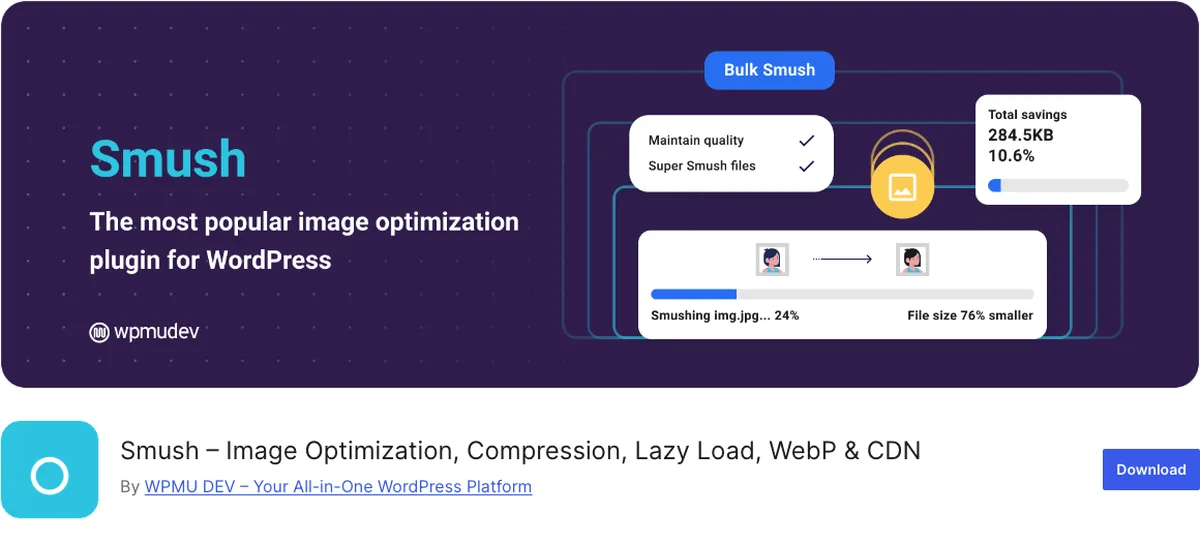
Smush by WPMU DEV is the one you’ve probably already got installed, because it’s the one every “must-have plugins” list mentions. It’s on over a million sites (WordPress.org, September 2026).
Why It Stands Out
Already have Smush active and thinking “so I’m fine, right?” Mostly, yes.
Free Smush does both lossless and lossy compression now, bulk optimization with no image-count cap, lazy loading, and a checker that flags images being displayed smaller than their real dimensions (which is the resizing problem in disguise).
Two things it doesn’t do for free: WebP or AVIF conversion, and anything over 5 MB, which it skips.
Smush Pro lifts the cap to 256 MB, adds the next-gen formats, and includes a CDN, as part of the wider WPMU DEV membership rather than a standalone purchase.
So the phone photo problem cuts both ways here. Free Smush will compress the 4 MB one. It won’t touch the 6 MB one, and it won’t turn either into WebP.
Key Features
- Free lossless and lossy compression, no monthly image cap
- Lazy loading and incorrect-size image detection
- Pro adds WebP, AVIF, a CDN, and the 256 MB limit
- Very large install base and long track record
Best for: beginners who want a free plugin that does a decent baseline job and might upgrade later.
4. EWWW Image Optimizer: The No-Limits Local Worker
EWWW Image Optimizer is the odd one out, and for some people it’s the only sensible choice.
Why It Stands Out
By default, EWWW compresses images on your own server. No credits, no monthly megabytes, no API key.
Optimize ten images or ten thousand, and the bill is zero. That includes WebP conversion.
AVIF and a CDN come with the paid Easy IO service if you later want the cloud model too (WordPress.org listing, September 2026). It keeps originals, and it’s on over a million sites.
The trade is CPU. Compression is real work, and on a cheap shared plan that work is slow and can nudge you into your host’s resource limits during a big bulk run. On a decent plan, or anything from the hosting roundup above the entry tier, it’s fine. Run the initial bulk optimization overnight and don’t worry about it.
There’s a second trade, and it’s the settings screen. EWWW exposes a lot. The default “Ludicrous mode” toggle hides most of it and the defaults are sane, so you can ignore the rest. But it doesn’t feel as polished as Imagify, and it never will.
Got an old library with thousands of images? This is your plugin. On credits, that’s a real invoice. On EWWW, it’s a slow afternoon.
Key Features
- Free, unlimited compression on your own server
- Free WebP conversion and original backups
- Optional Easy IO cloud/CDN upgrade adds AVIF
- Works without any account or API key
Best for: beginners with a large existing library, or anyone who refuses to pay per image, on hosting that isn’t the cheapest tier.
5. Optimole: The CDN Approach
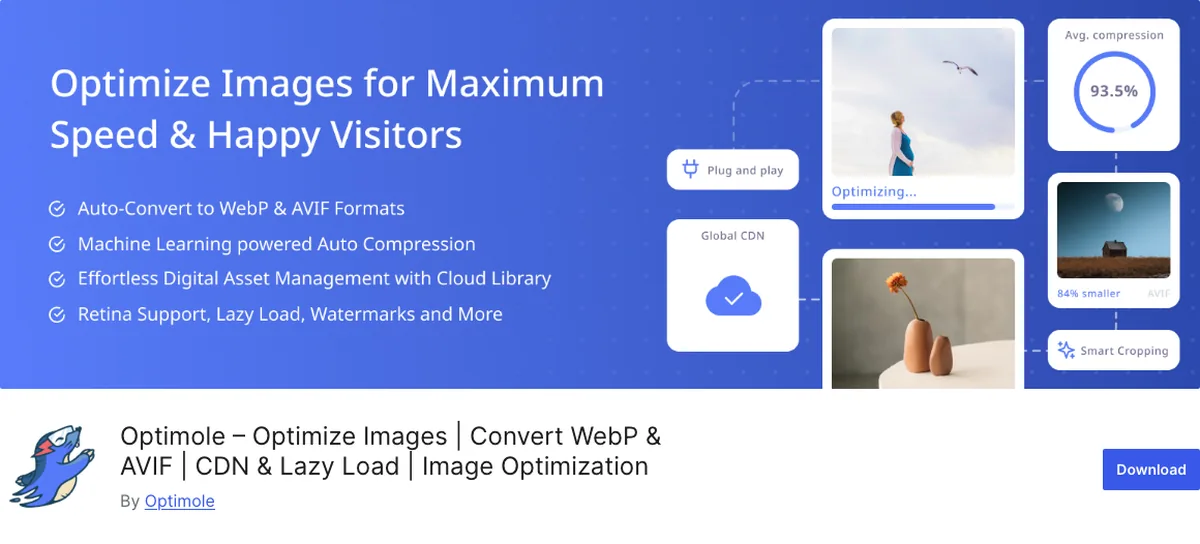
Optimole doesn’t optimize your Media Library at all, and that confuses people on day one.
Why It Stands Out
Instead of changing the files on your server, Optimole serves your images through its own CDN, resizing and compressing each one on the fly for the exact device requesting it.
A phone gets a 400 pixel WebP. A desktop gets a 1400 pixel one.
Your originals stay untouched. That’s either reassuring or a dealbreaker, depending on how you feel about depending on a third party to display your pictures.
The bill is based on visits, not images. The free plan covers up to 2,000 visits a month with unlimited images (WordPress.org listing, September 2026); paid plans step up to 48,000, 120,000, and 300,000 visits.
A brand new site can sit on free for a while. A site that grows pays for the growth. And if you ever cancel, your images simply go back to being served from your own server, unoptimized. That’s a cleaner exit than most.
Key Features
- Serves resized, compressed images per device from a CDN
- Originals never modified
- Automatic lazy loading and WebP/AVIF delivery
- Pricing scales with traffic, not library size
Best for: beginners with a small, low-traffic site who like the idea of never touching their original files.
6. TinyPNG: The Minimalist

TinyPNG (the plugin is listed as “TinyPNG: JPEG, PNG & WebP image compression”) does one thing, does it well, and stops.
Why It Stands Out
Cloud compression using the same engine as the tinypng.com website you may already have used by hand. Good results, very few settings.
You get 500 free compressions a month with no card required (tinify.com, September 2026), then it’s pay-per-image. Remember that each WordPress image size counts as one compression, so 500 is closer to 80 or 100 uploads.
No CDN, no lazy loading, no dashboard theatre.
Key Features
- Excellent lossy compression for PNG and JPEG
- WebP conversion
- Minimal settings
Best for: beginners with a small site who just want the tinypng.com result automated inside WordPress.
Bonus #7. Onylogy Image Optimizer: The One We Built for Our Own Workflow
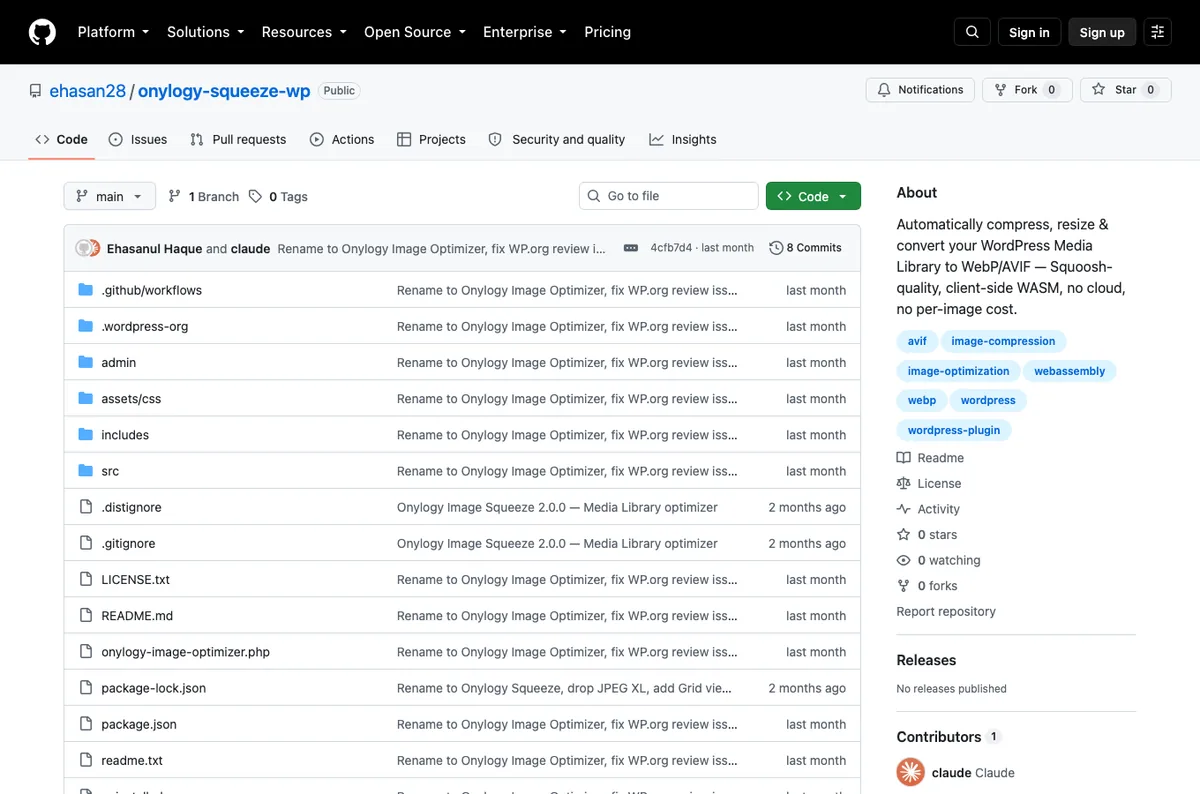
Full disclosure: this one is Onylogy’s own tool, so it’s a bonus rather than a ranked pick. Nobody is a neutral reviewer of their own work.
Why We Built It
Every plugin above either sends your images to someone else’s server or makes your own server do the work. Neither fit how we run client sites. Shared hosting doesn’t have the CPU to spare, and nobody wants a credit balance to watch or a third party holding client images.
So we wrote Onylogy Image Optimizer, which compresses inside your browser using WebAssembly. Your hosting never encodes anything. No image leaves your computer. And there are no credits, because there’s no cloud to pay for.
It replaces each file in place (a PNG becomes a WebP, with the filename and Media Library metadata updated to match) instead of creating a separate “next-gen” copy. That’s what makes it work with page builders that skip WordPress’s normal image filters.
It snapshots the original first, so Restore puts it back exactly. And it only replaces a file when the result is actually smaller.
The obvious limit: optimization only runs while you’ve got the tab open. For a bulk run on a huge library, EWWW overnight is still the easier path. For a client who uploads twenty images a week and doesn’t want a bill, it’s what we install.
Key Features
- Compresses in your browser with WebAssembly, no server load, no cloud
- Replaces files in place, converting to WebP or AVIF
- Snapshots originals for exact restore
- No credits, no subscription
Best for: anyone on cheap shared hosting who doesn’t want a per-image bill or a third party touching their images, and doesn’t mind leaving a tab open during bulk runs.
The Plugin Can’t Fix Your Upload Habit
Here’s the part no roundup wants to lead with, because it’s not a plugin.
If you keep uploading 5 megabyte photos, every plugin on this list is cleaning up after you forever. Some of them are charging you for it.
Resize before you upload. A blog image rarely needs to be wider than 1600 pixels.
Most of these plugins can resize on upload for you (ShortPixel, Imagify, EWWW and Smush all have the setting). Turn it on the day you install, and the problem stops arriving.
That one setting saves more than the difference between any two plugins here. Simple as that.
Quick Comparison
| Plugin | Where it compresses | Free tier | WebP / AVIF free? | Keeps originals | Best for |
|---|---|---|---|---|---|
| ShortPixel | Vendor cloud | 100 credits/month | Both | Yes | Best results, any hosting |
| Imagify | Vendor cloud | 20 MB/month, 2 MB per image | Both | Yes | WP Rocket users, easiest UI |
| Smush | Vendor cloud | Unlimited count, 5 MB per image | Pro only | Yes | Free baseline, huge install base |
| EWWW | Your server | Unlimited | WebP free, AVIF via Easy IO | Yes | Big libraries, no per-image bill |
| Optimole | CDN, on the fly | 2,000 visits/month | Both | Untouched | Small site, many devices |
| TinyPNG | Vendor cloud | 500 compressions/month | WebP | Yes | Small sites, minimal settings |
| Bonus: Onylogy Image Optimizer | Your browser | Unlimited | Both | Yes | No bill, no cloud, shared hosting |
Which Image Optimization Plugin Should You Choose?
- Want the best compression and zero decisions? ShortPixel.
- Already on WP Rocket, or want the friendliest screen? Imagify.
- Want free and already have it installed? Smush is fine. Turn on resize-on-upload today.
- Thousands of images, no appetite for a per-image bill? EWWW, run overnight.
- Small, low-traffic site, hate the idea of modified originals? Optimole.
- Tiny site, want tinypng.com automated? TinyPNG.
- Cheap shared hosting, don’t want a bill or a third party involved? The bonus pick.
- On LiteSpeed hosting already? Check whether LiteSpeed Cache’s built-in image optimization covers you before adding anything from this list.
Whichever you pick, install exactly one. You can’t go wrong with any of them if you also fix the upload habit.
Final Thoughts
Pick where you want the work done, then pick the plugin. Cloud for convenience, server for volume, CDN if you want originals left alone, browser if you’re on ours.
Then go and resize the homepage hero. That image is still 4 megabytes while you’re reading this.
That’s it. One plugin, one setting, and your pages get lighter from today.
Over to you: which one is on your site right now, and has it actually changed your PageSpeed score? Let me know in the comments.
Frequently Asked Questions
Do I need an image optimization plugin if I already use a caching plugin?
Usually yes. Caching serves a saved copy of the page faster, but the image files inside that page are still the same size. Some caching plugins (LiteSpeed Cache, WP Rocket with Imagify) bundle image optimization, so check before you double up.
Is WebP safe to use, or will some visitors see broken images?
WebP has been supported by every major browser since Safari added it in version 14 in 2020. All the plugins here fall back to the original JPEG or PNG for anything older, so the practical risk is close to zero.
Should I use lossy or lossless compression?
Lossy, for almost every blog and business site. The visible difference at normal settings is close to nothing and the file size difference is large. Lossless is for photographers and anyone selling prints.
Will optimizing images improve my Google ranking?
Indirectly. Smaller images improve Largest Contentful Paint, which is one of the three Core Web Vitals Google measures. See the speed guide for what LCP is and how to read your score.
Can I run two image optimization plugins at once?
Don’t. They’ll both try to process the same upload, and the usual result is duplicated work, broken thumbnails, or one plugin’s WebP files being ignored by the other.
What happens to my images if I cancel a cloud plan?
Files already compressed stay compressed on your server. New uploads simply stop being optimized. Optimole is the exception: since it never changed your files, cancelling means your images go back to being served at original size.
How big should a blog image be before I upload it?
For most themes, 1200 to 1600 pixels wide is plenty, and under 300 KB is a reasonable target after compression. If your plugin has a resize-on-upload setting, use it so you don’t have to remember.
You May Also Like
-

Kadence Blocks Default Settings
Just installed Kadence Blocks and wondering which Kadence Blocks settings… -
Kadence Blocks for WordPress
Building your WordPress site with Kadence Blocks? Good choice. It’s… -
Build a Homepage with Kadence Blocks
Ready to build a homepage with Kadence Blocks and not…