
- WordPress
How to Install WordPress: A Step-by-Step Guide for Beginners
By Ehasanul Haque
Posted on August 4, 2026
So you’ve picked your hosting, grabbed a domain, and now you’re staring at a control panel wondering what on earth to do next. That’s the exact moment this guide is for.
Here’s the good news: learning how to install WordPress is far easier than most beginners expect. On most hosts it takes a few clicks and about five minutes — no code, no command line, nothing scary. WordPress powers around 43% of all websites on the internet (W3Techs, 2025), and it didn’t get there by being hard to set up.
In this guide I’ll walk you through three ways to install WordPress — from the one-click method I recommend for almost every beginner, to the classic manual install if you ever need it. Pick the one that matches your situation and you’ll have a live WordPress site by the end.
Key Takeaways
- The easiest way to install WordPress is the one-click installer built into most hosting dashboards — pick it if you’re a beginner.
- You only need two things before you start: a hosting account and a domain name.
- Manual installation exists for special cases, but you rarely need it as a beginner.
- After install, your first stops are a theme, a few essential plugins, and your login security.
What “Installing WordPress” Actually Means
Installing WordPress means placing the WordPress software onto your web hosting server so your domain can run a live website. In plain terms: it’s the step that turns an empty hosting account into an actual site you can log into, design, and publish.
There are two pieces working together here. Your hosting is the space your site lives on, and WordPress is the software that runs the site. (If those words are still fuzzy, my beginner’s guide to what WordPress is explains the whole picture first.) Installing simply connects the two.
You’ll also hear about WordPress.org vs WordPress.com — this guide is about the self-hosted WordPress.org version you install on your own hosting, which is the one that gives you full control.
Before You Start: Your 2-Item Checklist
Before you install WordPress, you need exactly two things in place:
- Web hosting — the server that stores your site. If you haven’t chosen one yet, see my guide to the top hosting providers for WordPress.
- A domain name — your web address (like
yoursite.com). Most hosts let you register one during signup.
That’s it. No software to download, nothing to buy beyond those two. When I set up sites for clients, these are the only prerequisites I confirm before starting — everything else happens inside the hosting dashboard.
The 3 Ways to Install WordPress
There’s more than one road to the same destination. Here’s how they compare so you can pick before you start:
| Method | Best for | Difficulty | Time |
|---|---|---|---|
| One-click install | Almost every beginner | Very easy | ~5 min |
| Auto-installer (Softaculous) | Hosts without a WP shortcut | Easy | ~10 min |
| Manual install | Custom setups / no installer | Advanced | ~20–30 min |
My honest advice: use method 1 unless your host doesn’t offer it. The manual method is worth understanding, but you almost never need it as a beginner.
Method 1: One-Click Install (Recommended)
The one-click method installs WordPress automatically through your hosting dashboard — you fill in a short form, click a button, and the host does the technical work for you. This is the fastest, safest route for beginners, and it’s what most modern hosts (Hostinger, Bluehost, SiteGround, DreamHost) build right into their setup.
Here’s the step-by-step:
- Log in to your hosting account and open the dashboard (sometimes called hPanel, cPanel, or “My Sites”).
- Find the WordPress option. Look for a button like “Install WordPress,” “Auto Install,” or a WordPress logo. On many hosts it’s part of a guided setup wizard the first time you log in.
- Choose your domain. Select the domain you want the site installed on from the dropdown.
- Fill in your site details: site title, admin username, a strong password, and your email. Do not use “admin” as your username — it’s the first thing attackers guess.
- Click Install and wait about a minute while the host sets everything up.
- Save your login link (usually
yoursite.com/wp-admin) along with your username and password.
That’s the whole thing. When the progress bar finishes, WordPress is live on your domain.
Method 2: Install via Auto-Installer (Softaculous)
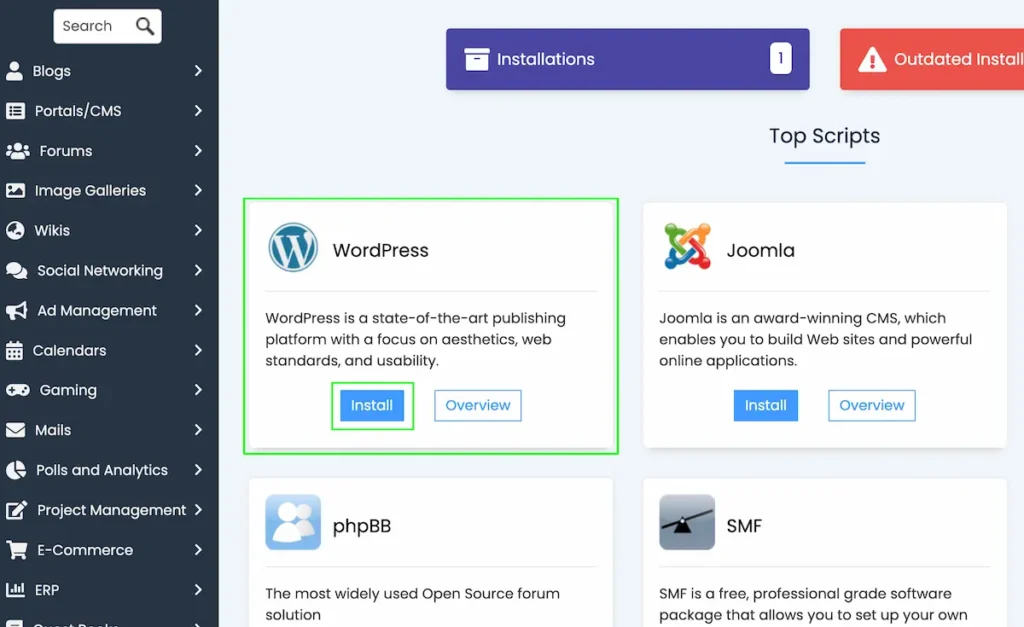
If your host doesn’t have a dedicated “Install WordPress” button, it almost certainly has an auto-installer like Softaculous inside cPanel — a tool that installs popular software for you with a single form. The steps are nearly identical to method 1, just one layer deeper:
- Log in to cPanel from your hosting account.
- Scroll to the “Softaculous Apps Installer” section and click the WordPress icon.
- Click Install Now.
- Choose your domain, protocol (pick
https://if you have an SSL certificate — most hosts include one free), site name, admin username, and password. - Click Install and wait for the confirmation screen with your login link.
Same result as method 1 — this is just the fallback when there’s no one-click shortcut on the main dashboard.
Method 3: Manual Install (The Famous “5-Minute Install”)
Manual installation means uploading the WordPress files to your server yourself and connecting them to a database by hand. You rarely need this as a beginner, but it’s worth knowing it exists for custom setups or hosts without an installer. Here’s the outline:
- Download WordPress from WordPress.org.
- Upload the files to your server using an FTP client (like FileZilla) or your host’s File Manager.
- Create a database and database user in cPanel (via “MySQL Databases”).
- Visit your domain and WordPress launches its setup wizard.
- Enter your database details, then fill in your site title, username, and password.
- Click Install WordPress — done.
It’s called the “5-minute install,” though your first time will realistically take longer. If method 1 is available to you, use it instead and skip this entirely.
What to Do Right After Installing WordPress
Installed and logged in? Nice — the hard part is over. But an empty WordPress site isn’t finished yet. These are the first four moves I make on every fresh install:
- Pick a theme to control how your site looks — start with a lightweight one from my top free WordPress themes list.
- Install a few essential plugins for SEO, security, and backups — see my 6 must-have WordPress plugins guide.
- Set your permalinks to “Post name” under Settings > Permalinks for clean, SEO-friendly URLs.
- Lock down your login with a strong password and a security plugin so day one doesn’t become a problem later.
Do those four and you’ve dodged most of the common mistakes beginners make right out of the gate.
Conclusion
Installing WordPress used to feel like a technical hurdle. Today it’s a five-minute, few-click job — and now you know all three ways to do it. For almost everyone reading this, the one-click installer is the right call: it’s fast, it’s safe, and it gets you straight to the fun part of actually building your site.
Get it installed, set up your theme and a couple of plugins, and you’re officially running on the same platform as 4 in 10 websites on the internet. Over to you: which install method did your host offer? Get WordPress live today, and your website journey is properly underway.
Frequently Asked Questions
Is installing WordPress free?
Yes. The WordPress software from WordPress.org is completely free and open-source. You only pay for the things it runs on — your hosting and your domain name.
How long does it take to install WordPress?
With a one-click installer, about five minutes. A manual installation takes longer — usually 20 to 30 minutes the first time, once you factor in uploading files and creating a database.
Do I need coding skills to install WordPress?
No. The one-click and auto-installer methods require zero code. You just fill in a short form and click install — the host handles the technical parts for you.
Do I need hosting before I can install WordPress?
Yes, for a self-hosted WordPress.org site you need web hosting and a domain name first. Both are usually set up together when you sign up with a hosting provider.
What’s the difference between WordPress.org and WordPress.com?
WordPress.org is the free, self-hosted software you install on your own hosting for full control. WordPress.com is a hosted service that manages things for you but limits customization on lower plans. This guide covers WordPress.org.
What should I do first after installing WordPress?
Log in, choose a theme, install a few essential plugins (SEO, security, backups), set your permalinks to “Post name,” and secure your login with a strong password.
You May Also Like
-

Kadence Blocks Default Settings
Just installed Kadence Blocks and wondering which Kadence Blocks settings… -
Kadence Blocks for WordPress
Building your WordPress site with Kadence Blocks? Good choice. It’s… -
Build a Homepage with Kadence Blocks
Ready to build a homepage with Kadence Blocks and not…