
- WordPress
WordPress File Types Explained: A Complete Beginner’s Guide
By Ehasanul Haque
Posted on October 1, 2026
Your WordPress site is made of files.
Dozens of them, with endings you have probably never thought about. .php, .json, .htaccess, .webp, .sql.
Most of the time you never see any of it. Then a plugin asks you to upload a .json, or an error mentions a file you’ve never heard of, and suddenly it matters.
Good news: you don’t need to learn all of them. You need to know which handful you’ll actually meet, what each one does, and which ones to leave alone.
That’s what this guide is. Every one of the WordPress file types you’ll run into, in plain English, with a link to a deeper guide where there’s more to say.
No coding required. Let’s take a look.
Key Takeaways
- Two groups: files that build your site (themes, plugins, config) and files that hold your content (images, exports, database).
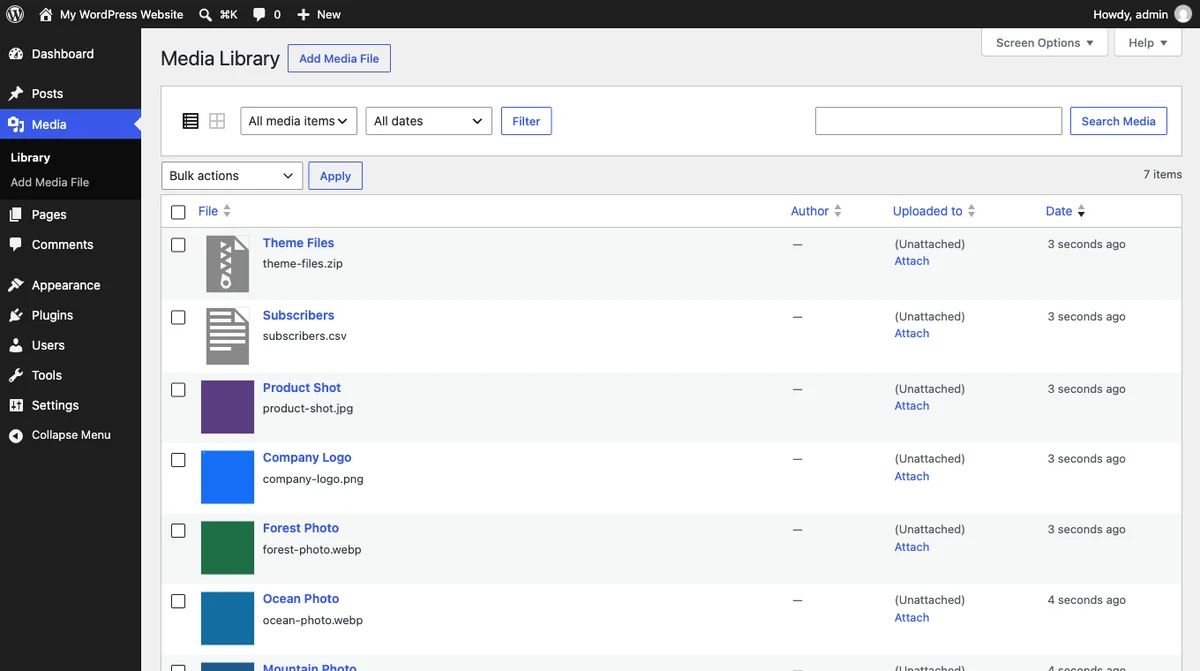
- WordPress blocks some uploads on purpose. JSON, XML, SQL, and SVG are all rejected by the Media Library for security reasons.
- Your site is files plus a database. A backup with only one of the two is not a backup.
- You can run a site for years without opening a single one of these files.
Why WordPress File Types Matter
Because knowing what a file is turns a scary error message into a small task.
Here’s what usually happens. Somebody sends you a logo as an SVG and WordPress refuses it. A tutorial says “edit your .htaccess” and you don’t know where to look. Your backup produces a .sql and you have no idea whether that’s everything.
Each of those is a two minute problem once you know what the file is. Without that, they feel like a wall.
There’s a second reason, and it’s the one that saves people real money. Knowing which files hold what is how you understand backups, migrations, and what you actually own.
The Quick Reference Table
Here is every file type you’re likely to meet on a WordPress site.
| File | What it is | Where you’ll meet it | Upload allowed? |
|---|---|---|---|
.php | The code WordPress runs on | Themes, plugins, wp-config.php | No |
.css | Styling rules | Themes, custom CSS | No |
.js | Interactive behaviour | Themes, plugins | No |
.json | Settings and data | Exports, theme.json, patterns | No |
.csv | A plain text spreadsheet | Product and user imports | Yes |
.xml | Tagged, structured data | Exports, sitemaps, RSS | No |
.sql | Your database, written out | Backups, migrations | No |
.zip | A squashed folder | Theme and plugin installs | Yes |
.jpg .png | Standard images | Media Library | Yes |
.webp .avif | Modern image formats | Media Library | Yes |
.svg | Vector graphics | Logos and icons | No |
.htaccess | Web server instructions | Your root folder | No |
robots.txt | Crawler instructions | Your site root | No |
llms.txt | A proposed AI content map | Your site root | No |
That “upload allowed” column is real, not our opinion. WordPress core keeps a fixed list of permitted upload types, and you can read it yourself in wp_get_mime_types(), checked September 2026.
Surprised by any of those? Most people are surprised that CSV and ZIP are allowed while JSON and SVG are not.
The WordPress File Types That Build Your Site
These three do almost all the work, and you’ll never upload any of them. They arrive inside themes and plugins.
.php files
PHP is the programming language WordPress is written in.
Every page on your site is assembled by PHP code before it reaches your visitor. Your theme is mostly PHP files. So is every plugin.
The one you’ll hear about most is functions.php, because that’s where tutorials tell you to paste snippets. It sits in your theme folder.
The other important one is wp-config.php in your root folder, which holds your database details and settings.
Both can break your site with a single typo, which is why neither should be edited casually. There’s a safer way to add PHP, covered in how to edit WordPress files safely.
.css files
CSS controls how everything looks. Colours, spacing, fonts, layout.
If PHP builds the house, CSS paints it.
Your theme’s main stylesheet is style.css, and it also carries a header comment that tells WordPress the theme’s name and version. That comment is why you cannot just delete the file.
Want to change some styling? Don’t edit the theme’s CSS. Use Appearance > Customize > Additional CSS, which survives updates.
.js files
JavaScript makes things move and respond. Sliders, dropdown menus, pop ups, anything that reacts without reloading the page.
Themes and plugins bring their own. You rarely add any yourself.
Worth knowing: JavaScript is the most common reason a page feels slow. Every plugin that loads a script adds weight, which is why a lighter plugin list makes a faster site. Our must have plugins roundup is deliberately short for that reason.
The Data and Settings File Types
These are the ones you’ll actually handle, usually when importing or exporting something.
JSON files
A .json file stores settings and data as labels and values. Plugin exports, block patterns, and theme settings all use it.
It’s the format you’ll meet most often when moving configuration between sites. Full guide: what is a JSON file.
A special case worth knowing is theme.json, which defines a block theme’s colours, fonts, and spacing. That one has its own guide: theme json explained.
CSV files
A .csv is a spreadsheet saved as plain text, with commas separating the columns.
This is how you bulk import products into WooCommerce, or export your form entries into a spreadsheet. It’s also one of the few data formats WordPress lets you upload. Full guide: what is a CSV file.
XML files
.xml wraps every value in a named tag. It’s older than JSON and does a similar job, less compactly.
In WordPress it powers your content export, your sitemap, and your RSS feed. Full guide: what is an XML file.
One warning worth repeating here: your XML export is not a backup. It holds your posts, not your theme, plugins, or images.
SQL files
A .sql file is your entire database written out as instructions that can rebuild it.
Posts, pages, comments, users, settings. Everything you typed. Full guide: what is a WordPress SQL file.
ZIP files
A .zip is a folder squashed into one file, and it’s how every theme and plugin arrives.
WordPress unzips it for you. The catch is that it’s fussy about what’s inside, which is why so many installs fail. Full guide: how WordPress uses zip files.
WordPress Image File Types
Images are the heaviest thing on most pages, so picking the right format genuinely matters.
JPEG is the universal photo format. Small files, no transparency, works everywhere.
PNG keeps every pixel and supports transparency, but the files are large.
WebP does both jobs in a smaller file. WordPress has supported it since version 5.8.
AVIF compresses harder still, and arrived in WordPress 6.5. It needs the right support on your host.
SVG is different from all of them. It stores shapes rather than pixels, so it stays sharp at any size, which is why logos use it. WordPress blocks SVG uploads by default because the format can carry code.
Two guides cover this properly: WebP vs JPEG vs PNG for choosing a format, and SVG files in WordPress for uploading logos safely.
Do file types affect your site speed?
Some of them, quite a lot.
Images are the usual culprit, because they are the heaviest thing on most pages. Switching a library of photos to WebP is one of the biggest wins available to you.
JavaScript is the next one. Every script a plugin loads has to be downloaded and run before the page settles.
The rest barely register. Your .htaccess, your sitemap, and your config files are tiny and read once.
So if you are chasing speed, look at your images first and your plugin count second.
The Files Search Engines and AI Read
Three files sit at your site’s root and talk to machines rather than people.
robots.txt
This tells crawlers which parts of your site they may request. WordPress generates one automatically, even if no real file exists.
It’s also where you decide how AI crawlers treat your content, which is a genuinely new decision in the last couple of years. Full guide: the WordPress robots txt file.
The one thing to remember: robots.txt controls crawling, not indexing. It will not hide a page from Google.
sitemap.xml
A list of your pages for search engines to find. WordPress has built one into core since version 5.5, and your SEO plugin probably replaced it with its own.
You submit it once in Search Console and forget about it. Full guide: WordPress sitemap xml.
llms.txt
A proposed file that hands AI tools a curated list of your best content.
Worth setting expectations honestly here: the evidence that it helps is weak, and Google has said it does not use it. Full guide, with the actual research: llms txt for WordPress.
The Server Configuration File
One more, and it’s the most powerful file on this page.
.htaccess gives instructions to your web server before WordPress even loads. Permalinks, redirects, browser caching, and a solid layer of security rules all live here.
It’s also the one that can take your whole site offline with a single typo. That sounds worse than it is, because renaming the file brings everything straight back.
Full guide: the WordPress htaccess file.
Not on an Apache server? Then you may not have this file at all. Nginx handles the same jobs in its own configuration.
Why Does WordPress Block Some File Uploads?
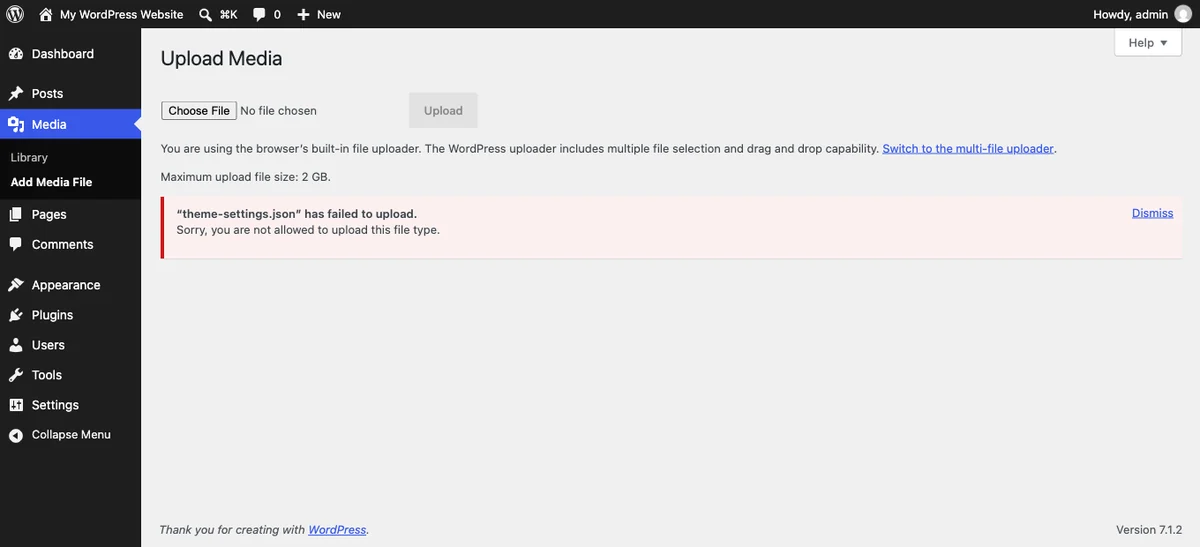
Because a public folder is the wrong place for certain kinds of file.
Your Media Library sits at a web address anyone can reach. That’s fine for photos. It is not fine for a database export full of user accounts.
So WordPress keeps a fixed list of allowed types and rejects everything else with “Sorry, you are not allowed to upload this file type.”
Two different risks are being managed there.
Files that can run code. SVG is XML and can contain a script, so an uploaded SVG could attack your visitors. That’s why it’s blocked.
Files that hold private data. A .sql or a settings .json can contain passwords, keys, and customer details. Those should never sit in a public folder.
So how do you get those files in? Through the tool that understands them.
Plugin settings go through the plugin’s own importer. Databases go through phpMyAdmin. Content exports go through Tools > Import.
That’s the rule behind all of it: the importer that understands the file is the one that should receive it.
Where Do All These Files Live?
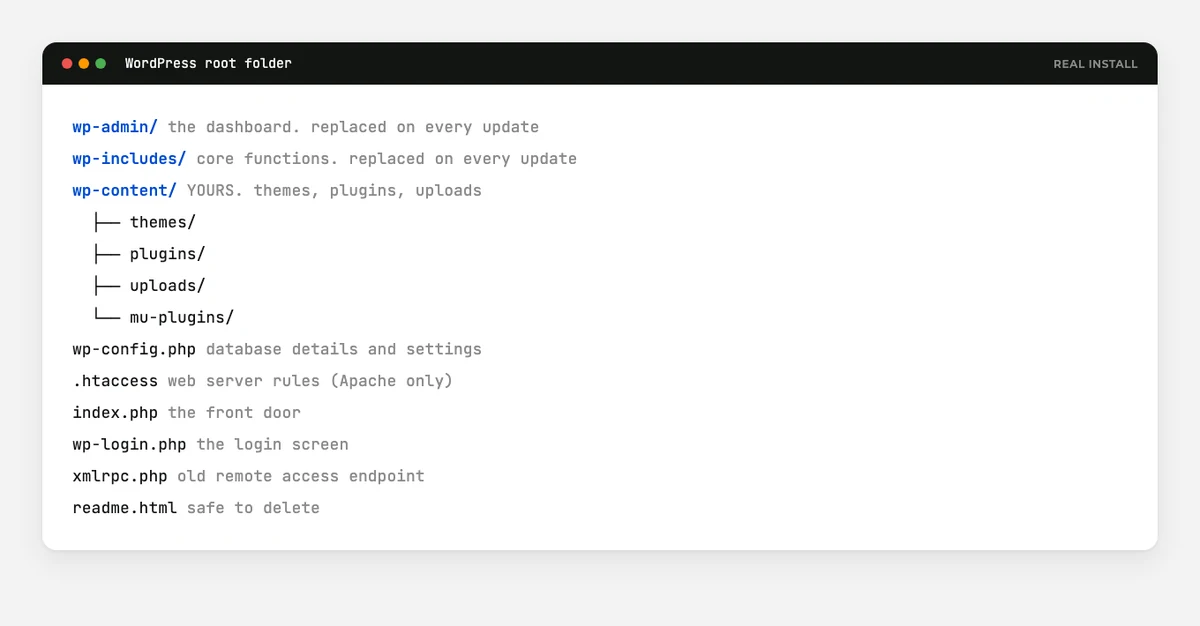
Your WordPress installation has three folders and a handful of loose files at the top.
wp-content is the only one you should ever touch. Your themes, plugins, and uploads all live in here. Everything that makes your site yours is inside this folder.
wp-admin is the dashboard itself. Core files, replaced on every update.
wp-includes holds the core functions WordPress runs on. Also replaced on every update.
The root folder holds wp-config.php, .htaccess, and index.php.
Here’s the useful takeaway. On an update, WordPress replaces wp-admin and wp-includes entirely and leaves wp-content alone.
That’s exactly why you never edit core files, and why your custom work has to live in wp-content to survive.
Files vs Database: The Thing Everyone Misses
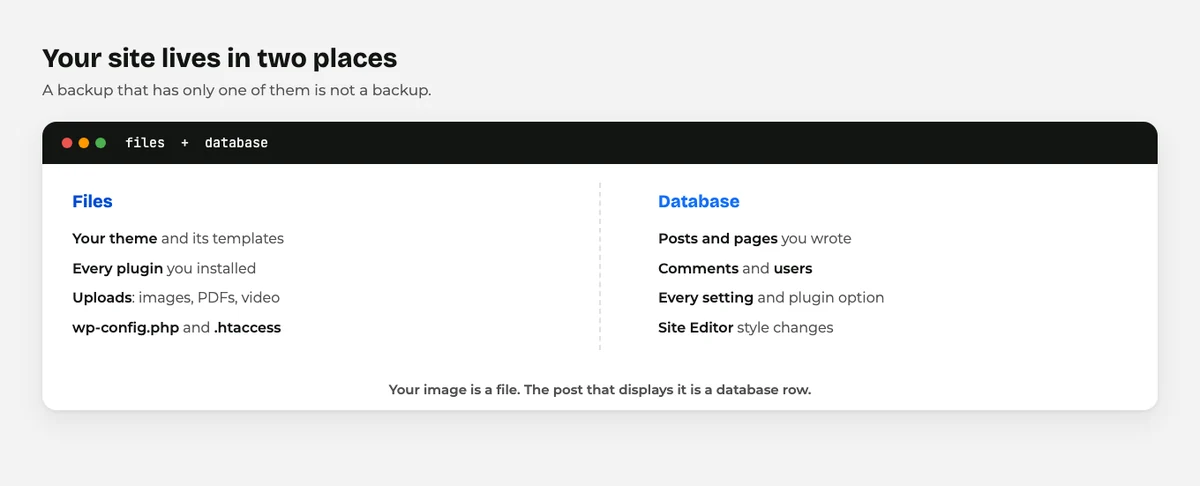
This is the single most useful idea on this page, so it gets its own section.
Your WordPress site lives in two separate places.
Files are your theme, your plugins, and everything you have uploaded. They sit in folders on your host.
The database holds everything you typed. Posts, pages, comments, users, settings, plugin options.
Your images are files. The post that displays them is a database row. Your theme is files. The colours you picked in the Site Editor are database rows.
Why does this matter so much? Because a backup needs both.
Restore only the database and you get all your writing with no theme and no images. Restore only the files and you get an empty site with a working design.
Check that your backup covers both. Our guide on how to back up your WordPress site walks through it.
Which Files Should You Actually Learn?
Honestly, very few. Here’s the order I’d suggest.
- Start with nothing. You can run a WordPress site for years without opening any file on this page.
- Learn
.zipfirst, because every theme and plugin install uses one and the errors are common. - Learn
.jsonnext, because plugin exports and imports save real time. - Learn
.htaccesswhen you need it, not before. Read the guide the day you have a reason. - Understand files versus database always. This one is not optional, because your backups depend on it.
Everything else you can look up when it appears. That’s what this cluster of guides is for.
Final Thoughts
WordPress file types look intimidating as a list and turn out to be quite simple one at a time.
Three WordPress file types build your site: PHP, CSS, and JavaScript, all arriving inside themes and plugins.
A handful of data formats move things in and out. A few images. Three small files talk to search engines and AI, and one configuration file controls your server.
That’s the whole map.
The two things worth carrying away: your site is files plus a database, and WordPress blocks certain uploads on purpose rather than by accident.
Everything else, you can look up when you meet it. Bookmark this page and follow the links when a file turns up that you don’t recognise.
And if you’re right at the start of all this, our what is WordPress guide is the better place to begin.
Over to you: which file brought you here? Tell me in the comments and I’ll point you at the right guide.
Frequently Asked Questions
What WordPress file types are there?
WordPress runs on PHP, CSS, and JavaScript files, stores content in a database, and handles data through JSON, CSV, XML, and SQL files. Images are usually JPEG, PNG, WebP, or AVIF.
What file types can you upload to WordPress?
Images, audio, video, PDFs, documents, CSV, and ZIP files are allowed by default. JSON, XML, SQL, and SVG are blocked for security reasons.
Why does WordPress say this file type is not permitted?
The file is not on core’s list of allowed upload types. That list deliberately excludes files that can carry code or private data, such as SVG and SQL.
Where are WordPress files stored?
In your hosting account, usually in a folder called public_html. Your themes, plugins, and uploads all live inside wp-content.
Which WordPress folder should I never edit?
Leave wp-admin and wp-includes alone, because WordPress replaces both on every update. All your custom work belongs in wp-content.
Is my WordPress content stored in files or in a database?
In the database. Your posts, pages, comments, and settings are database rows, while your images, theme, and plugins are files.
What is the most important WordPress file?
wp-config.php, because it holds your database connection details. Without it, WordPress cannot reach your content at all.
Do I need to learn WordPress file types to run a site?
No. Most site owners never open one of these files, and the dashboard covers everything you normally need.
You May Also Like
-

What Is Web Hosting
Want a website but have no idea where it actually… -
What Is a JSON File?
You clicked a download button, and out came a file… -
How to Edit WordPress Files
A tutorial told you to “add this code to your…