
- WordPress
WordPress Dashboard Explained: A Beginner’s Tour
By Ehasanul Haque
Posted on August 4, 2026
You just installed WordPress, you log in for the first time… and there it is: a screen full of menus, widgets, and words like “Permalinks” and “Taxonomies.” It’s a lot. Every single beginner feels a little lost at this exact moment — so if that’s you, you’re in good company.
Good news: the WordPress dashboard is far simpler than it looks. Once you know what each menu does, you’ll realize you only touch a handful of them day to day. The WordPress dashboard (also called wp-admin) is the control panel where you manage everything on your site — your content, design, plugins, and settings. Think of it as the cockpit for your website.
In this tour I’ll walk you through the dashboard menu by menu, in plain language, so the next time you log in it all makes sense. If you haven’t installed WordPress yet, start with my step-by-step install guide and come back.
Key Takeaways
- The dashboard (wp-admin) is your site’s control panel — reach it at
yoursite.com/wp-admin. - You’ll use just a few menus most of the time: Posts, Pages, Media, Appearance, and Plugins.
- The left-hand menu is how you navigate everything; the top admin bar gives quick shortcuts.
- Settings is powerful but you rarely need to touch most of it after initial setup.
How to Log In to Your WordPress Dashboard
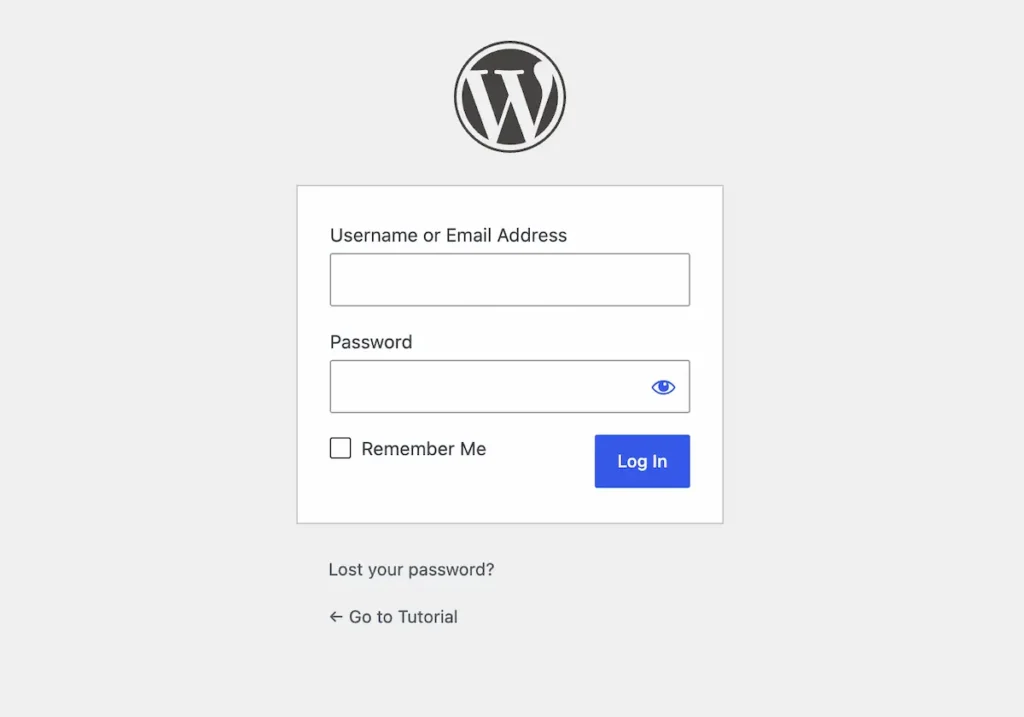
You reach your WordPress dashboard by adding /wp-admin to your website address — for example, yoursite.com/wp-admin. Enter the username and password you created during installation, and you land on the dashboard home screen. Bookmark that login link; it’s your front door from now on.
The first thing you’ll see is the Dashboard home — a summary screen with an “At a Glance” box, quick-draft area, and update notices. It’s fine to ignore most of it. The real navigation lives on the left.
The Left-Hand Menu: Your Main Navigation
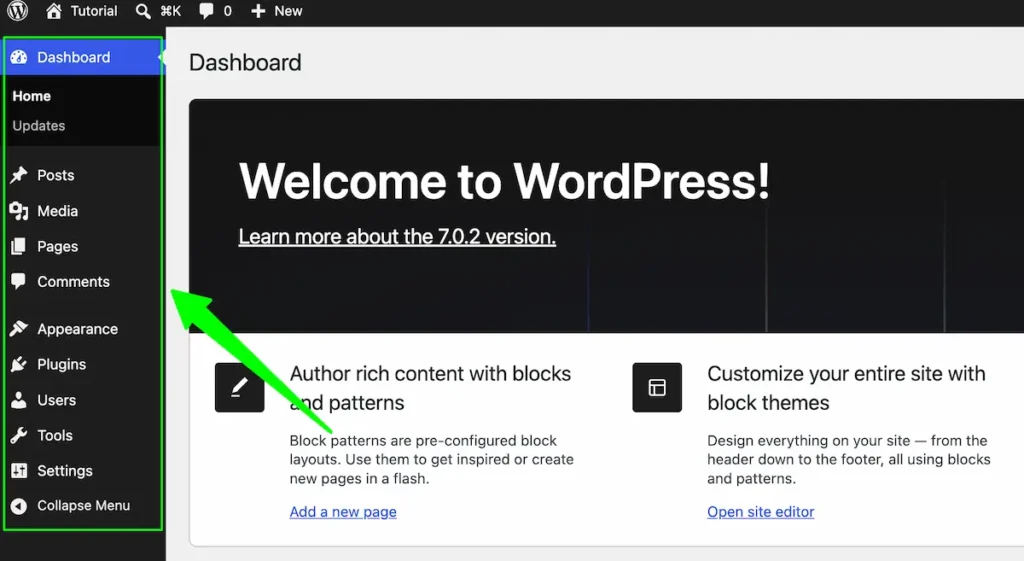
The dark menu running down the left side is the heart of the dashboard — every part of your site is one click away from here. Hover any item and a sub-menu slides out. Here’s what each main item does, top to bottom.
Posts
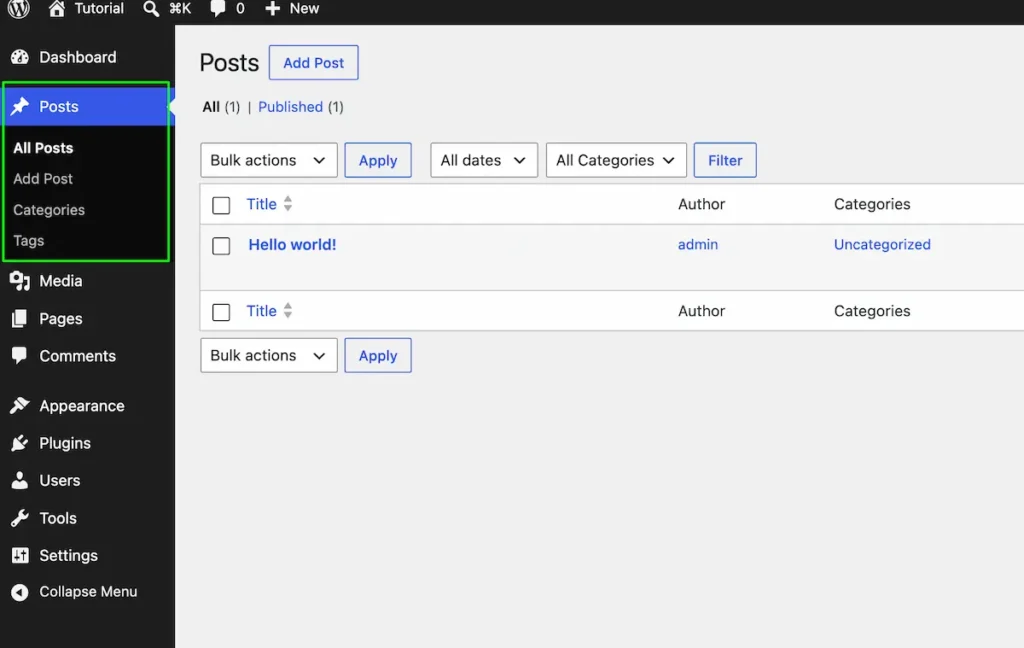
Posts are your blog entries — dated, categorized articles that appear in reverse-chronological order. Under Posts you can write new articles, edit existing ones, and organize them with Categories and Tags. If you’re running a blog, this is where you’ll live.
Media
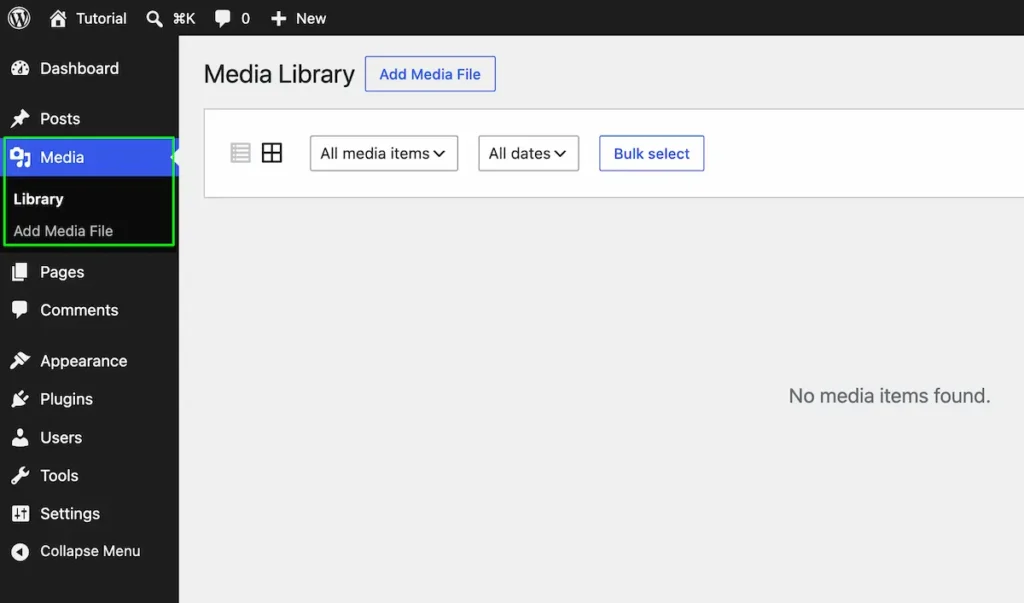
The Media Library is where every image, video, and file you upload is stored. You can add files here directly, or upload them while editing a post. Think of it as your site’s photo album and file cabinet in one.
Pages
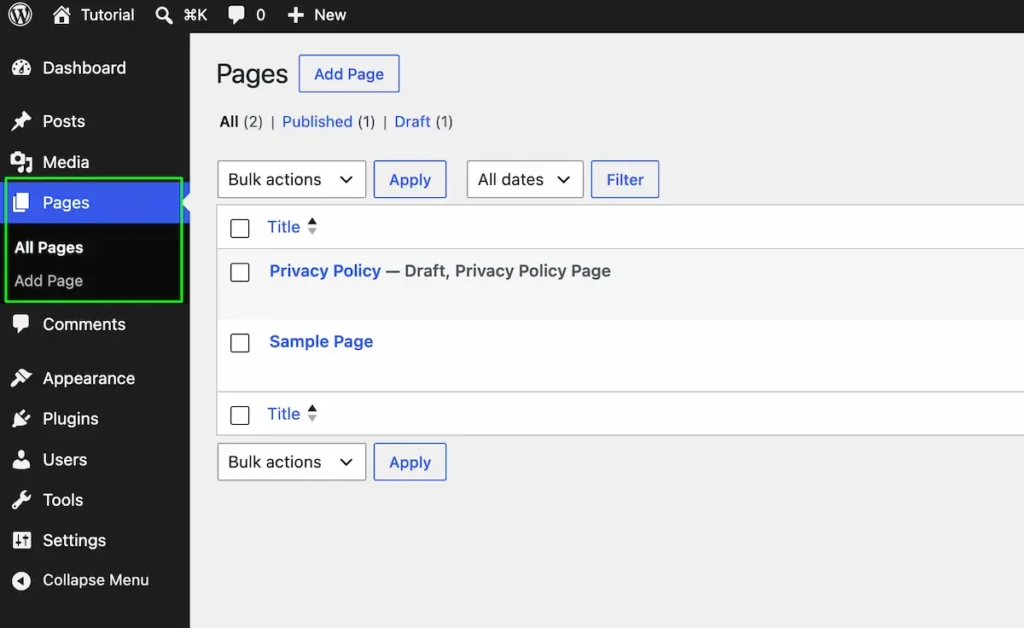
Pages are for static, timeless content — your Home, About, Contact, and Services pages. Unlike posts, they aren’t dated or categorized. Use Posts for articles, Pages for permanent sections — that one distinction clears up a lot of beginner confusion.
Comments
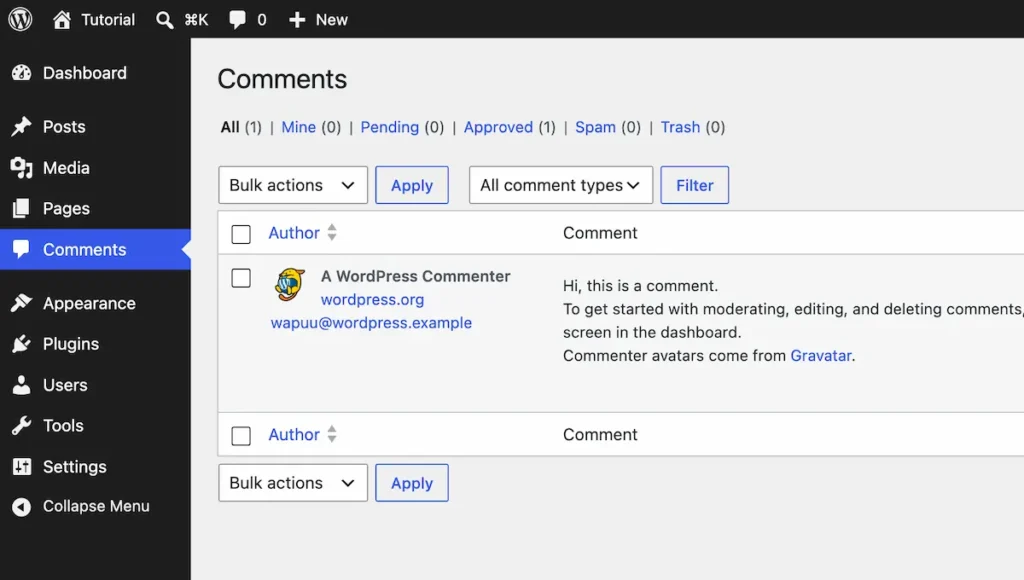
This is where reader comments land for you to approve, reply to, or mark as spam. If comments aren’t useful for your site, you can turn them off in Settings.
Appearance
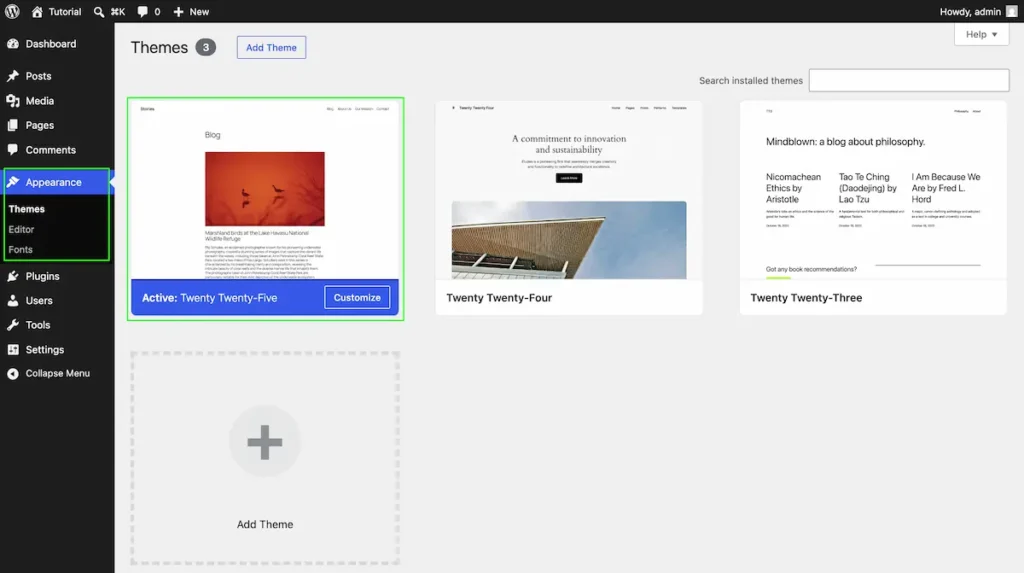
Appearance controls how your site looks. Here you install and activate Themes, open the Customizer to change colors and layout, set up Menus, and add Widgets. New to themes? See my top free WordPress themes for beginners.
You can choose any theme from the WordPress Theme Repository.
Plugins
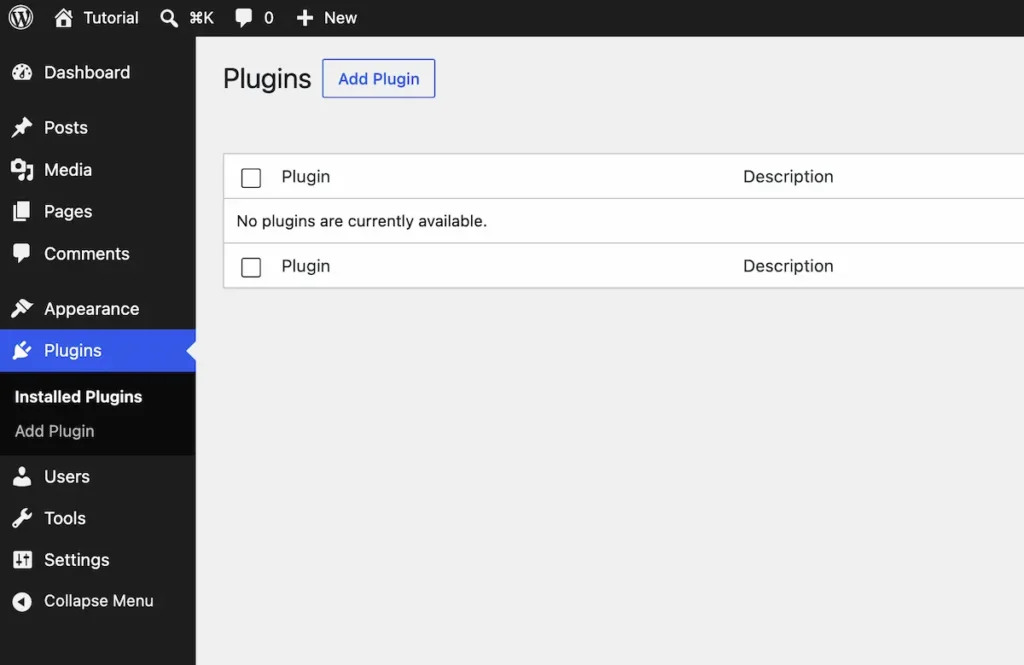
Plugins add new features to your site — SEO, security, contact forms, and more. Under Plugins you install, activate, and update them. Start with my 6 must-have WordPress plugins, and resist installing too many (a classic mistake I cover in common beginner mistakes).
Users
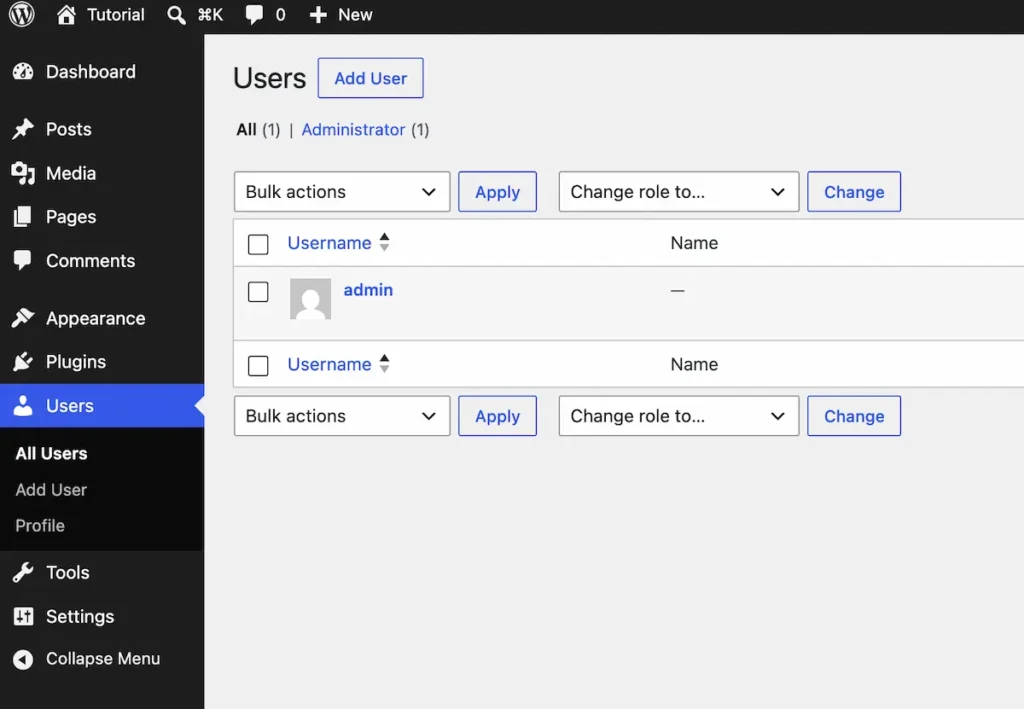
Manage who can access your site here — add authors, editors, or admins, and set their roles. If you’re the only person running the site, you’ll rarely open this.
Tools
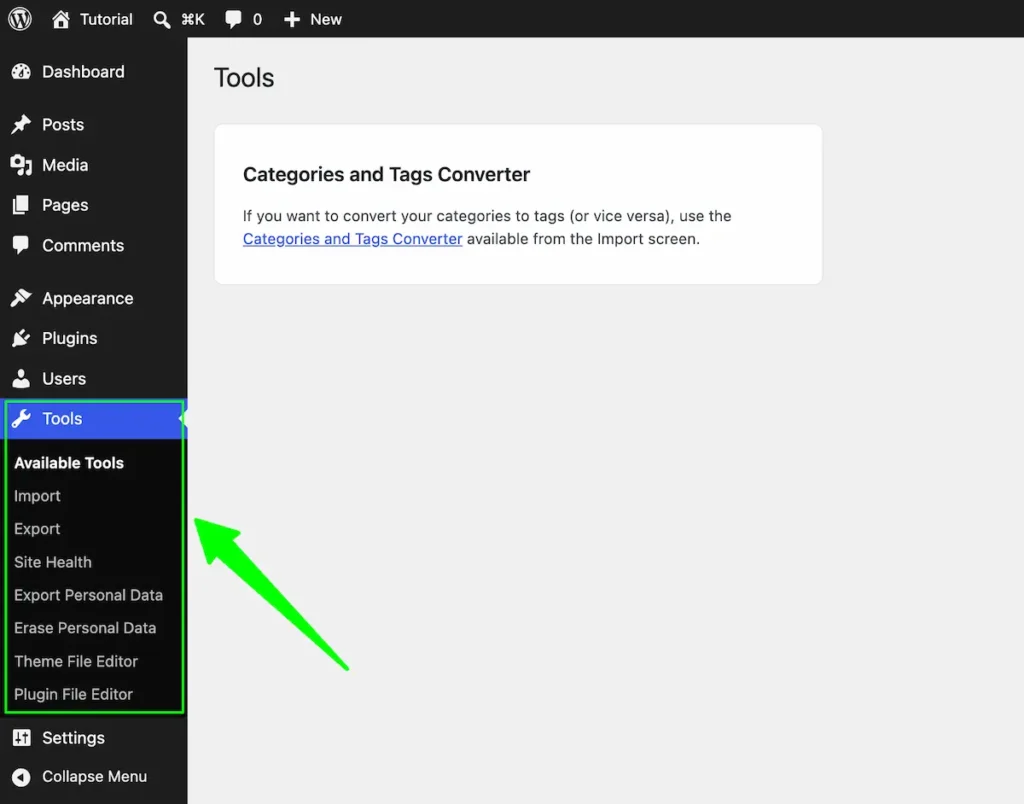
A small toolbox for importing and exporting content and a few extras. Beginners barely touch it.
Settings
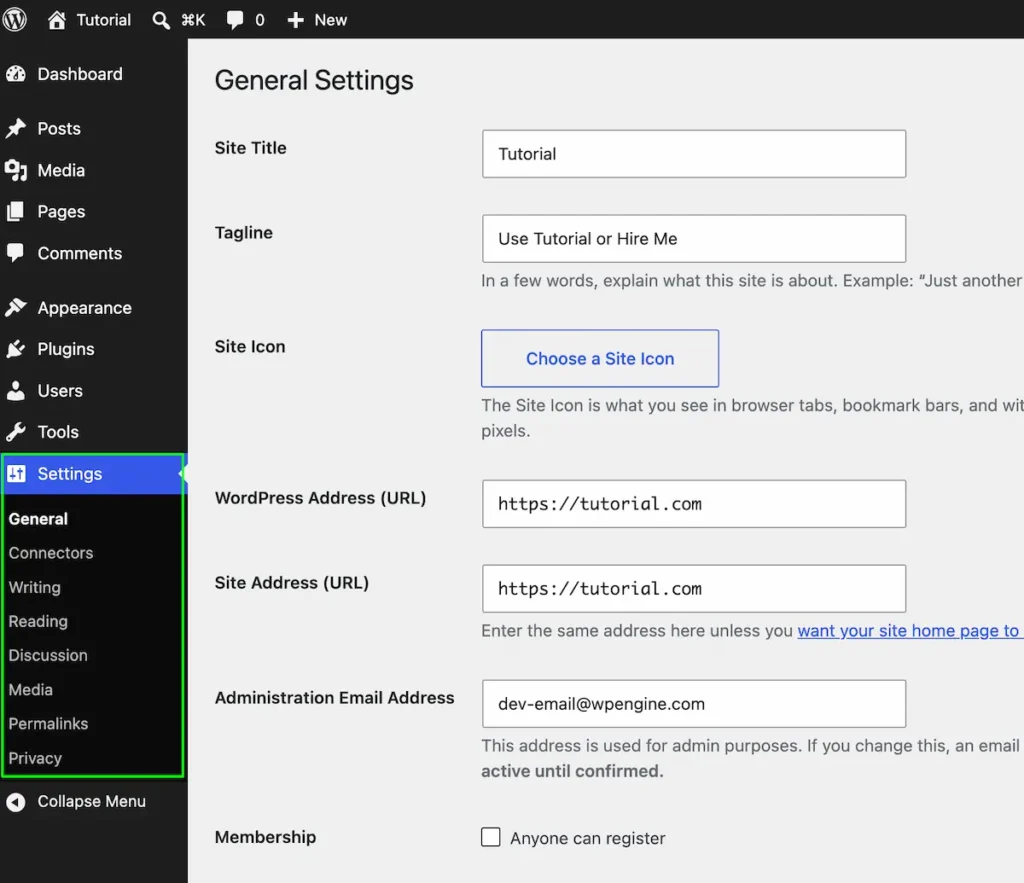
Settings holds your site’s core configuration: site title, tagline, and — importantly — Permalinks. One tip I give every beginner: go to Settings > Permalinks and choose “Post name” for clean, SEO-friendly URLs. Set it once and forget it.
The Top Admin Bar
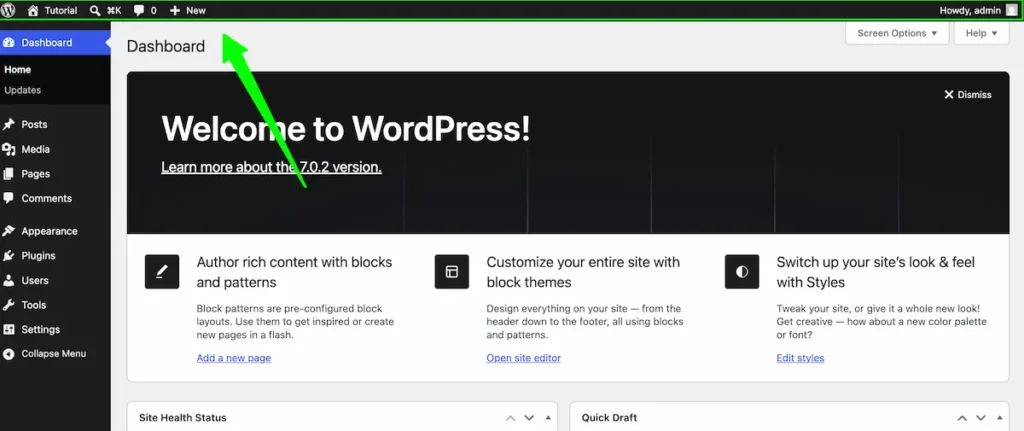
Running across the very top of the screen is the admin bar — a slim shortcut strip visible whenever you’re logged in. It lets you jump to “New Post,” visit your live site, check comments, and clear caches (if a plugin adds that). It’s the fastest way to hop between editing and previewing your site.
Which Menus Will You Actually Use?
Feeling overwhelmed by all those menus? Don’t be — in practice, most beginners use just five of them regularly:
- Posts — writing blog content
- Pages — your core site pages
- Media — images and files
- Appearance — design and menus
- Plugins — adding features
The rest (Users, Tools, most of Settings) you configure once and rarely revisit. When I set up a site, I spend 90% of my dashboard time in exactly those five.
Conclusion
The WordPress dashboard looks intimidating for about a day — then it becomes second nature. Now you know the map: the left menu navigates everything, the admin bar gives you shortcuts, and five friendly menus cover almost everything you’ll do.
The best way to get comfortable is to click around and explore — you won’t break anything. Log in, take the tour yourself, and start with a first post or page. Your website is waiting.
Frequently Asked Questions
How do I access my WordPress dashboard?
Add /wp-admin to your site address (e.g. yoursite.com/wp-admin) and log in with the username and password you set during installation.
What’s the difference between Posts and Pages?
Posts are dated blog articles organized by categories and tags. Pages are static, timeless content like your About or Contact page. Use posts for articles and pages for permanent sections.
What is wp-admin?
wp-admin is the URL and name for the WordPress admin dashboard — the backend control panel where you manage your site’s content, design, and settings.
Which dashboard menus should a beginner focus on?
Posts, Pages, Media, Appearance, and Plugins cover almost everything a beginner needs day to day.
Can I break my site by clicking around the dashboard?
Exploring menus is safe. Just be careful when deleting content, changing themes, or editing under Settings — and keep a backup plugin installed for peace of mind.
How do I change how my site looks?
Go to Appearance > Themes to switch themes, and Appearance > Customize to adjust colors, fonts, and layout.
You May Also Like
-

What Is Web Hosting
Want a website but have no idea where it actually… -
WordPress File Types Explained
Your WordPress site is made of files. Dozens of them,… -
What Is a JSON File?
You clicked a download button, and out came a file…