
- WP Plugins
- |
- WordPress
6 Must-Have WordPress Plugins to Get Started
By Ehasanul Haque
Posted on July 24, 2026
Building a WordPress site?
Congratulations. You’ve picked the best platform on the web.
But there’s a catch.
Fresh out of the box, WordPress is… naked. It needs help to run fast, stay safe, and rank high in search engines.
That’s where plugins come in.
The problem? There are over 60,000 free plugins in the official directory.
If you install too many, your site breaks. If you install the wrong ones, you get hacked.
You don’t need 50 plugins. You just need the right ones.
In this post, I’m going to show you the 6 essential WordPress plugins every beginner needs to install on day one.
These tools cover security, speed, backups, and SEO.
Let’s dive right in.
1. Yoast SEO – The SEO Powerhouse

You want people to find your website, right?
Then you need to speak Google’s language.
WordPress is decent at SEO (Search Engine Optimization) by default. But it’s not perfect.
Yoast SEO fixes that.
Think of Yoast as your personal SEO coach. It analyzes your content as you write it and tells you exactly what to tweak.
Why You Need It
Without an SEO plugin, you are guessing. Yoast removes the guesswork.
It handles technical stuff—like sitemaps and meta tags—automatically. You don’t need to know code. You just need to follow the green lights.
Key Features
Alternative: If you want a more modern interface with more free features, try Rank Math, SEOPress, or All in One SEO. But for pure simplicity, Yoast is still king.
2. Wordfence Security – The Bodyguard
Here is a scary stat:
WordPress sites are targeted by hackers thousands of times per minute.
You might think, “Who cares about my small blog?”
Bots care. They don’t discriminate. They attack everyone.
Wordfence is your digital bouncer. It stands at the door and blocks malicious traffic before it hits your site.
Why You Need It
WordPress is secure, but its popularity makes it a target. Wordfence locks down your login page and scans your files for malware.
If someone tries to guess your password 20 times in a row? Blocked.
Key Features
Alternative: If you want specific site-hardening features or a lighter dashboard, try Solid Security, Sucuri, or All In One WP Security.
3. UpdraftPlus – The Time Machine
Imagine this:
You spend months building your site. You write dozens of posts. You tweak the design perfectly.
Then, one update goes wrong. Or a hacker gets in.
Poof. It’s all gone.
Unless you have a backup.
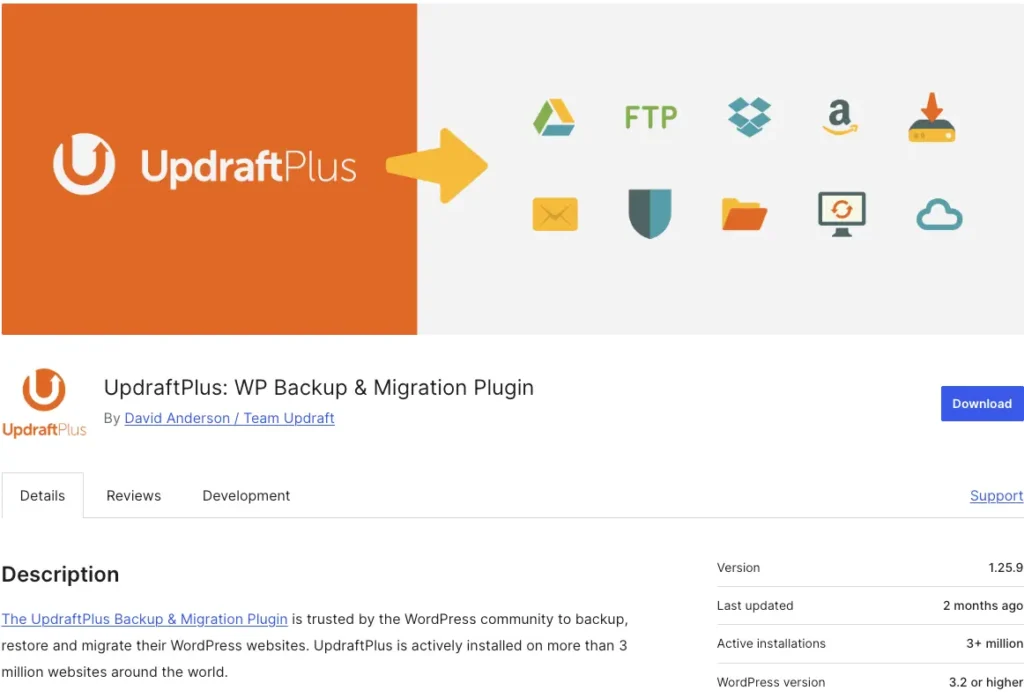
UpdraftPlus is the world’s most trusted backup plugin. It’s like an “Undo” button for your entire website.
Why You Need It
Most hosting companies claim to back up your site. Do not rely on them.
You need your own backups stored safely off-site (like on Google Drive or Dropbox). UpdraftPlus automates this. Set it once, and forget it.
Key Features
Alternative: If you need specialized migration tools or different cloud options, try WPVivid, or All-in-One WP Migration.
4. WP Super Cache – The Speed Booster
Speed is a ranking factor.
If your site takes longer than 3 seconds to load, visitors leave.
WordPress creates pages “dynamically.” This means every time someone visits your site, WordPress has to go into the database, find the content, and build the page from scratch.
That takes time.
WordPress Super Cache creates a “static” copy of your site. It serves this copy to your visitors instantly.
Why You Need It
A faster site means happier users and better rankings on DuckDuckGo and Google.
There are complex caching plugins out there (like W3 Total Cache). Avoid them for now. WP Super Cache is created by Automattic (the people behind WordPress.com). It is simple, free, and it works.
Key Features
Alternative: If you want deep technical control or have a specific server setup, try W3 Total Cache, WP Fastest Cache, or LiteSpeed Cache.
5. WPForms Lite – The Communication Channel

Every website needs a Contact page.
You don’t want to post your email address publicly. That’s a recipe for spam.
You need a form.
WPForms is the most beginner-friendly form builder on the market. It uses a drag-and-drop interface that feels like playing with LEGOs.
Why You Need It
Old school contact form plugins were hard to style and broke easily. WPForms just works.
It’s fast, mobile-responsive, and prevents basic spam submissions.
Key Features
Alternative: If you need advanced styling or payment features for free, try Ninja Forms, Forminator, or Fluent Forms.
6. Akismet Anti-Spam – The Spam Killer
If you allow comments on your blog, you will get spam.
Lots of it.
“Great post! Click here for cheap Rolex watches.”
You don’t want to spend your life deleting these manually.
Akismet filters them out automatically. It checks your comments against a massive global database of spam.
Why You Need It
It keeps your comment section professional and clean. It comes pre-installed on many WordPress sites—you just need to activate it.
Key Features
Alternative: If you want a GDPR-compliant or CAPTCHA-free solution, try Antispam Bee, CleanTalk, or Zero Spam.
Conclusion
Starting a WordPress site can feel overwhelming.
But you don’t need to be a tech wizard. You just need a solid foundation.
Install these 6 plugins today:
Once these are active, you can stop worrying about the tech and start focusing on what matters:
Creating great content.
Frequently Asked Questions (FAQ)
Q1: Are these WordPress plugins free?
Yes! All the plugins listed above have excellent free versions (“Lite” versions) that are perfect for beginners. You only need to pay if you need advanced features later on.
Q2: Can I install more than 6 plugins?
You can, but be careful. Every plugin adds code to your site. Too many low-quality plugins can slow down your site or cause conflicts. Stick to the essentials first.
Q3: Which is better: Yoast SEO or Rank Math?
Both are excellent. Yoast is generally considered easier for absolute beginners to understand. Rank Math offers more features in its free version but has a slightly steeper learning curve.
Q4: Do I really need a security plugin if my host is secure?
Yes. Hosting security protects the server, but a plugin like Wordfence protects the WordPress software itself (the “application layer”). You need both.
Q5: How do I install a WordPress plugin?
Go to your WordPress Dashboard > Plugins > Add New. Search for the plugin name (e.g., “UpdraftPlus”), click Install Now, and then click Activate.
Q6: Will these plugins slow down my website?
Generally, no. High-quality plugins like the ones on this list are optimized for performance. In fact, WP Super Cache will make your site significantly faster.
Q7: Do I need a backup plugin if my host does backups?
Absolutely. If you lose access to your hosting account or their servers fail, you lose your backups too. Always keep an independent backup on cloud storage (like Google Drive) using UpdraftPlus.
You May Also Like
-

How to Install WordPress
So you’ve picked your hosting, grabbed a domain, and now… -
WordPress.com vs WordPress.org
Here’s a confusing little secret nobody warns beginners about: there… -
Common WordPress Mistakes Beginners Make
WordPress powers over 40% of the internet, making it the…