
- Hosting
Hosting Management for Advanced Users: PHP, Caching, Files, Backups and More
By Ehasanul Haque
Posted on October 9, 2026
Your site is live. Now what?
Most people never open their hosting dashboard again after the first install. And for a while, nothing goes wrong.
Then a plugin needs a newer PHP version. Or a change won’t show up because something is cached. Or you need a file you can’t reach from WordPress.
Good hosting management turns those moments into five-minute jobs. Without it, they become a lost afternoon.
Don’t worry. You don’t need to be a server admin. You just need to know what each tool does and where your host keeps it.
In this guide, I’m going to walk you through everything inside a hosting account: PHP, caching, files, databases, backups, staging, SSL, cron jobs, logs, security, and moving hosts.
New to hosting? Start with our beginner guide to what web hosting is, then come back here.
Let’s get into it.
Key Takeaways
- Every host has a different dashboard, but the jobs are the same: learn the job once and you can find it anywhere.
- Keep PHP current: WordPress recommends PHP 8.3 or newer, and older versions stop getting security fixes.
- Caching happens in layers: server, object, CDN and browser. Clear them in the right order.
- Never trust a single backup: keep your host’s backups and your own off-site copy, and test a restore.
What Is Hosting Management?
Hosting management is the work of configuring and maintaining your hosting account so your website stays fast, secure and online: PHP versions, caching, files, databases, backups, SSL and security.
WordPress manages your content. Your host manages the server underneath it.
Most problems that feel like “WordPress is broken” actually live one level down, in the hosting account.
Learn that level, and you’ll fix things faster than most support chats.
Why Does Hosting Management Look Different on Every Host?
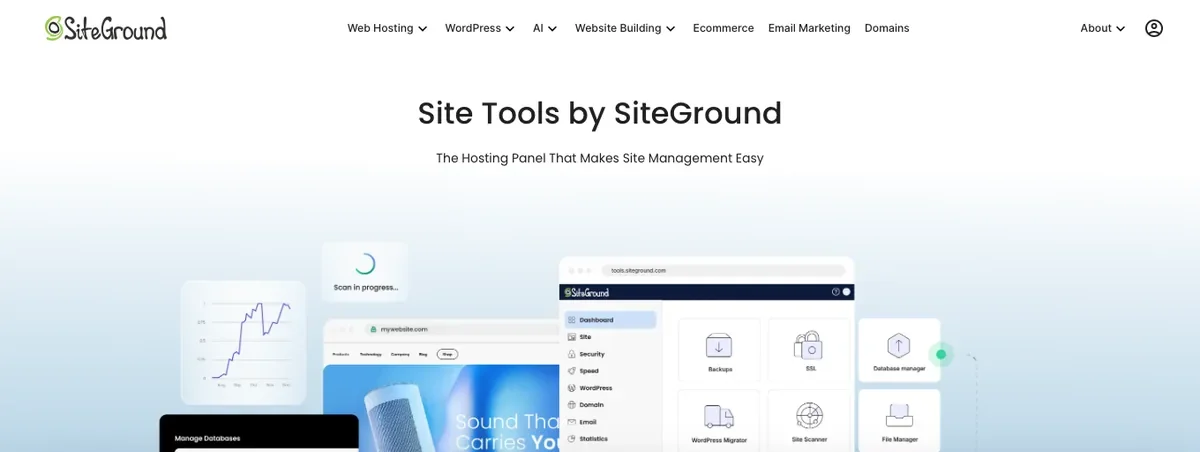
Every hosting company builds or licenses its own control panel, so the same task sits under a different menu name on each host. The underlying jobs don’t change.
Here are the panels you’ll meet most often:
- Hostinger: hPanel. Its own dashboard, organised by website, with sections like PHP Configuration and Cache Manager.
- SiteGround: Client Area and Site Tools. The Client Area handles your account and billing. Site Tools manages each website, with tabs for Site, Security, Speed, WordPress, Domain, Email, Statistics and Devs.
- Kinsta: MyKinsta. A clean, WordPress-only dashboard with pages for Tools, Caching, Backups, Logs and Add-ons.
- cPanel. The classic panel licensed by many hosts, including some big names. Plesk is a similar licensed panel.
- Cloud and VPS panels. Managed cloud platforms add their own dashboards, and a bare server may have no panel at all.
So when a tutorial says “click X”, your host might call it Y.
The good news? Once you know what you’re looking for (PHP version, cache, file manager), you can find it on any host in a minute.
Where Do Common Hosting Management Jobs Live on Each Panel?
Here’s where the common jobs lived on four panels, according to each host’s documentation in October 2026:
| Job | Hostinger (hPanel) | SiteGround (Site Tools) | Kinsta (MyKinsta) | cPanel hosts |
|---|---|---|---|---|
| Change PHP version | PHP Configuration | Devs > PHP Manager | Tools > PHP settings | MultiPHP Manager |
| Server cache | Cache Manager | Speed > Caching | Caching | Depends on the host |
| Object cache | Check your plan | Speed > Caching (Memcached) | Add-ons > Redis | Depends on the host |
| Files | File Manager | Site > File Manager | SFTP or SSH | File Manager |
| Backups | Backups | Security > Backups | Backups | Backups (varies) |
| DNS records | DNS / Nameservers | Domain > DNS Zone Editor | Kinsta DNS | Zone Editor |
| Logs | Varies by plan | Statistics > logs | Logs | Errors, Raw Access |
Menu names change with redesigns. If something isn’t where the table says, search your host’s help centre for the job, not the menu name.
What Should You Check First in Hosting Management?
Before changing anything, check four things: your PHP version, your web server software, your plan’s resource limits, and when your last backup ran.
- PHP version. It’s usually on the dashboard or the PHP settings page.
- Web server software. Apache, NGINX or LiteSpeed. It decides which cache plugin and which .htaccess rules work.
- Resource limits. Storage, inodes (the number of files you can store), CPU, memory and simultaneous processes. Shared plans enforce these quietly.
- Last backup. Know the date before you touch anything.
Why the web server matters: onylogy.com runs on a LiteSpeed server, so the LiteSpeed Cache plugin can talk to the server’s own cache. That pairing simply isn’t possible on an NGINX host.
How Do You Manage PHP Versions Safely?
Update PHP by testing the new version on a staging copy, checking your plugins and theme for errors, then switching the live site and watching the error log.
PHP is the programming language WordPress runs on. Your host lets you choose which version runs your site.
Which PHP Version Should You Use?
WordPress recommends PHP 8.3 or greater, with MySQL 8.0+ or MariaDB 10.11+ (WordPress.org, October 2026).
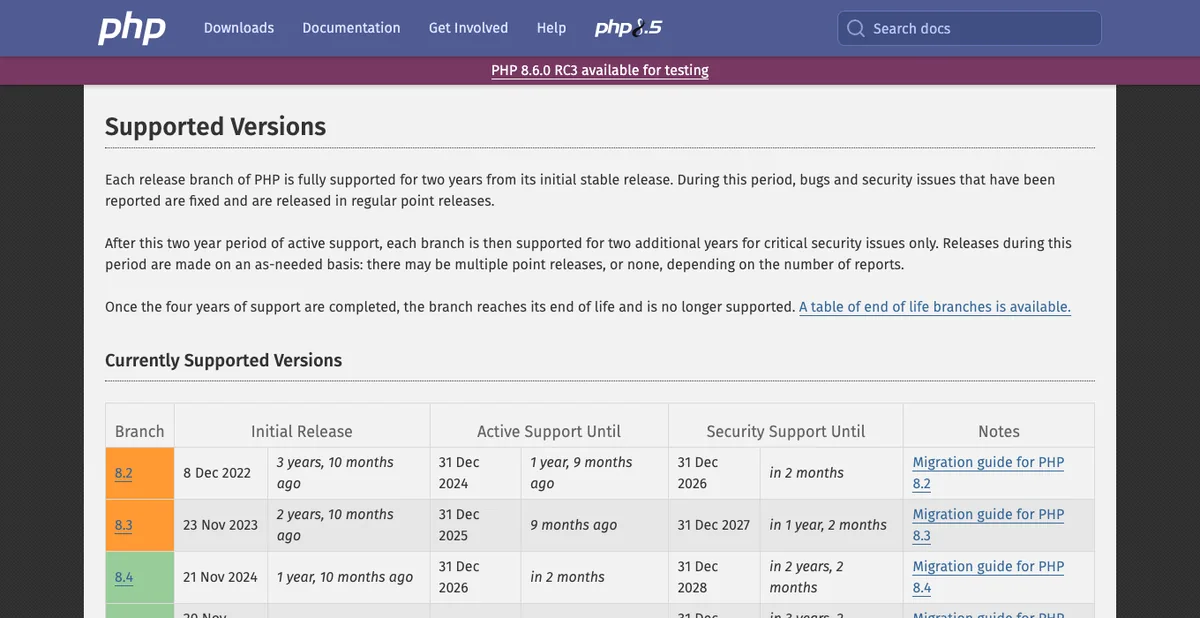
Each PHP version gets two years of active support, then two years of security fixes only. Here’s where things stand on PHP’s official supported versions page (October 2026):
| PHP version | Active support until | Security fixes until |
|---|---|---|
| 8.2 | Ended 31 Dec 2024 | 31 Dec 2026 |
| 8.3 | Ended 31 Dec 2025 | 31 Dec 2027 |
| 8.4 | 31 Dec 2026 | 31 Dec 2028 |
| 8.5 | 31 Dec 2027 | 31 Dec 2029 |
The takeaway is simple. If you’re on 8.2 or older, plan an upgrade before the end of 2026.
How Do Hosts Handle PHP Updates?
Hosts handle this differently, and the differences matter:
- Hostinger sets PHP in PHP Configuration, and the change applies to every website on the plan. Versions below 8.2 can’t be selected, new sites default to 8.3, and you can’t downgrade an existing site.
- Kinsta sets PHP per site under Tools, can update several sites at once, and offers automatic PHP updates when a version reaches end of life.
- SiteGround keeps PHP settings per site in Site Tools under Devs > PHP Manager.
One thing to watch on Hostinger: because PHP is set for the whole plan, test every site on the plan, not just one.
The Safe Upgrade Routine
- Take a fresh backup.
- Update WordPress, your theme and your plugins first. Old plugins cause most PHP errors.
- Switch a staging copy to the new version and click through key pages, forms and checkout.
- Turn on error logging (more on that below) and check for warnings.
- Switch the live site, clear all caches, and watch the error log for a day.
If something breaks, switch back where your host allows it, or restore the backup.
What About PHP Limits?
PHP limits control how much memory and time a single request can use. The common ones:
- memory_limit: how much memory PHP may use per request.
- max_execution_time: how many seconds a script may run.
- upload_max_filesize and post_max_size: the largest upload WordPress will accept.
- max_input_vars: how many form fields can be saved at once. Big menus and page builders hit this.
Plugins sometimes publish their needs. Kadence, for example, recommends a 512MB PHP memory limit, about 300 seconds of execution time, 50MB uploads and 2,500 input vars for importing its starter templates (Kadence docs, September 2026).
Inside WordPress, WP_MEMORY_LIMIT in wp-config.php controls how much of that memory WordPress asks for. By default it asks for 40MB on a single site and 64MB on multisite (WordPress developer docs, October 2026).
Raise limits only when something needs it. Huge limits hide slow code instead of fixing it.
How Does Caching Work on Your Host?
Caching stores ready-made copies of your pages and data so the server doesn’t rebuild them for every visitor, and it happens in several layers at once.
Here are the layers, from closest to the visitor to deepest in the server:
- Browser cache: the visitor’s own browser keeps images and files it has already downloaded.
- CDN cache: copies of your site on servers around the world, close to visitors.
- Server page cache: your host stores full HTML pages, so WordPress doesn’t run at all for most visits.
- Object cache: Redis or Memcached stores database query results in memory, which helps logged-in pages and stores.
- OPcache: PHP keeps compiled code in memory so it doesn’t recompile on every request.
Each host runs these layers its own way.
Host Examples
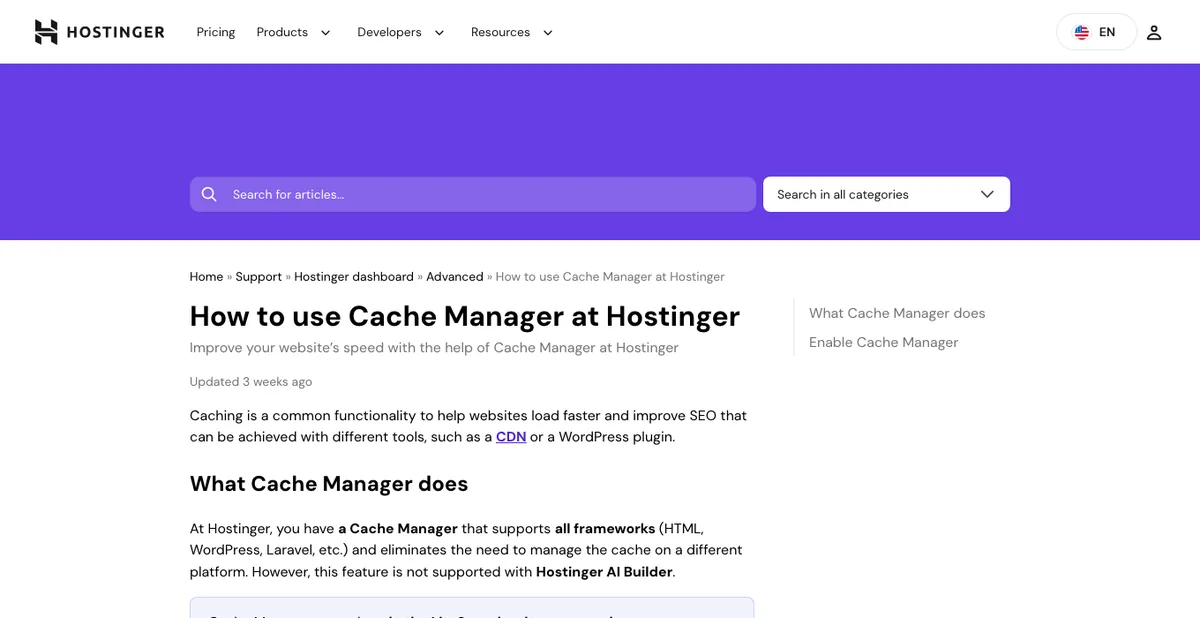
On Hostinger, Cache Manager controls only the LiteSpeed server cache. It refreshes stored content every 30 minutes, and you can purge the whole site or one URL. The CDN and OPcache are managed separately (Hostinger, October 2026).
On SiteGround, Speed > Caching handles the dynamic cache and Memcached, and its Speed Optimizer plugin connects WordPress to them.
On Kinsta, Caching in MyKinsta clears the server, CDN and edge caches together, plus Redis if you’ve added it. You can also clear everything from the WordPress toolbar through Kinsta’s own plugin.
The Caching Rules That Save You Hours
- Use one page-cache plugin. Two caching plugins fight each other, and your host’s own cache counts as one of them.
- Match the plugin to the server. LiteSpeed Cache on LiteSpeed servers, the host’s own plugin on SiteGround or Kinsta.
- Clear from the inside out. Plugin cache first, then server, then CDN, then your browser.
- Exclude dynamic pages. Cart, checkout and account pages should never be cached for everyone.
Running LiteSpeed? Our LiteSpeed Cache advanced configuration guide covers object cache, the crawler and ESI in depth.
File Manager, SFTP or SSH: Which Should You Use?
Use the file manager for quick one-off edits, SFTP for moving many files, and SSH when you need commands like WP-CLI.
All three reach the same files. They just suit different jobs:
- File Manager: a browser-based file browser inside your panel. Great for editing wp-config.php or uploading one file.
- SFTP: a secure connection from an app like FileZilla. Best for uploading a whole theme or downloading a folder. Always choose SFTP over plain FTP, which sends your password unencrypted.
- SSH: a command-line login to the server. Needed for WP-CLI, Git and big jobs. Usually on mid-tier plans and up.
Some hosts, like Kinsta, skip the file manager entirely and give you SFTP and SSH details instead.
File Permissions
WordPress’s own guidance is folders at 755 or 750, files at 644 or 640, and wp-config.php at 440 or 400, so other users on the server can’t read it (WordPress developer docs, October 2026).
Never set anything to 777. It lets anyone on the server write to that file.
Before you edit any core file, read our guide on how to edit WordPress files safely. If you’re on Apache or LiteSpeed, our .htaccess guide explains the server rules file in full.
How Do You Manage Your WordPress Database?
Your database holds all your content and settings, and you manage it with phpMyAdmin in your panel or with WP-CLI over SSH.
Your database name, username and password live in wp-config.php. That file is how WordPress finds its data.
Here’s what you’ll actually use the database tools for:
- Exporting a copy before risky changes.
- Checking table size when a backup or site suddenly grows.
- Fixing a stuck setting, like a site URL after a move.
One rule above all: export before you edit. A wrong click in phpMyAdmin has no undo button.
WP-CLI Commands Worth Knowing
If your host offers SSH, WP-CLI lets you manage WordPress from the command line. A few everyday commands:
wp db export backup.sql          # export the database
wp core update                   # update WordPress
wp plugin update --all           # update every plugin
wp search-replace 'old.com' 'new.com' --dry-run   # preview a URL change
wp cache flush                   # clear the object cache
Always run search-replace with –dry-run first. It shows what would change without changing anything.
How Should You Manage Hosting Backups?
Treat your host’s backups as a convenience and keep your own off-site backup as the real safety net.
Host backups are easy to restore, but they live with the same company as your site. If the account is suspended or hacked, they can go too.
Backup schedules vary a lot by plan. In October 2026, Hostinger’s Premium plan listed weekly backups (daily on higher plans), Kinsta’s entry plans kept 14 days, and WP Engine kept 30 to 60 days.
A solid routine:
- Know your host’s schedule and retention. Daily for 14 days is very different from weekly.
- Add an off-site plugin backup to cloud storage you control.
- Back up before every big change: PHP upgrades, theme switches, migrations.
- Test a restore a few times a year. A backup you’ve never restored is only a hope.
Our full WordPress backup guide walks through the plugin setup and restore steps.
How Do You Use Staging Without Losing Data?
Staging is a private copy of your site for testing changes, which you then push to the live site when everything works.
It’s the safest place to test PHP upgrades, new plugins and redesigns.
Availability depends on the plan. In October 2026, SiteGround included staging from its GrowBig plan, while Kinsta and WP Engine included it on their entry plans.
But there’s one trap.
Pushing a staging copy can overwrite the live database. Any orders, form entries or comments that arrived on the live site since you made the copy can disappear.
So on stores and busy sites, push files only, or make database changes directly on live during a quiet hour.
How Do You Manage SSL and HTTPS?
Most hosts install a free SSL certificate automatically and renew it for you, so your job is to make sure every page loads over https.
Check three things:
- The certificate is active for both yourdomain.com and www.yourdomain.com.
- HTTPS is forced, so http visits redirect. Many panels have a one-click option, like SiteGround’s HTTPS Enforce.
- No mixed content. Old image links using http can break the padlock. A search-replace from http to https usually fixes it.
DNS, Domains and Email on Your Host
Your host often manages your DNS records and email too, which ties your domain, website and inbox together.
If your domain uses your host’s nameservers, your DNS records live in the hosting panel. If not, they live wherever your nameservers point.
Hosting email is fine for a few mailboxes. For a business, a dedicated email service is usually more reliable, and it keeps working even if you change hosts.
DNS records, nameservers and email authentication are covered in depth in our advanced domain management guide.
Should You Replace WP-Cron With a Real Cron Job?
Yes, on busy or scheduled-content sites. WP-Cron only runs when someone visits, so a real server cron job runs scheduled tasks on time.
WordPress uses WP-Cron for scheduled posts, backups and plugin tasks. On a quiet site, tasks can run late. On a busy site, it checks on every page load.
The fix, from the WordPress cron documentation:
- Add
define( 'DISABLE_WP_CRON', true );to wp-config.php. - In your panel’s cron tool, add a job that calls your site’s wp-cron.php every 15 minutes.
*/15 * * * * wget --delete-after https://yourdomain.com/wp-cron.phpCheck your host’s documentation first. Some managed hosts already run cron for you.
How Do You Read Error Logs and Monitor Your Site?
Error logs tell you exactly which file and line broke your site, so they’re the first place to look when something goes wrong.
There are two kinds:
- Server logs: the error and access logs in your panel (SiteGround keeps them under Statistics, Kinsta under Logs).
- WordPress debug log: turn on WP_DEBUG and WP_DEBUG_LOG in wp-config.php, and WordPress writes errors to /wp-content/debug.log.
Turn the debug log off again when you’re done. Leaving it on can expose information and fill your storage.
For monitoring, add a free uptime checker that emails you when the site goes down. And glance at your panel’s resource usage once a month. Hitting CPU or process limits is the most common reason a shared site slows down.
Hosting Management Security: How Do You Lock Down Your Account?
Securing hosting starts with the account login, then the server settings, then WordPress itself.
- Turn on two-factor login for your hosting account.
- Use SFTP and SSH keys, never plain FTP.
- Give team members their own access, with only the permissions they need, instead of sharing your password.
- Disable the theme and plugin file editor with
define( 'DISALLOW_FILE_EDIT', true );in wp-config.php. - Use your host’s firewall and malware scanner if one is included.
- Keep PHP, WordPress, themes and plugins updated.
The WordPress side is covered in our WordPress security checklist.
When Should You Upgrade or Move Hosts?
Upgrade when you keep hitting resource limits, and move hosts when support, speed or renewal prices stop being worth it.
Signs you’ve outgrown your plan:
- Regular “resource limit reached” emails.
- Slow admin pages even with caching on.
- A store or membership site on basic shared hosting.
Moving hosts safely comes down to a few steps. Take a full backup, copy the site to the new host, test it with a temporary URL, lower your DNS TTL a day ahead, then switch the nameservers or A record.
Many hosts migrate WordPress sites for free. Ask before you do it by hand.
Comparing where to go next? Our top hosting providers for WordPress roundup is a good place to start.
Common Hosting Management Mistakes
Here are the mistakes we see most often, and the fix for each.
The Issue: Two Caching Plugins at Once
Pages show old content, or the site breaks after an update.
The Fix
Keep one page-cache plugin that matches your server, and clear every cache layer after changes.
The Issue: Upgrading PHP Straight on Live
An old plugin throws a fatal error, and the site goes white.
The Fix
Update plugins first, test on staging, and keep a fresh backup ready.
The Issue: Relying Only on Host Backups
The account is suspended or compromised, and the backups go with it.
The Fix
Keep an off-site backup you control, and test a restore regularly.
The Issue: Setting Files to 777
A permission error “goes away”, but anyone on the server can now write to the file.
The Fix
Use 755 for folders, 644 for files and 440 or 400 for wp-config.php.
The Issue: Pushing Staging Over a Live Store
New orders and form entries disappear.
The Fix
Push files only, or schedule database changes for a quiet hour on live.
Your Hosting Management Checklist
Use this as a simple routine:
- Monthly: check resource usage, confirm backups ran, update plugins and themes.
- Quarterly: test a backup restore, review PHP version support dates, check SSL and DNS.
- Yearly: review your plan and renewal price, remove unused sites and staging copies, rotate passwords and SSH keys.
Wrapping It Up
Hosting management isn’t about memorising every menu. Hosts all draw the same map with different labels.
Know your PHP version. Understand your cache layers. Keep backups you control. Test on staging before live.
Do that, and your hosting will quietly do its job while you focus on the website.
Over to you: which hosting panel do you use, and which part of it confuses you most? Let me know in the comments.
Frequently Asked Questions
What is hosting management?
Hosting management is configuring and maintaining your hosting account so your site stays fast and secure. It covers PHP versions, caching, files, databases, backups, SSL and security.
Why does every host have a different control panel?
Each company builds or licenses its own dashboard, like Hostinger’s hPanel, SiteGround’s Site Tools or Kinsta’s MyKinsta. The tasks are the same, only the menu names change.
Which PHP version should my WordPress site use?
WordPress recommends PHP 8.3 or newer. Test the upgrade on a staging copy first, because old plugins cause most PHP errors.
How do I clear all the caches on my site?
Clear your caching plugin first, then your host’s server cache, then your CDN, then your browser. Many hosts let you clear several layers with one button.
Is the file manager safe to use?
Yes, for small edits. Take a backup first, and use SFTP instead of plain FTP when you move many files.
Are my host’s backups enough?
No. They’re convenient, but keep your own off-site backup too in case the hosting account itself has a problem.
Should I disable WP-Cron?
On busy sites or sites with scheduled tasks, yes. Disable it in wp-config.php and add a real cron job that runs wp-cron.php every 15 minutes.
You May Also Like
-

What Is Web Hosting
Want a website but have no idea where it actually… -
Top 6 Hosting Providers for WordPress
Find the best WordPress hosting for beginners. Compare Hostinger, Bluehost,…