
- WordPress
The .htaccess File in WordPress: A Complete Guide for Beginners
By Ehasanul Haque
Posted on October 1, 2026
There is one file on your WordPress site that can speed it up, lock it down, or take the whole thing offline in a single typo.
That file is .htaccess.
It sounds scary. It really isn’t, once you know what it does.
Think of it as a short list of instructions you hand to your web server before it answers anyone. Do this. Don’t do that. Send this person over there instead.
This guide covers everything the .htaccess file can do, in the order you’ll actually need it. Permalinks first, then speed, then security, then the advanced bits.
You don’t need to be a developer. You do need to take a backup before you start, and you’ll see why.
Let’s get into it.
Key Takeaways
- What it is: a small configuration file that tells an Apache web server how to handle requests before WordPress even loads.
- What it does by default: makes your pretty permalinks work. That is the only thing WordPress puts in there.
- What you can add: browser caching, compression, redirects, and a solid layer of security rules.
- The one rule: never edit inside the
# BEGIN WordPressblock, and always keep a copy of the working file.
What Is the .htaccess File?
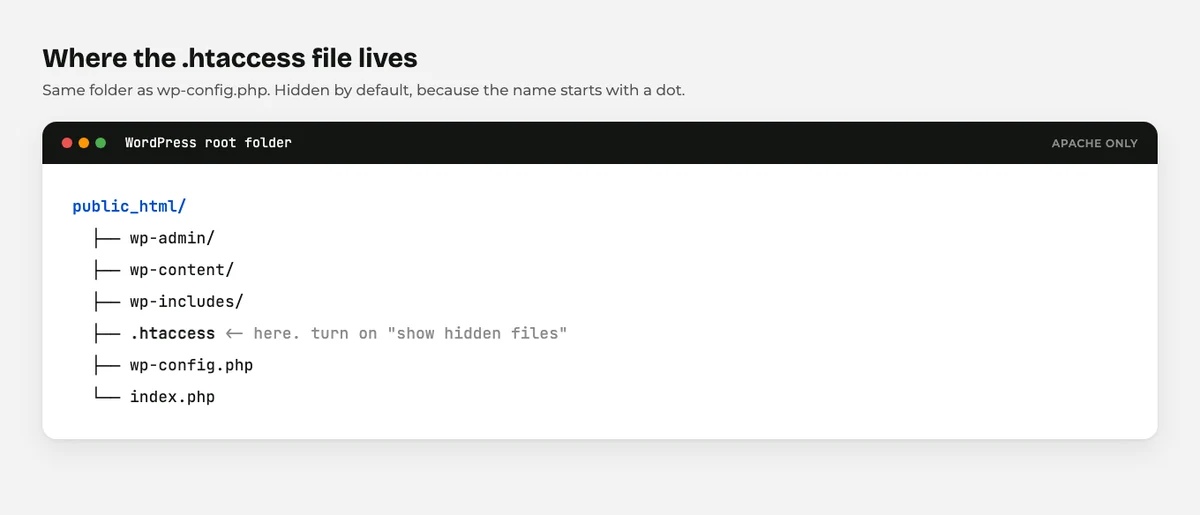
The .htaccess file is a per directory configuration file for the Apache web server, sitting in your WordPress root folder.
Apache reads it on every single request. Whatever rules it finds, it applies before handing anything to WordPress.
The WordPress documentation calls it “a distributed configuration file” that controls “how Apache serves files from its root directory” (WordPress Developer Resources, checked September 2026).
The name starts with a dot because that makes it hidden on Linux systems. If you cannot see it in your file manager, that is why. There is usually a “show hidden files” option.
One more thing worth knowing up front. It is a plain text file with no file extension at all. Not .txt. Just .htaccess.
How Is a .htaccess File Made?
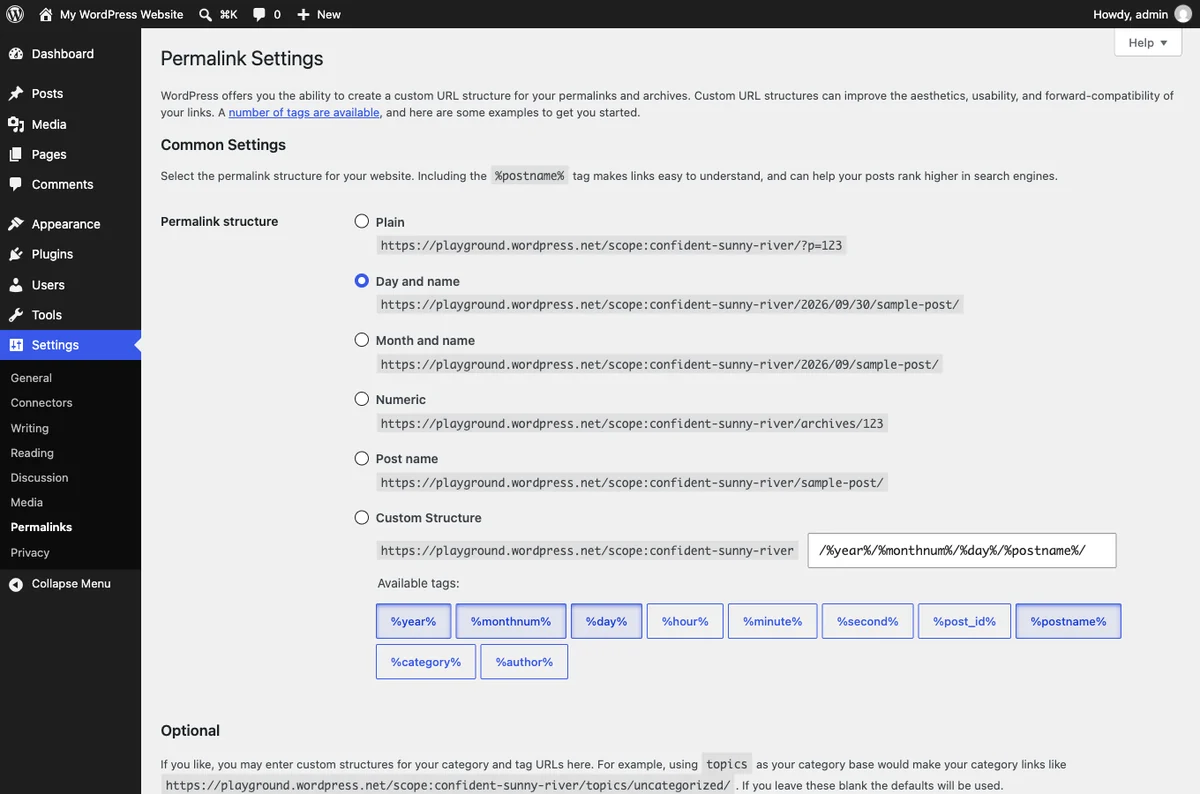
WordPress makes it for you, and you probably already triggered that.
Go to Settings > Permalinks and click Save. That is it. If WordPress can write to your root folder, it creates or updates .htaccess right then.
That is also the fix for half the permalink problems you’ll ever have. Visit that screen, click Save Changes, done.
If the folder is not writable, WordPress shows you the rules on screen and asks you to paste them in yourself.
You can also create one from scratch. Open a text editor, type your rules, and save it as .htaccess with no extension. Upload it to the same folder as wp-config.php.
Careful with Windows here. Notepad loves to add .txt on the end, so use “Save as type: All Files”.
What Is the .htaccess File For?
It exists so you can change server behaviour without touching the server’s main configuration.
On shared hosting you have no access to the main Apache config. Your host isn’t going to let you edit it either.
.htaccess is the compromise. Apache reads a file from your own folder and applies your rules just to your site.
That is powerful and a bit dangerous, which is the trade Apache made deliberately. The Apache documentation is the reference if you want the full picture.
Here is something that trips up almost everyone the first time. Rules are read from the top down, and the first match usually wins.
So the order you put them in matters. Keep your redirects before your rewrite rules, and keep related rules together.
Four things it is genuinely good at: rewriting URLs, redirecting visitors, controlling caching, and blocking access to things.
Is It Safe to Edit Your .htaccess File?
Yes, as long as you keep a copy of the working version first.
Don’t worry about breaking something permanently. Nothing in your WordPress htaccess file touches your posts, your images, or your database.
The worst that happens is your site stops responding until you put the old file back. That is a two minute fix, and the recovery steps are further down this page.
So take a backup, make one change, then look at your site. If it still loads, you’re fine. If it doesn’t, undo that one change.
One rule at a time is the whole secret. It is easier than it sounds.
What WordPress Puts in the htaccess File by Default
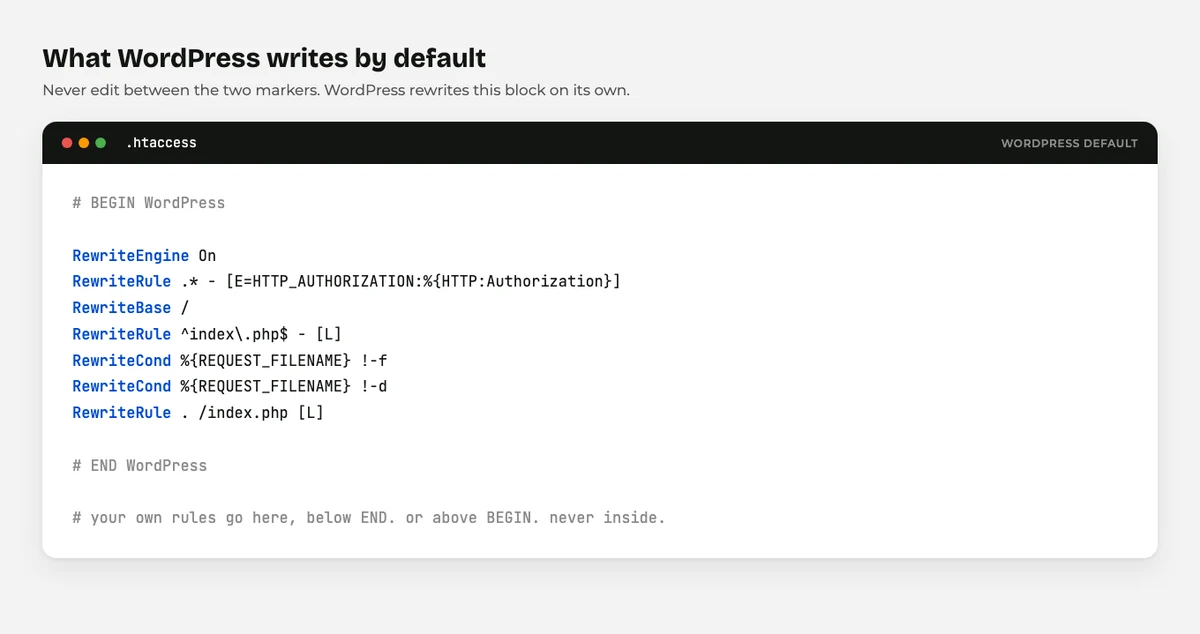
Exactly one block, and it exists to make your permalinks work.
Here it is, verbatim from the WordPress documentation (checked September 2026):
# BEGIN WordPress

RewriteEngine On
RewriteRule .* - [E=HTTP_AUTHORIZATION:%{HTTP:Authorization}]
RewriteBase /
RewriteRule ^index\.php$ - [L]
RewriteCond %{REQUEST_FILENAME} !-f
RewriteCond %{REQUEST_FILENAME} !-d
RewriteRule . /index.php [L]

# END WordPress
In plain English: if the visitor asked for a real file or a real folder, serve it. Otherwise, hand the request to WordPress and let it work out which post that URL means.
That is how /wordpress/wordpress-htaccess-guide/ becomes a page, when no such folder exists on your server.
Never edit anything between those two comment lines. WordPress rewrites that block whenever it updates the file, and your changes will vanish.
Everything you add goes above # BEGIN WordPress or below # END WordPress.
Using the WordPress htaccess File for Performance
Now the fun part. Three rules here can make a real difference to your load times.
Add these above the WordPress block.
Browser caching
This tells returning visitors’ browsers to keep your images and stylesheets instead of downloading them again.
<IfModule mod_expires.c>
  ExpiresActive On
  ExpiresByType image/jpeg "access plus 1 year"
  ExpiresByType image/png "access plus 1 year"
  ExpiresByType image/webp "access plus 1 year"
  ExpiresByType text/css "access plus 1 month"
  ExpiresByType application/javascript "access plus 1 month"
</IfModule>
Why a year for images? Because your logo is not going to change, and a repeat visitor should never download it twice.
Compression
Text files compress beautifully. This sends them over the wire much smaller.
<IfModule mod_deflate.c>
  AddOutputFilterByType DEFLATE text/html text/css text/plain
  AddOutputFilterByType DEFLATE application/javascript application/json
</IfModule>
Some servers offer Brotli, which compresses better still. If yours does, your host or your caching plugin will usually enable it for you.
Stop other sites using your images
Hotlinking is when another site displays your image by linking straight to your file. Their visitors see the picture, your server pays for the bandwidth.
These rules serve your images only when the request comes from your own pages.
RewriteEngine On
RewriteCond %{HTTP_REFERER} !^$
RewriteCond %{HTTP_REFERER} !^https?://(www\.)?example\.com [NC]
RewriteRule \.(jpe?g|png|gif|webp)$ - [F]
Swap example.com for your own domain. The first condition lets through requests with no referrer, which keeps direct visits working normally.
Worth doing if you publish your own photography. Skip it if your images are stock, because the bandwidth you save is rarely worth blocking something legitimate.
A word of warning
If you run a caching plugin, it very likely wrote these rules already.
Check your file before you paste. Two sets of caching rules fighting each other causes strange, hard to trace problems.
Our guide on how to speed up your WordPress site covers the plugin side, which is the easier route for most people.
Using the WordPress htaccess File for Security
This is where .htaccess earns its keep. Each of these closes a door that is open by default.
Protect wp-config.php
Your wp-config.php holds your database password. Nobody should ever be able to request it.
<Files wp-config.php>
  Require all denied
</Files>
Turn off directory browsing
Without this, someone visiting a folder with no index file sees a list of everything inside it.
Options -IndexesOne line, and it closes a surprisingly common leak.
Block xmlrpc.php
xmlrpc.php is an old remote access endpoint. Most sites do not use it, and it is a favourite target for brute force attacks.
<Files xmlrpc.php>
  Require all denied
</Files>
Do check before you add this. The Jetpack plugin and some mobile apps still need it.
Stop PHP running in your uploads folder
If an attacker ever manages to slip a PHP file into your uploads folder, this stops it executing.
Put this in a separate .htaccess inside wp-content/uploads/, not your main one:
<Files *.php>
  Require all denied
</Files>
Of all the rules on this page, this one punches above its weight.
Block a specific IP address
Getting hammered from one address? Send it away.
<RequireAll>
  Require all granted
  Require not ip 203.0.113.45
</RequireAll>
Useful in a pinch. Not a strategy, because attackers change addresses easily.
For the wider routine, read how to secure your WordPress site. A security plugin does most of this with tick boxes, and that is genuinely fine.
Using .htaccess for Redirects
When you change a URL, a redirect sends old visitors and old search results to the new address.
A single page:
Redirect 301 /old-page/ https://example.com/new-page/A whole site to a new domain:
RewriteEngine On
RewriteCond %{HTTP_HOST} ^olddomain\.com [NC]
RewriteRule ^(.*)$ https://newdomain.com/$1 [L,R=301]
Forcing HTTPS, if your host hasn’t already:
RewriteEngine On
RewriteCond %{HTTPS} off
RewriteRule ^(.*)$ https://%{HTTP_HOST}%{REQUEST_URI} [L,R=301]
The 301 matters. It means “moved permanently”, which is what passes your search rankings to the new address.
A redirect plugin handles all of this from the dashboard, and for a handful of URLs that is the easier choice.
Changing PHP Limits in .htaccess
Hit an upload limit or a memory error and you’ll find snippets like these:
php_value upload_max_filesize 64M
php_value post_max_size 64M
php_value max_execution_time 300
They work on some hosts and do nothing on others, depending on how PHP is set up.
Try your hosting control panel first. Most have a PHP settings page, and changing it there always works.
Custom Error Pages
You can point Apache at your own pages instead of its plain grey defaults.
ErrorDocument 404 /404-page/
ErrorDocument 403 /403-page/
WordPress already handles 404s through your theme, so this is mostly useful for errors that happen before WordPress loads.
Common .htaccess Mistakes
Six mistakes cause almost every .htaccess problem. Here is each one, and the fix.
Editing inside the WordPress block. Your rules disappear the next time WordPress touches the file. The fix: put everything above # BEGIN WordPress or below # END WordPress.
No backup. You paste a rule, the site dies, and you cannot remember what was there before. The fix: download the file before every edit. Every single time.
Saving it as .htaccess.txt. Windows adds the extension silently, the server ignores the file, and nothing happens. The fix: save as All Files, then check the name on the server.
Copying rules for a server you do not have. Nginx and LiteSpeed do not read .htaccess the same way Apache does. The fix: ask your host which server you are on before you start.
Duplicating your caching plugin’s rules. Two sets of expires headers is not twice as fast, it’s just confusing. The fix: look for existing blocks with plugin names in the comments and leave them alone.
Blocking xmlrpc.php while something needs it. The Jetpack connection breaks and you spend an afternoon wondering why. The fix: check what you use first.
What the .htaccess File Cannot Do
Worth knowing the limits before you go hunting for a rule that does not exist.
It cannot speed up slow PHP. If your site drags because a plugin runs heavy queries on every page, no caching header will save you.
It cannot replace a security plugin. These rules close specific doors, but they do not scan for malware, watch failed logins, or tell you when a file changed.
It cannot clean up a hacked site. If something malicious is already on your server, blocking one file path does not remove it.
And it cannot do anything at all if your host runs Nginx. More on that in a moment.
So treat your WordPress htaccess file as one useful layer. It is not the whole strategy, and anyone telling you otherwise is selling something.
How to Recover From a 500 Internal Server Error
A bad .htaccess line takes down the whole site, including wp-admin. That is the scary part.
Here’s the reassuring part: it is completely reversible in about two minutes, and nothing in your database was harmed.
- Open your hosting file manager or your FTP client.
- Find
.htaccessin your WordPress root folder. - Rename it to
htaccess-old. The site should come back immediately. - Log in to WordPress, go to Settings > Permalinks, and click Save Changes. WordPress writes a fresh, working file.
- Add your custom rules back one at a time, testing the site after each.
That last step is the one people skip. Adding rules one at a time is how you find out which line broke things.
If you are not sure how to reach your files at all, how to edit WordPress files safely covers every route in.
What If You’re Not on Apache?
Then you may not have this file at all.
Nginx does not read .htaccess. Rules go in the server configuration, which usually means asking your host.
LiteSpeed does read it, and is compatible with most Apache rules. If you run LiteSpeed Cache, the plugin writes its own block into the file.
Managed WordPress hosts often lock the file or ignore it entirely, handling caching and security at their own layer.
Not sure which you are on? Ask your host. It is a one line support question, and the answer changes everything on this page.
Final Thoughts
The WordPress htaccess file is a short list of instructions for your web server, and it is more useful than its reputation suggests.
By default it does one job: making your permalinks work. Everything beyond that is you choosing to add caching, redirects, or a few sensible locks.
Take a backup, work outside the WordPress block, and add one rule at a time. Do that and the worst case is a two minute fix, not a disaster.
And honestly? A caching plugin and a security plugin will do most of this for you through a dashboard. Reach for the file when you need something they don’t offer.
For everything else on your site, our guide to WordPress file types is the map, and the file search engines read next is covered in our robots.txt guide. Before any of it, make sure your backups are running.
Over to you: which rule are you adding first, caching or security? Tell me in the comments.
Frequently Asked Questions
Where is the .htaccess file located in WordPress?
It sits in your WordPress root folder, the same one that holds wp-config.php and the wp-content folder. It is hidden by default, so turn on “show hidden files” in your file manager.
What happens if I delete my .htaccess file?
Your permalinks break and posts return 404 errors, but nothing else is lost. Go to Settings then Permalinks and click Save Changes, and WordPress writes a new one.
Can I edit the .htaccess file from the dashboard?
Not in core WordPress. Some security and SEO plugins add an editor for it, otherwise you use your hosting file manager or FTP.
Why did my .htaccess changes disappear?
You almost certainly put them inside the # BEGIN WordPress block, which WordPress rewrites automatically. Move your rules above or below it.
Does .htaccess slow down my website?
The effect is tiny, because Apache reads the file on every request but it is very small. The caching rules you add save far more time than the read costs.
Is it safe to block xmlrpc.php?
For most sites, yes, and it cuts down brute force attempts. Check first if you use Jetpack or the WordPress mobile app, because both need it.
How do I fix a 500 error caused by .htaccess?
Rename the file to htaccess-old over FTP or your file manager, which brings the site straight back. Then visit Settings then Permalinks and click Save to generate a clean one.
You May Also Like
-

What Is Web Hosting
Want a website but have no idea where it actually… -
WordPress File Types Explained
Your WordPress site is made of files. Dozens of them,… -
What Is a JSON File?
You clicked a download button, and out came a file…