
- WordPress
How to Edit WordPress Files Safely (4 Methods Compared)
By Ehasanul Haque
Posted on October 1, 2026
A tutorial told you to “add this code to your functions.php file”, and you have no idea where that file is.
Or you need .htaccess, and the dashboard doesn’t have it anywhere.
Here’s the reassuring part. There are four ways to edit WordPress files, and three are genuinely beginner-friendly.
You don’t need to be a developer. You do need two small habits first, and skipping them is how people end up with a white screen.
This guide covers what to do first, the four routes in, and which one to pick.
Let’s get into it.
Key Takeaways
- Back up first, every time. A file edit can take a site offline, and a backup turns a disaster into a five-minute fix.
- Never edit a theme or plugin directly. Updates overwrite your changes. Use a child theme or a code snippets plugin.
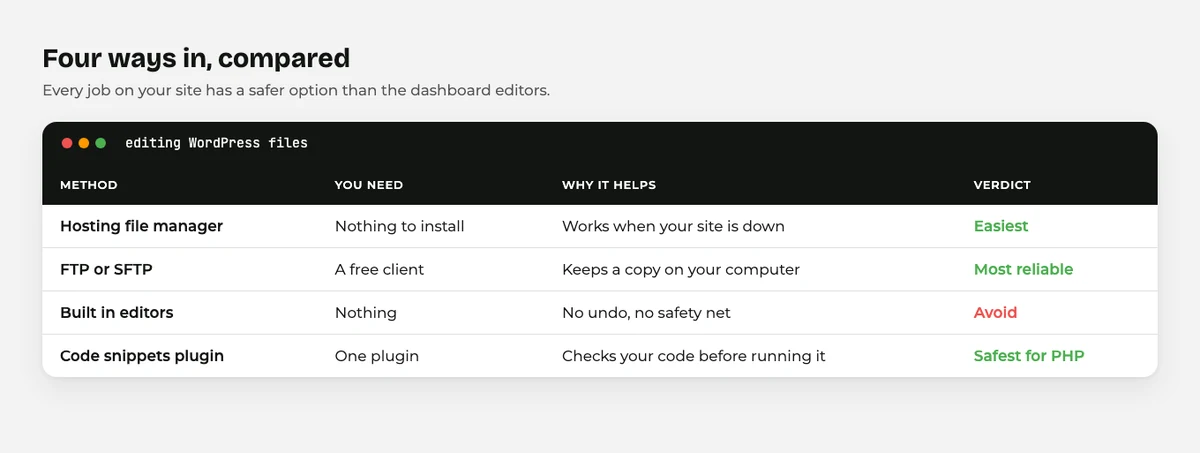
- The hosting file manager is the easiest route for most people, with no software to install.
- Know the escape hatch: if a change breaks the site, rename the file you touched, and it comes back.
Before You Edit Any WordPress Files
Two things, and neither takes long.
Take a backup. Not “I backed up last month”. One from right now, that you know how to restore.
This is the whole safety net. If your edit breaks the site, you restore and you have lost ten minutes.
Without it, you have lost a weekend. Our guide on how to back up your WordPress site covers setting it up.
Know how you’ll get back in. If your change takes down wp-admin, you need a route that doesn’t go through WordPress.
That means a hosting file manager or an FTP client, ready before you need it. Learning your host’s login while the site is down is a bad time to start.
Got both? You’re covered.
Which WordPress Files Are You Likely to Edit?
Four, in practice, and it’s worth knowing what each one does before you open it.
functions.php lives in your theme folder and holds custom PHP. Most tutorial snippets go here, and it is the file most likely to break your site.
.htaccess sits in your root folder and controls your web server. Permalinks, redirects, and caching rules live here, and our htaccess guide covers it in full.
wp-config.php is also in the root and holds your database details. The official wp-config documentation lists what you can safely change.
style.css or theme.json control your design, depending on whether your theme is classic or block based. There is more in theme json explained.
Anything else? Ask first whether you need to edit a file at all.
Method 1: Your Hosting File Manager
The easiest route. Try this one first.
Almost every host gives you a file manager in the control panel.
You log in, click File Manager, and browse your site like a folder.
- Log in to your hosting account and open the file manager.
- Navigate to your site’s folder, usually
public_htmlorwww. - Find your file, right click, and choose Edit.
- Make your change and save.
Why it’s good: nothing to install, and it keeps working when your site is down.
Turn on hidden files. .htaccess starts with a dot, so it stays invisible until you enable “show hidden files”. Almost everyone hits this once.
Method 2: FTP or SFTP
The traditional route, and still the most reliable.
You install a free client like FileZilla.
Then you connect to your server and drag files back and forth.
- Get your FTP or SFTP details from your host, usually in the control panel.
- Enter the host, username, password, and port in your client.
- Connect, then browse to your site’s folder.
- Download the file, edit it, and upload it back.
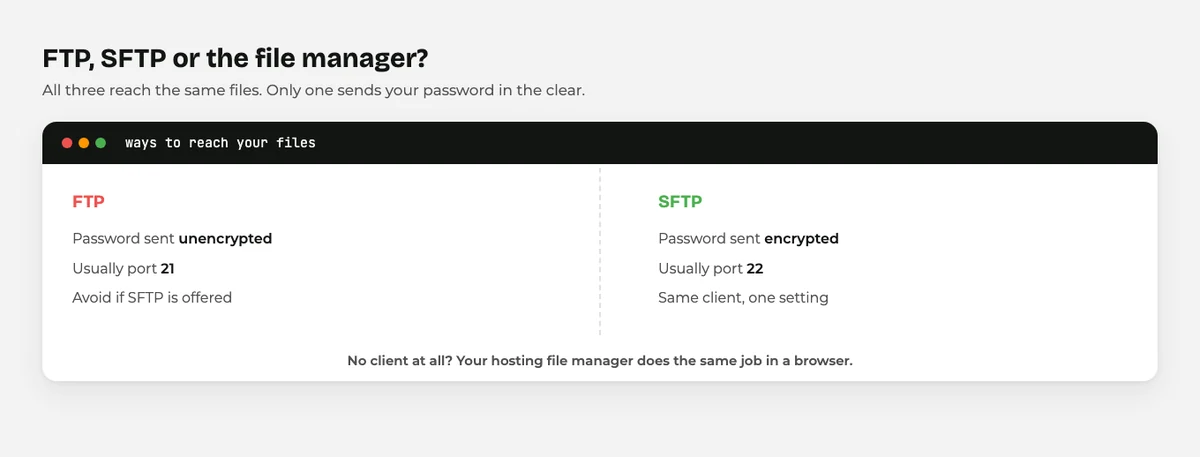
Use SFTP if it’s offered. Plain FTP sends your password unencrypted.
Why it’s good: you edit in a proper code editor and keep a copy of the original automatically. The catch is a bit more setup.
Method 3: The WordPress Built In Editors
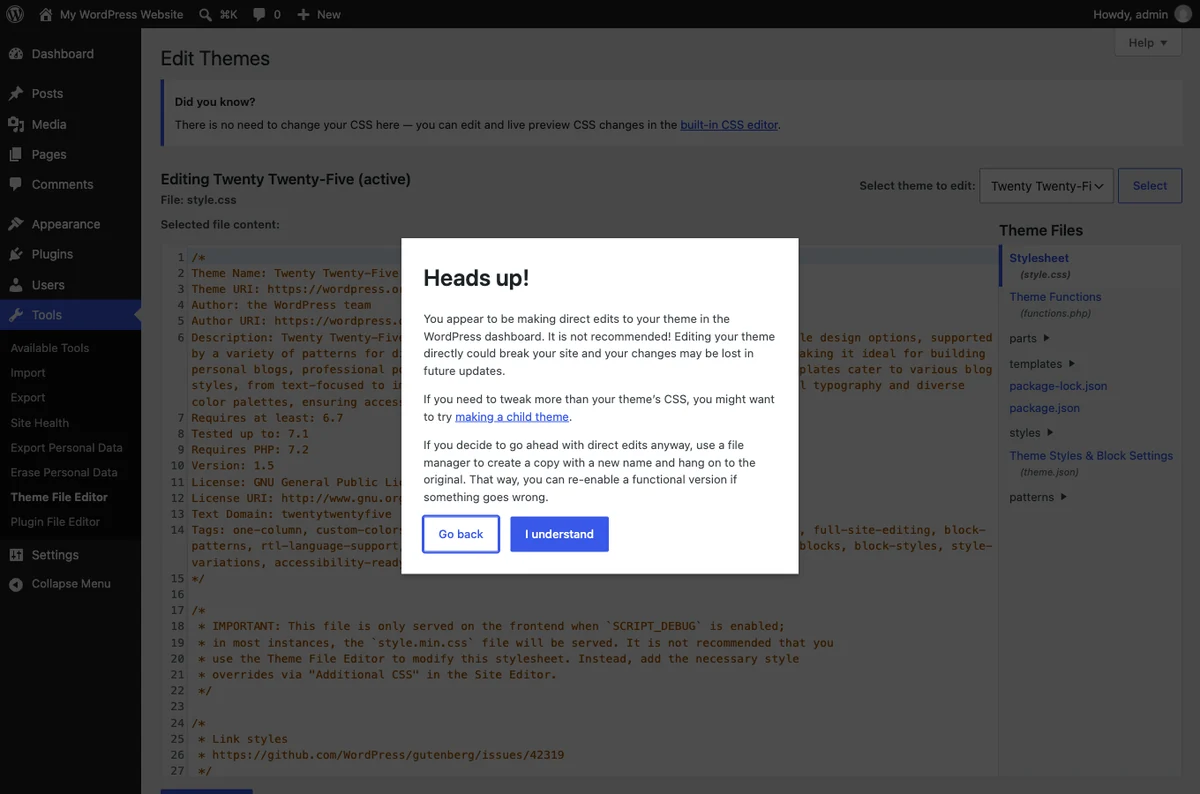
WordPress has file editors under Appearance > Theme File Editor and Plugins > Plugin File Editor.
They are right there in the dashboard, which makes them tempting.
Please don’t use them.
Here’s why. There is no undo and no safety check.
Save a PHP file with a typo and the site goes down instantly, including the editor itself.
That last part is the killer. You break it, and you’ve lost the tool you’d use to fix it.
Many hosts disable these editors by default. If yours has, that’s a feature, not a problem.
There is one good use for them: reading a file rather than writing to it.
Method 4: A Code Snippets Plugin
The safest way to add PHP, and what most beginners should use.
A code snippets plugin gives you a screen where you paste a snippet, name it, and switch it on.
Your theme files are never touched.
Why it’s genuinely better:
- Most check your code for errors first, so a typo gets rejected rather than breaking the site.
- Each snippet can be switched off on its own.
- Your snippets survive theme changes, because they were never in the theme.
If a tutorial says “add this to functions.php”, put it in a snippets plugin instead. Same result, far less risk.
This is what I reach for on client sites when something needs custom PHP. The theme stays clean and the next person can see what was added.
Never Edit a Theme or Plugin Directly
This deserves its own section. It catches more people than anything else here.
Edit a file inside a theme or plugin you installed, and the next update overwrites it.
Your work is simply gone.
Three ways round it:
Use a child theme. A small folder that sits alongside your theme and overrides parts of it. Parent updates leave it untouched.
Use a code snippets plugin. For PHP, as above.
Use the Additional CSS box. Appearance > Customize > Additional CSS is update safe and takes thirty seconds.
For most small changes the last two cover it.
Common Mistakes When You Edit WordPress Files
Six, and each has a one line fix.
No backup. The fix: take one before every single edit. Yes, even the small ones.
Editing the live site to try something out. The fix: use a staging site if your host offers one. Many do, free.
Using the wrong editor. Word processors add invisible formatting that breaks code. The fix: use a plain text or code editor, never Word or Pages.
Uploading to the wrong folder. Themes live in wp-content/themes/, plugins in wp-content/plugins/. The fix: check the path before you save.
Changing several things at once. When it breaks, you cannot tell which change did it. The fix: one change, then test.
Leaving file permissions wide open. Some tutorials tell you to set a folder to 777 to fix an upload error, which makes it writable by anyone. The fix: ask your host instead, and see how to secure your WordPress site.
What to Do If You Break Your Site
Don’t panic. This is almost always reversible in minutes.
- Get to your files through the hosting file manager or FTP. Not through WordPress, which is probably down.
- Undo your change. Restore your backup copy, or put the original text back.
- If it was a plugin or theme file, rename its folder. WordPress deactivates anything it cannot find, which usually brings the site back.
- If it was
.htaccess, rename it tohtaccess-old, then visit Settings > Permalinks and click Save to generate a fresh one. - Turn on debugging if you still cannot see the cause. Setting
WP_DEBUGto true inwp-config.phpshows the real error instead of a blank page.
Your content is fine throughout.
Posts and settings live in the database, and a broken file never touches them.
Which Method Should You Choose?
- A PHP snippet from a tutorial: a code snippets plugin. Every time.
- Changing colours or spacing: Additional CSS, or the Site Editor.
- Editing
.htaccessorwp-config.php: the hosting file manager. - Working on a theme properly: a child theme, edited over SFTP.
- Your site is down: the hosting file manager, or FTP.
Notice the built in editors are not on that list. There’s a safer option for every job.
Final Thoughts
So is editing WordPress files actually risky? Not really, as long as you take two precautions.
Back up first, and never edit a theme or plugin you installed. Those two habits prevent almost every disaster people have with files.
For most changes you won’t touch a file at all. A snippets plugin handles PHP, and Additional CSS handles styling.
When you do go in, use your hosting file manager. It still works when your site doesn’t.
For the bigger picture, our guide to WordPress file types explains every file you’ll meet along the way.
Over to you: which file were you trying to edit when you landed here? Tell me in the comments.
Frequently Asked Questions
How do I edit WordPress files without FTP?
Use your hosting control panel’s file manager. It gives you the same access through your browser, with nothing to install.
Is it safe to edit functions.php?
Only with a backup and a way to reach the file if the site goes down. A code snippets plugin is safer and gives you the same result.
Where is the wp-config.php file?
In your WordPress root folder, the same one that holds wp-content and .htaccess. On most hosts that folder is called public_html.
Why can’t I see the .htaccess file?
Filenames starting with a dot are hidden by default. Turn on “show hidden files” in your file manager or FTP client and it will appear.
Can I edit WordPress files from the dashboard?
Yes, through the Theme and Plugin File Editors, but you should not. There is no undo, and a single typo can take your site offline including the editor itself.
What happens if I edit WordPress files and the site breaks?
Restore the original file through your file manager or FTP, or rename the folder of the theme or plugin involved. Your posts and settings are in the database and stay safe.
Do I need a child theme to edit WordPress files?
Only if you are changing the theme itself. For PHP snippets use a snippets plugin, and for styling use Additional CSS.
You May Also Like
-

What Is Web Hosting
Want a website but have no idea where it actually… -
WordPress File Types Explained
Your WordPress site is made of files. Dozens of them,… -
What Is a JSON File?
You clicked a download button, and out came a file…