
- WordPress
theme.json Explained: How Block Themes Control Your Design
By Ehasanul Haque
Posted on October 1, 2026
You changed a colour in the Site Editor and it turned up in four places you didn’t expect.
Or you copied some CSS from a tutorial and nothing happened at all.
Both of those come back to the same file, and once you know it exists a lot of confusing behaviour starts making sense.
That file is theme.json, and you don’t need to be a developer to understand what it does.
In this post you’ll learn what theme.json is, how one gets made, what it’s for, and how WordPress uses it to run your whole design system.
Let’s take a look.
What Is theme.json?
theme.json is a settings file inside a WordPress block theme that defines the colours, fonts, spacing, and layout the whole site starts from.
WordPress calls it “a foundational piece of block theming”, and says you “will need to work with it for nearly any theme project” (WordPress Developer Resources, checked September 2026).
It sits in the top level of your theme folder, named exactly theme.json.
As the name says, it’s a JSON file, so it’s plain text with labels and values. Our guide to what is a JSON file covers that format in two minutes if it’s new to you.
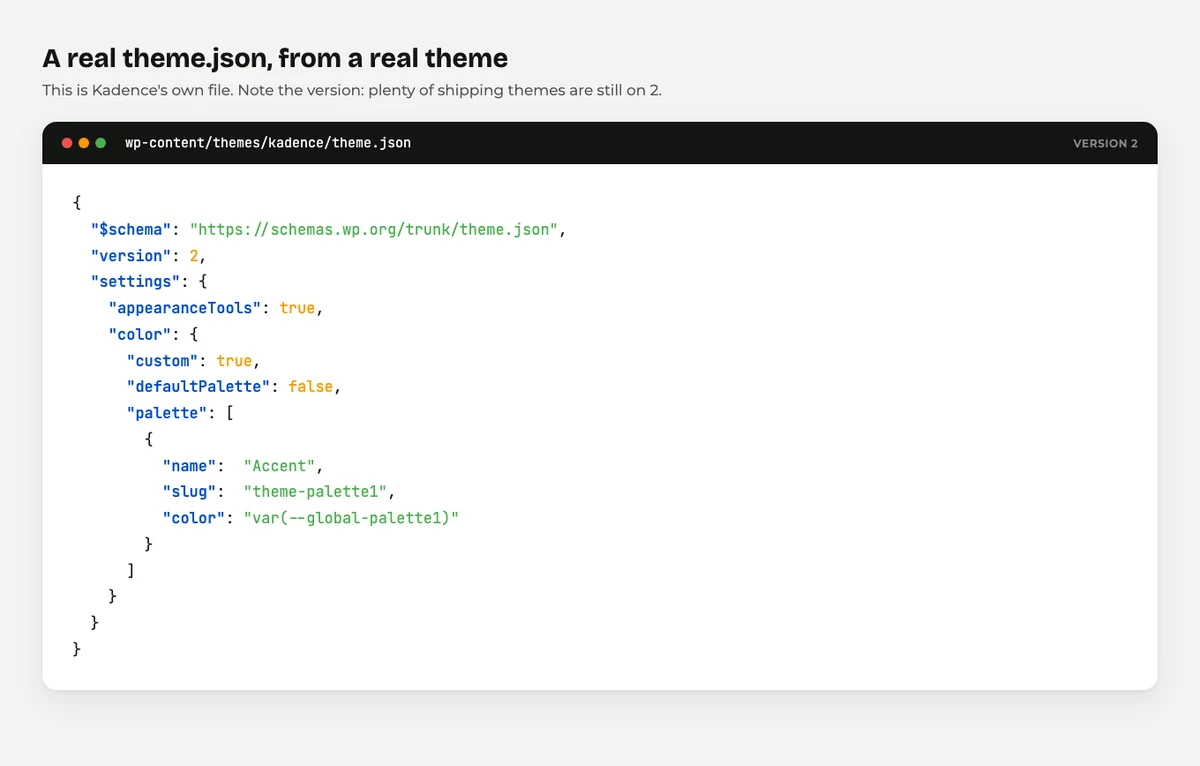
Here’s a small piece of a real one:
{
  "version": 3,
  "settings": {
    "color": {
      "palette": [
        { "slug": "brand", "color": "#146EF5", "name": "Brand Blue" }
      ]
    }
  }
}
That one block adds a colour called Brand Blue to every colour picker in the editor.
That is the whole idea in miniature. You declare something once, and it appears everywhere.
How Is a theme.json File Made?
A theme developer writes it by hand, in a code editor.
There’s no screen in WordPress that generates one. It ships inside the theme you installed, written by whoever built it.
Open your theme folder and you’ll find it sitting next to style.css and functions.php. If you’re using a classic theme rather than a block theme, you may not have one at all.
Can you write your own? Yes, and you don’t need much to start. A version number and a settings object is a valid file.
What you should not do is edit the one inside a theme you installed. Update the theme and your changes are gone.
The correct route is a child theme with its own theme.json, which WordPress merges over the parent’s. Our guide on editing WordPress files safely covers setting one up.
What Is theme.json For?
It exists to keep your design consistent without anyone having to remember the rules.
Think about what happened before it. A theme defined its colours in CSS, the page builder had its own colour settings, and individual blocks had a colour picker with a full rainbow in it.
So three people editing the same site produced three slightly different blues. You have probably seen the result.
theme.json fixes that by making the theme the single source of truth. Define your palette once, and the editor only offers those colours.
Two other jobs matter just as much.
It controls what editors can do. You can switch off custom colours entirely, so nobody can pick a shade that isn’t in your brand.
It generates the CSS. WordPress reads the file and writes out the stylesheet, so you’re not hand maintaining variables.
How WordPress Uses theme.json
Four jobs, and they’re all happening on your site right now if you run a block theme.
1. It fills the editor’s options
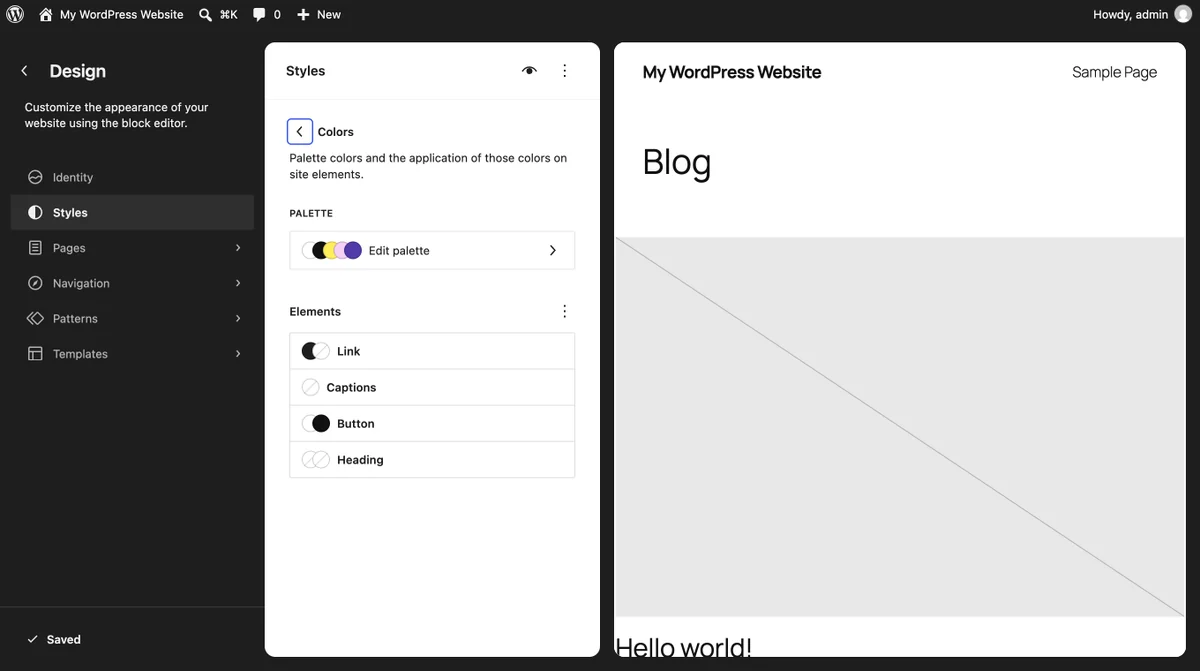
Every colour swatch, font size, and spacing preset you see in the block editor came from somewhere. That somewhere is theme.json.
Add a colour to the palette and it appears in every picker. Remove one and it disappears.
2. It sets your site’s default styling
The styles section says what things actually look like before anyone touches them. Body text colour, heading sizes, link colours, button styles.
That’s why a fresh block theme already looks designed rather than like a plain document.
3. It powers the Site Editor
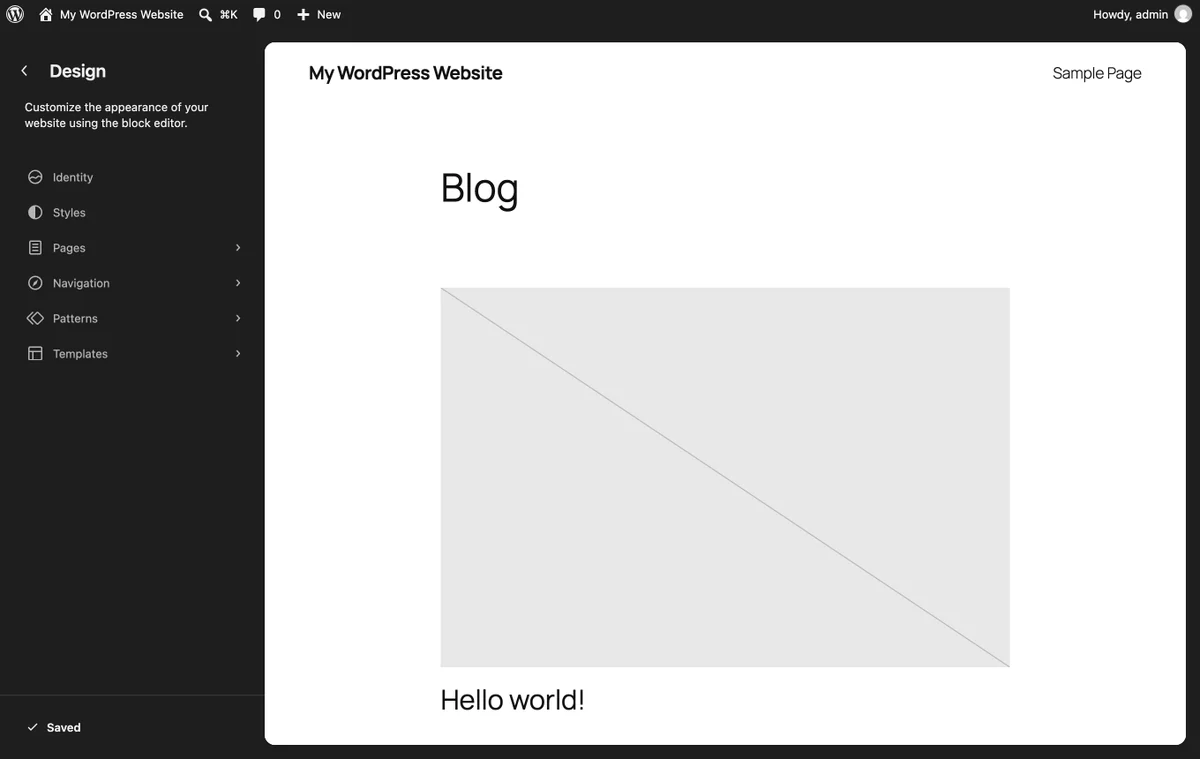
Open Appearance > Editor > Styles and you’re editing values that theme.json defined.
Changes you make there are saved to your database rather than the file, layered on top. That’s why your changes survive a theme update, and also why the Site Editor can sometimes show something different from the file.
4. It decides which features exist
The file can turn whole features on and off. Drop shadows, custom line height, the spacing controls, appearance tools.
A theme with a deliberately simple editor is usually a theme with a carefully restricted theme.json.
What Version Should theme.json Use?
Version 3 is current, and it arrived with WordPress 6.6 in June 2024 (WordPress Core).
You’ll still see plenty of version 2 files, and that’s fine. Older versions stay supported in current WordPress, so nothing breaks.
The file should also name a schema, which is what gives you autocomplete and error checking in a code editor:
{
  "$schema": "https://schemas.wp.org/trunk/theme.json",
  "version": 3
}
Use trunk for the latest, or pin it to a WordPress version like https://schemas.wp.org/wp/6.6/theme.json if your theme supports a specific minimum.
What Goes Wrong With theme.json
Five problems, and they’re all easier to spot than they look.
Your change did nothing. Almost always a JSON syntax error. One missing comma invalidates the whole file and WordPress silently falls back. Paste it into a JSON validator.
Your change vanished after a theme update. You edited the parent theme’s file. Use a child theme instead.
The Site Editor overrides your file. Global Styles saved in the database beat theme.json. Look for a Reset option in the Styles panel if you want the file to win again.
Your CSS isn’t applying. theme.json generates CSS with fairly high specificity, so your custom stylesheet may be losing. Change the value in theme.json rather than fighting it.
You’re editing a classic theme. Classic themes don’t use theme.json the same way, and some ignore it entirely. Check whether your theme is a block theme first.
Do You Need to Learn theme.json?
Honestly? Only if you build or heavily customise themes.
If you’re running a good block theme and adjusting things in the Site Editor, you can go years without opening the file. That’s the point of the Site Editor.
Where it becomes worth knowing is when you want the same design rules applied consistently across a site that several people edit. On the client sites I build, locking the palette in the theme is what stops a brand drifting six months later.
For most people, knowing the file exists is enough. It explains why your options are what they are.
Final Thoughts
theme.json is the settings file that tells a block theme what your colours, fonts, and spacing should be.
It exists so your design stays consistent without anyone having to remember the rules. Define once, apply everywhere.
You probably won’t edit it, and that’s fine. Knowing it’s there explains a lot: why the colour picker offers what it offers, why a tutorial’s CSS didn’t work, and why your Site Editor changes survive updates.
If you do edit it, use a child theme and validate your JSON. Those two habits prevent nearly every problem on this page.
For the wider picture, our guide to WordPress file types covers every file you’ll meet, and the free WordPress themes roundup covers picking a good block theme in the first place.
Over to you: are you customising a block theme, or trying to work out why a change won’t stick? Tell me in the comments.
Frequently Asked Questions
Where is the theme.json file located?
In the top level of your theme’s folder, alongside style.css. If you cannot find one, your theme is probably a classic theme rather than a block theme.
Do all WordPress themes have a theme.json file?
No. Block themes rely on it, classic themes usually do not have one, and some hybrid themes include a partial version.
Can I edit theme.json directly?
You can, but not in a theme you installed, because an update will overwrite it. Create a child theme with its own file instead.
What is the current theme.json version?
Version 3, which shipped with WordPress 6.6 in June 2024. Older versions still work, so a version 2 file is not a problem.
Why isn’t my theme.json change showing up?
Usually a JSON syntax error, or Site Editor settings saved in the database overriding the file. Validate the JSON first, then check the Styles panel.
Does theme.json replace CSS?
Not entirely. It handles colours, typography, spacing, and layout defaults, while custom CSS still covers anything unusual the file cannot express.
Is theme.json the same as a JSON file I export from a plugin?
It uses the same format but does a completely different job. theme.json configures a theme, while a plugin export carries that plugin’s settings.
You May Also Like
-

What Is Web Hosting
Want a website but have no idea where it actually… -
WordPress File Types Explained
Your WordPress site is made of files. Dozens of them,… -
What Is a JSON File?
You clicked a download button, and out came a file…