
- WordPress
The robots.txt File in WordPress: A Complete Guide
By Ehasanul Haque
Posted on October 1, 2026

There is a tiny text file on your website that decides which robots are allowed where.
Search engines read it before they read anything else. So do the AI crawlers that now feed ChatGPT, Claude, and Google’s AI answers.
Get it right and you are quietly in control. Get it wrong and you can hide your entire site from Google without realising for months.
That sounds alarming. It isn’t, once you understand what the file actually does, and this takes about ten minutes to learn properly.
This guide covers the robots.txt file in WordPress end to end. What it is, how WordPress creates one for you, what belongs in it, how to handle AI crawlers, and the mistakes that cost people their traffic.
Let’s get into it.
Key Takeaways
- What it is: a plain text file at your site’s root that tells crawlers which paths they may request.
- What WordPress does: it serves a virtual robots.txt automatically, even if no real file exists.
- What it is not: a way to hide a page from search results. Use
noindexfor that. - The new part: AI crawlers from OpenAI, Anthropic, and Google each have their own user agent tokens you can allow or block separately.
What Is the robots.txt File?

A robots.txt file is a plain text file at the root of your domain that tells crawlers which parts of your site they may request.
Google describes it as a file that “tells search engine crawlers which URLs the crawler can access on your site”, used “mainly to avoid overloading your site with requests” (Google Search Central, checked September 2026).
You can look at any site’s copy right now. Add /robots.txt to the end of a domain and it appears in your browser.
The format is about as simple as files get:
User-agent: *
Disallow: /wp-admin/
Allow: /wp-admin/admin-ajax.php

Sitemap: https://example.com/wp-sitemap.xml
User-agent names the robot. Disallow names a path it should skip. Allow carves an exception out of a disallow.
That’s it. Four instructions, and you now know all of them.
The One Thing robots.txt Does Not Do
This deserves its own section because it catches almost everyone.
robots.txt does not keep a page out of Google.
Google says so plainly: it is “not a mechanism for keeping a web page out of Google”, and a disallowed page “can still be indexed if linked to from other sites” (Google Search Central, September 2026).
Read that again if you need to. Blocking a page in robots.txt tells Google not to crawl it. It does not tell Google not to list it.
The result is the worst of both worlds. Google shows the URL in results with no description, because it was never allowed to look at the page.
So what should you use instead? A noindex tag, or a password. Your SEO plugin has a noindex switch on every post and page.
Here’s the part people miss: for noindex to work, Google has to be allowed to crawl the page and see the tag. Block it in robots.txt and Google never reads your noindex at all.
How Is a robots.txt File Made?
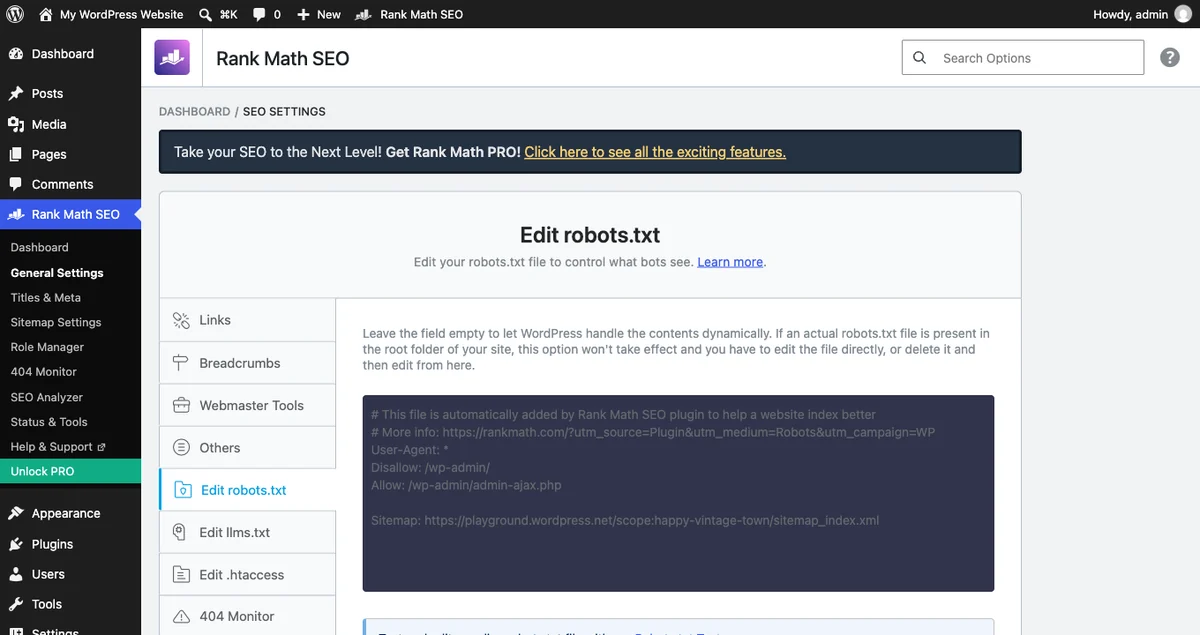
WordPress makes one for you, and most site owners never create a real file at all.
If no physical robots.txt exists in your root folder, WordPress generates a virtual one on request. That is handled by core’s do_robots() function.
The default output is short: it disallows your admin folder, allows admin-ajax.php, and adds a Sitemap: line pointing at your sitemap index.
That sitemap line is worth knowing about. It does not come from do_robots() itself. WordPress core’s sitemaps feature hooks into the robots_txt filter and appends it, which it has done since version 5.5 (verified in wp-includes/sitemaps/class-wp-sitemaps.php on WordPress 7.0.1, September 2026).
There are three ways to change it.
Through your SEO plugin. Rank Math and Yoast both include a robots.txt editor. This is the easiest route and the one most people should use.
By creating a real file. Upload a plain text file named robots.txt to your root folder, next to wp-config.php. A real file always wins over the virtual one.
Through code. The robots_txt filter lets a theme or plugin modify the virtual output.
One warning about the real file, and it catches people out.
Once a physical robots.txt exists, WordPress stops generating the virtual one. Whatever you wrote is now the whole file, so you lose the automatic sitemap line along with the admin rules. Put both back yourself.
What Should Be in Your robots.txt File?
Less than you think. This is a file where restraint pays.
Here is a sensible starting point for a normal WordPress site:
User-agent: *
Disallow: /wp-admin/
Allow: /wp-admin/admin-ajax.php

Sitemap: https://example.com/wp-sitemap.xml
Four lines of instruction and a pointer to your sitemap. For most sites, that is genuinely everything you need.
If you have not created a physical file, WordPress already produces something very close to this on its own. Look at yours before you write one.
Change example.com to your domain, and change the sitemap path if your SEO plugin uses its own. Our sitemap.xml guide covers which path is yours.
What you might add
Internal search results. These create endless low value URLs. Disallow: /?s= keeps crawlers out of them.
A staging or development area. If you have one on the same domain, block it. Then set a reminder to unblock it later, because forgetting is a classic disaster.
Checkout and cart pages. WooCommerce handles most of this itself, but it is worth checking what your setup does.
What you should never add
Disallow: /wp-content/. This blocks your images, your CSS, and your JavaScript. Google needs all three to see your pages the way visitors do, and blocking them hurts your rankings.
Disallow: /wp-includes/. Old advice from a decade ago, still floating around. Same problem: it blocks files your pages need.
Disallow: / on a live site. This blocks everything. It belongs on a staging site and nowhere else.
A quick word on wildcards
Two symbols do a lot of work in a WordPress robots txt file.
matches any sequence of characters, so Disallow: /?s= blocks every internal search URL whatever comes before it.
$ marks the end of a URL, so Disallow: /*.pdf$ blocks PDF files specifically.
Google supports both. Most other major crawlers do too, though older ones may not.
Use them sparingly. A wildcard that matches more than you intended is how people block half their site by accident.
AI Crawlers and Your robots.txt
This is the part that did not exist a few years ago, and it is now the most interesting thing in the file.
AI companies run their own crawlers, each with its own name. You can allow or block them individually, just like Googlebot.
Worth understanding before you decide: most of these companies run separate bots for training and for search. Blocking one does not block the other, and that distinction matters a lot.
OpenAI’s crawlers
OpenAI documents three (OpenAI, checked September 2026):
GPTBotcollects content that may be used to train their models.OAI-SearchBotsurfaces websites in ChatGPT’s search features. Block this and you stop appearing in ChatGPT search answers.ChatGPT-Userfetches a page when a person asks ChatGPT to look at it. OpenAI notes it “is not used for crawling the web in an automatic fashion”.
Anthropic’s crawlers
Anthropic also runs three (Anthropic, checked September 2026):
ClaudeBotcollects content that may be used for training.Claude-Userfetches a page when someone asks Claude a question needing the web.Claude-SearchBotindexes content for search quality. Anthropic warns that blocking it “may reduce your site’s visibility and accuracy in user search results”.
Their own example is exactly what you would expect:
User-agent: ClaudeBot
Disallow: /
Google’s AI crawling
Google uses Google-Extended as the opt out token for training its Gemini models. It is not a separate crawler, just a control.
Blocking it does not affect your normal Google Search rankings.
So should you block them?
Here is the honest answer: it depends on what you want, and there is no universally correct choice.
Block the training bots if you do not want your writing used to train models and you accept you gain nothing in return.
Keep the search bots if you want to be cited in AI answers. Blocking OAI-SearchBot or Claude-SearchBot removes you from those results, which is a real cost.
For most small business sites and blogs, being findable is worth more than being excluded. Allow the search bots. Decide on the training bots based on how you feel about it.
One thing to be clear about: robots.txt is a request, not a wall. Well behaved crawlers respect it. Badly behaved ones ignore it entirely, and if you need to actually stop something, that is a job for your server, covered in our htaccess guide.
Does Your robots.txt Actually Affect Your Rankings?
Indirectly, and less than most people assume.
The file does not make pages rank. It decides what gets looked at, and that only matters when there is more on your site than a crawler will bother with.
Google calls that idea crawl budget. A search engine allots roughly so much attention per site, and a big site can waste it on pages nobody needs indexed.
So who should care? Large sites with thousands of URLs, shops with endless filter combinations, and anything generating search result pages.
Who should not worry? A small business site with twenty pages, or a blog with a hundred posts. Google will happily crawl all of it.
That’s the honest picture. If your site is small, the default file is fine and tuning it will not move your rankings.
Where robots.txt genuinely earns attention on a small site is the AI crawler question, because that is a real choice with real consequences either way.
Should You Add a Crawl Delay?
Probably not.
Crawl-delay asks a bot to wait a set number of seconds between requests. Anthropic supports it. Google ignores it entirely.
If crawling is genuinely overloading your server, the real fix is caching or better hosting, not a slower crawl.
How to Test Your robots.txt File
Never guess. Always check.
- Look at it. Visit
yourdomain.com/robots.txtin a browser. What you see is what crawlers see. - Use Search Console. Google Search Console reports your robots.txt and flags pages blocked by it.
- Check a specific URL. The URL Inspection tool in Search Console tells you whether Google can crawl a given page.
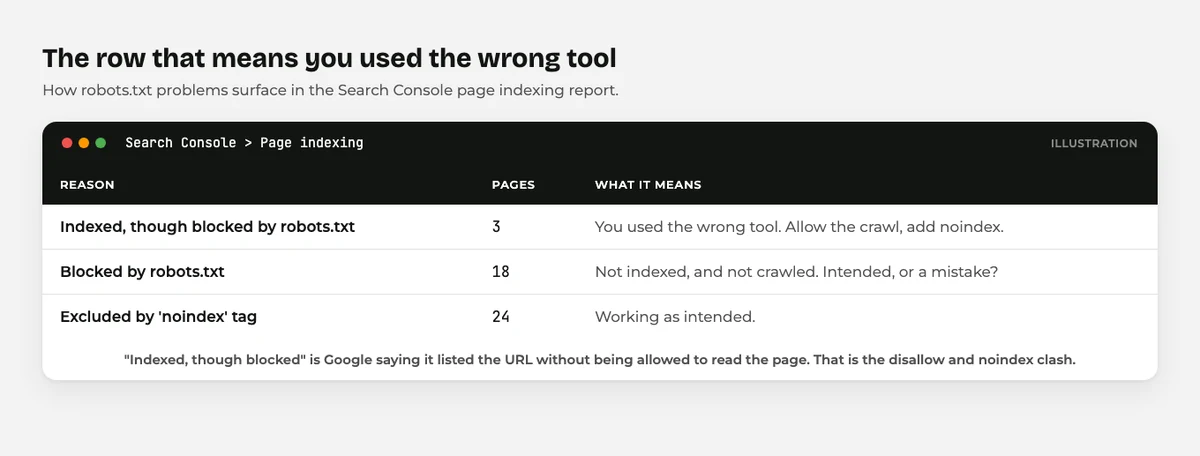
- Watch your coverage report. “Indexed, though blocked by robots.txt” is Search Console telling you that you used the wrong tool.
Do this after every edit. It takes thirty seconds, and it has saved plenty of people from a very bad month.
One more habit worth building.
Any time you move a site, change hosts, or come back from a redesign, check this file before anything else. It takes ten seconds, and a missed robots txt line is the most common way a WordPress site quietly disappears from search.
Common robots.txt Mistakes
Six mistakes, in rough order of how much damage they do.
Blocking the whole site and forgetting. A developer adds Disallow: / on staging, the site goes live, and the file comes with it. Traffic never arrives and nobody knows why.
The fix: check /robots.txt on launch day, and put it on your go live checklist.
Using robots.txt to hide a page. The page still appears in results, just without a description. The fix: use noindex and let Google crawl the page so it can see the tag.
Blocking CSS and JavaScript. Google renders your pages. Block the files it needs and it sees a broken layout. The fix: never disallow /wp-content/ or /wp-includes/.
Combining disallow and noindex on the same URL. They cancel each other out, because Google cannot read a tag on a page it may not fetch. The fix: pick one. Almost always noindex.
Creating a real file and losing the defaults. Your new file replaces the virtual one completely. The fix: include the admin disallow and the ajax allow in whatever you write.
Assuming it provides security. robots.txt is public, and listing a secret folder in it is an advertisement. The fix: protect private things with passwords or server rules, never with a disallow.
What About llms.txt?
You may have seen advice to add an llms.txt file alongside your robots.txt.
They are not the same thing, and llms.txt does far less than most articles claim. We looked at the actual evidence in our llms.txt guide.
The short version: robots.txt is respected by every major crawler. llms.txt is a proposal that most of them currently ignore.
Final Thoughts
Your WordPress robots txt file is a short, public list of requests to robots. WordPress already serves a sensible one, so you may not need to touch it at all.
If you do edit it, keep it small. Disallow your admin folder, point at your sitemap, and stop there unless you have a specific reason not to.
Remember the one rule that catches everybody: this file controls crawling, not indexing. To keep a page out of search results, use noindex and let crawlers in to read it.
And take a minute on the AI crawlers. Blocking the search ones removes you from AI answers, which is usually the opposite of what people want.
For the wider picture, our guide to WordPress file types covers every file on your site, and WordPress SEO for beginners covers what to do once crawlers are getting in properly.
Over to you: have you checked your own /robots.txt lately? Go and look, then tell me what you found in the comments.
Frequently Asked Questions
Where is the robots.txt file located in WordPress?
It lives at the root of your domain, so yourdomain.com/robots.txt. Most WordPress sites have no physical file, because WordPress generates a virtual one automatically.
Do I need a robots.txt file for WordPress?
Not necessarily. WordPress serves a sensible default, and you only need your own file if you want to add a sitemap line or block specific paths.
Does robots.txt stop a page appearing in Google?
No. It stops Google crawling the page, but the URL can still be listed if other sites link to it. Use a noindex tag instead.
How do I edit robots.txt in WordPress?
The easiest way is through Rank Math or Yoast, which both include an editor. Alternatively upload a real robots.txt file to your site’s root folder.
Should I block AI crawlers in my robots.txt file?
That depends on your goal. Blocking training bots keeps your writing out of model training, but blocking search bots like OAI-SearchBot removes you from AI search answers.
What is the difference between disallow and noindex?
Disallow tells a crawler not to fetch a page. Noindex tells a search engine not to list it. Noindex only works if the crawler is allowed to fetch the page and read it.
Why does Search Console say indexed though blocked by robots.txt?
Google found the URL through a link but was not allowed to crawl it, so it listed the address with no description. Remove the disallow and add a noindex instead.
You May Also Like
-

What Is Web Hosting
Want a website but have no idea where it actually… -
WordPress File Types Explained
Your WordPress site is made of files. Dozens of them,… -
What Is a JSON File?
You clicked a download button, and out came a file…