
- WP Plugins
- |
- WordPress
Common Kadence Blocks Mistakes (and How to Fix Them)
By Ehasanul Haque
Posted on September 19, 2026
Something on your Kadence site looks slightly off, and you can’t say why?
You’re not alone. Writing the rest of this Kadence series meant reading this site’s own homepage markup line by line, and two of the mistakes below turned up on it.
After 100+ Kadence builds.
So this isn’t a list of things beginners do. It’s a list of things Kadence lets everyone do, with the exact setting behind each one, and the fix.
Here’s the reassuring part: most Kadence Blocks mistakes are one attribute. A heading tag left at default. A size typed on a block. A colour without its class.
Each one takes you seconds to fix once you know where to look.
Every cause here is checked against Kadence Blocks 3.7.10’s own block.json files or render code, or against the live markup of this site. You can trust the settings names.
Let’s dive in.
1. Leaving the Advanced Text Tag at Its Default
The mistake: you use an Advanced Text block for a sentence, a label, or a stat, and never set the HTML Tag.
The cause: htmlTag defaults to "heading" and level defaults to 2 in block.json. Every untouched block is an <h2>.
What it does: you get a page with a dozen H2s that say “5+ years of experience.” Screen readers announce each as a section. Google reads a page outline made of labels.
The fix: set the tag on every block: h1 once, h2 for sections, h3 for cards, p for sentences.
Auditing a site? Open the list view, click each Advanced Text block, check the toolbar tag. The Advanced Text post has the three real uses.
2. Setting a Size on a Heading
The mistake: you type a font size into a heading block because it “looked small.”
The cause: nothing in the plugin. The field is right there in front of you. The Customizer sets H1 to H6 sizes with clamp ranges, and your block override wins over all of it.
What it does: that heading stops following your site. Do it on twelve pages, and a restyle means opening twelve pages. One of these is on this site’s homepage: the small heading over the logo strip, at 1.25rem, the one exception.
The fix: delete the size. If the heading is genuinely a different size from every other H2, it isn’t an H2. It’s a p with the sm or md preset, or a different level. Sizes belong in the Customizer, once.
3. A Colour Without Its Class
The mistake: in hand-written or tool-generated block markup, you write color: "palette3" with no colorClass.
The cause: Kadence stores a palette colour twice, color and colorClass: "theme-palette3", and the class is what applies the CSS variable. The editor UI writes both. Scripts, migrations, and AI tools building through the block queue write one. Same for bgColor and bgColorClass.
What it does: the block saves fine, the editor shows you the colour, the front end shows the default. No error anywhere.
The fix: pair them, always. If you generate markup, put it on your checklist. If you inherited a site where a section’s colours are wrong on the front end but right in the editor, this is the first thing to check.
4. Building Cards Out of Info Boxes That Will Grow
The mistake: you build a services grid in Info Box blocks, then your client asks for a button in each card.
The cause: Info Box has no inner blocks by design. Icon, title, text, Learn More, and that’s the box.
What it does: you rebuild the grid as Sections, and you’ve built it twice.
The fix: if a card might ever hold a button, a price, a list, or a pinned image, start with a Section. The Info Box post has the one case where the box is the better tool.
5. Padding in Pixels
The mistake: you type 80 into a Row Layout’s top padding, then 60 on the next section, then 72 on a third.
The cause: the padding field takes numbers, and the named scale (xs to 3xl) is a toggle away, so both are easy for you to reach.
What it does: your sections drift by a few pixels each and the page loses its rhythm. Nobody can say why it looks slightly off. And the scale can’t be changed site-wide later, because nothing uses it.
The fix: xxl for a standard section, 3xl for the big one, lg and xl on the hero, 0 on inner rows. Every Row Layout on this site uses the names; the values are here.
6. Turning On FAQ Schema Twice
The mistake: you switch on the Accordion block’s FAQ Schema toggle on a site running Rank Math or Yoast.
The cause: faqSchema is a real, working feature in the Accordion block, and it’s off by default for a reason.
What it does: two FAQPage markups on one URL with slightly different question text. Google picks one, or neither.
The fix: one schema source per site. If your SEO plugin does FAQ schema, leave the block’s toggle off. The Accordion post has the rest of the FAQ settings.
7. Shipping Full-Size Images in a Gallery
The mistake: you set an Advanced Gallery’s Thumbnail Size to full, because the large thumbnails looked soft.
The cause: thumbSize and lightSize are separate settings, and lightSize defaults to full already. Switching thumbSize to match puts the original files in the grid.
What it does: twelve phone photos, forty megabytes, one page.
The fix: thumbSize: large, lightSize at a 2048px size, and resize images before upload. Then your gallery is light at any layout. More in the Gallery post.
8. Fighting a Layout Setting Whose Name Is Wrong
The mistake: you set a Section’s Vertical Alignment to middle and find the avatar inside it centred vertically but stuck to the left.
The cause: on a vertical-direction Section, the attribute named justifyContent sets CSS align-items (the horizontal axis) and verticalAlignment sets CSS justify-content (the vertical one). The names are swapped from the CSS they produce.
What it does: any width-constrained child (an avatar with a max width, a fixed-width button) sits off-centre no matter what you do to Vertical Alignment. You’ll try every value twice.
The fix: set both. verticalAlignment for the vertical position and justifyContent: center for the horizontal one. Full-width children never show the problem, which is why it hides until the one avatar. The Row Layout post has the full note.
9. Custom CSS for a Thing the Block Can Do
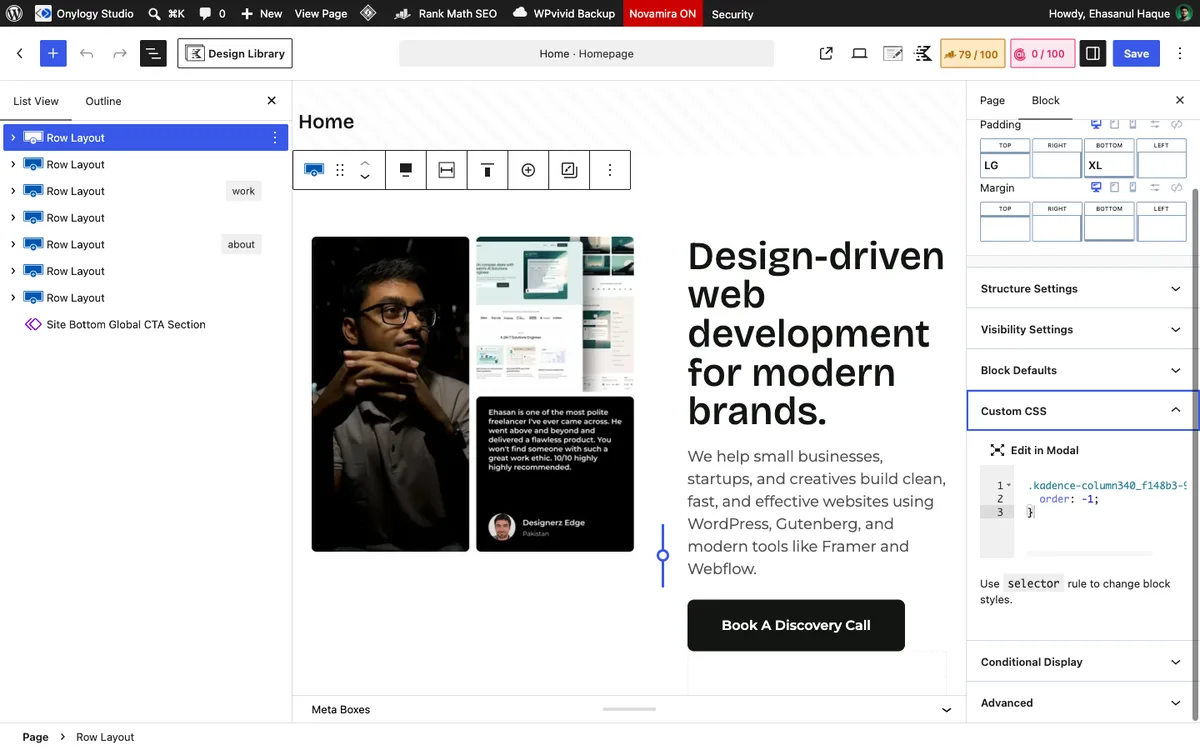
The mistake: this one is on this very site. The hero on the homepage carries one line of custom CSS in the Row Layout’s CSS box, order: -1 on the photo column, so the photo comes first on mobile.
The cause: Kadence has a Collapse Order setting for mobile column order. The CSS was faster that afternoon.
What it does: works perfectly. And it’s the one rule on the site that nobody would find by looking at block settings, which is exactly the kind of thing that costs you an hour when you inherit it.
The fix: try the setting first. Reach for the CSS box only when a setting genuinely can’t do it, and leave a note in the block’s name when you do.
The Ten-Minute Audit
Inherited a site, or auditing your own? Do this:
- List view, top to bottom. Every Advanced Text block: is the tag set? Every Row Layout: named padding or pixels?
- **View source on the homepage and search
font-size:** inside the Kadence<style>blocks. Every hit on a heading is mistake #2. - **Search the block markup for
"color":"palette** and check each has acolorClassbeside it. Same forbgColor. - Accordion blocks: FAQ Schema off if the SEO plugin has it.
- Galleries: Thumbnail Size and Lightbox Size.
- Open the Customizer. If the palette slots are named after colours (“Dark Gray”) rather than roles, the next restyle is going to hurt.
Ten minutes per page. You’ll find most of it on your first pass.
Final Thoughts
Nine mistakes, nine specific causes, two of them on this very site.
The pattern across all nine: a setting you made on a block that belonged in the Customizer, or a default the plugin chose that you didn’t.
Fix those two habits, and you’ll never make most of this list again on any site you build. The three traps that only bite generated markup are in the settings post.
Set the tag. Use the names. Leave sizes to the Customizer. That’s it.
Over to you: run the ten-minute audit on your own homepage. Which number did you find first? Let me know in the comments.
Frequently Asked Questions
Why does my Kadence heading look different from the others?
A font size, colour, or font family was set directly on that block, overriding the Customizer. Remove the override and it inherits the site’s heading style for its tag.
Why are my Kadence colours showing in the editor but not on the site?
The block markup has a color or bgColor value without its matching colorClass or bgColorClass. This happens with hand-written or generated markup; add the class.
Why is every Kadence Advanced Text block a heading?
The block’s HTML tag defaults to a heading (H2). Set the tag to p for sentences and labels, and to the right heading level for titles.
Should I use pixels or the named sizes for Kadence padding?
The named sizes (xs to 3xl). They keep every section on the same scale and can be changed site-wide; pixel values drift and can’t.
Why isn’t my content centred in a Kadence column?
Vertical Alignment only sets the vertical axis. Also set the Section’s Justify Content to center for width-constrained children like avatars and fixed-width buttons.
Can I turn on FAQ Schema in the Kadence accordion?
Only if no SEO plugin outputs FAQ schema already. Two FAQ markups on one page conflict.
How do I audit a Kadence site for these mistakes?
List view for tags and padding names, view-source for font-size overrides on headings, a markup search for colours without classes, then the accordion schema toggle and gallery image sizes. About ten minutes per page.
You May Also Like
-

Kadence Blocks Default Settings
Just installed Kadence Blocks and wondering which Kadence Blocks settings… -
Kadence Blocks for WordPress
Building your WordPress site with Kadence Blocks? Good choice. It’s… -
Build a Homepage with Kadence Blocks
Ready to build a homepage with Kadence Blocks and not…