
- WP Plugins
- |
- WordPress
Kadence Blocks Default Settings: How We Configure Every New Client Build
By Ehasanul Haque
Posted on September 19, 2026
Just installed Kadence Blocks and wondering which Kadence Blocks settings you should change first?
Here’s the surprising answer: none of them. You can skip that screen entirely.
Onylogy has built somewhere between 100 and 120 client sites on Kadence Blocks and the Kadence theme. On the site you’re reading right now, every Kadence Blocks option is still at its factory default.
No disabled blocks. No per-block defaults. No custom palette in the plugin. Kadence Blocks 3.7.10 and Pro 2.8.18, both running exactly as installed (checked September 2026).
That’s not an oversight. That’s the configuration.
Kadence Blocks settings are the ones you don’t touch, because the block plugin is designed to inherit everything that matters from the theme Customizer.
Every setup guide tells you to open the Kadence Blocks screen first. This post shows you what to do instead. It’s simpler, and it will save you hours.
Let’s dive in.
What Are Kadence Blocks Settings?
Kadence Blocks settings are the plugin-level options for the Kadence Blocks toolkit: which blocks are active, per-block default styles, the editor width, and a custom color palette.
None of them change what a block can do. They only change what a freshly inserted block looks like before you style it.
Here’s the one paragraph the settings screen deserves.
The Settings Screen
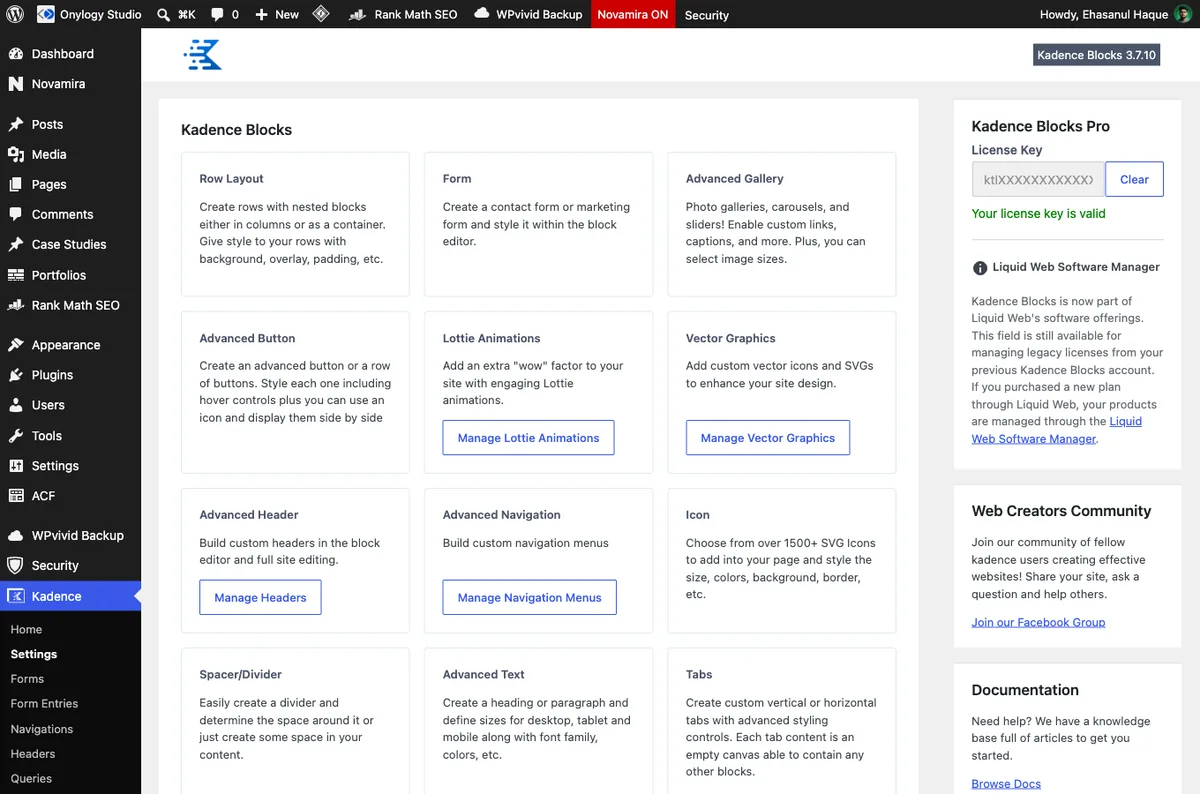
On Kadence Blocks 3.7.10 the admin page is a grid of every block with an on/off state and a Pro licence field.
You don’t need to disable anything. Disabling a block doesn’t make your pages faster, because Kadence only loads code for blocks actually on the page. It just makes the Accordion block harder to find later.
Leave it. Close the tab.
Where the Defaults Really Live: The Kadence Customizer
On a Kadence site, block defaults come from the theme, not the block plugin.
Kadence Blocks reads the theme’s global color palette, base and heading fonts, and container width. Every block you insert starts from those, so you never style the same thing twice.
Change the H2 size in the Customizer, and every Advanced Text block set to H2 changes with it, on every page, at once.
That inheritance is the reason to pick Kadence over the page builders compared here, and the thread running through the whole Kadence Blocks guide. It’s why your real settings work happens in Appearance > Customize, not in the plugin.
Here’s what that looks like on onylogy.com.
Colors: One Palette, Nine Slots
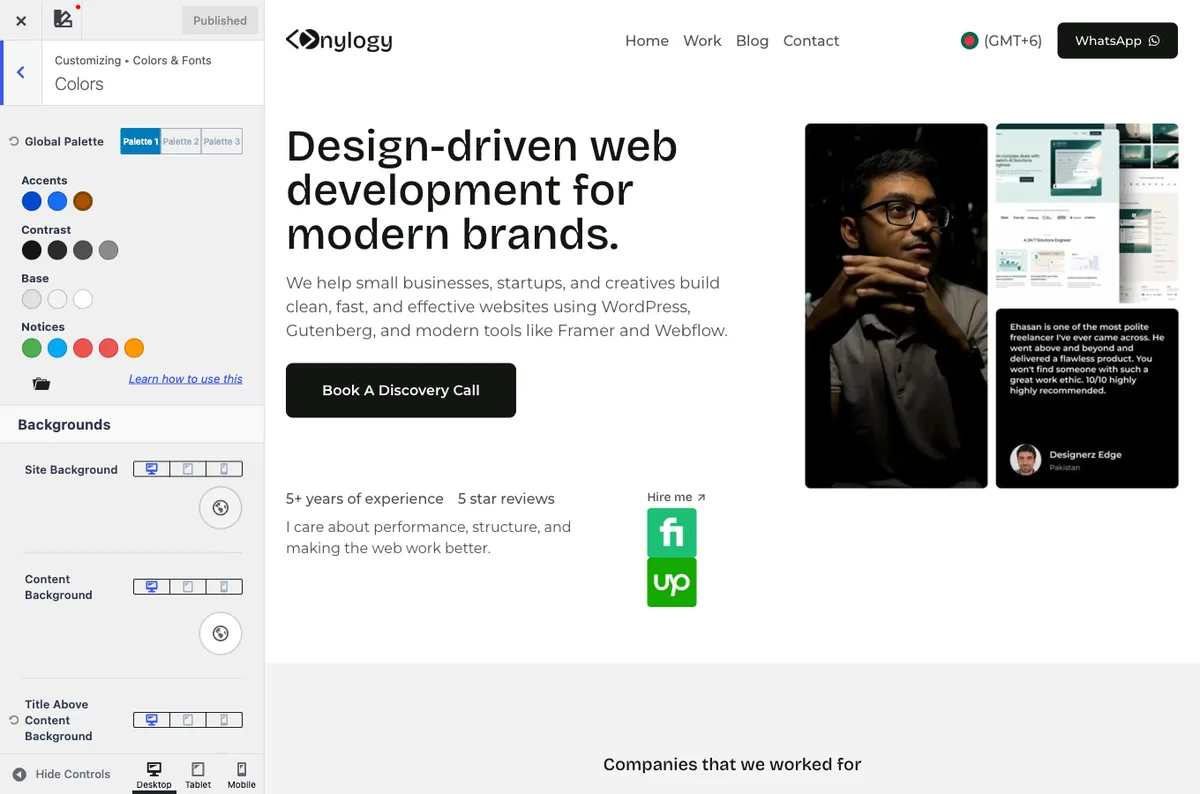
The Kadence global palette has nine numbered slots. Use them the same way on every build, so a block styled palette3 means the same thing on site 40 as on site 120:
| Slot | Value here | Job |
|---|---|---|
| palette1 | #004bd1 | Brand color, button hover |
| palette2 | #146ef5 | Brighter accent |
| palette3 | #131513 | Headings, dark section backgrounds, button background |
| palette4 | #292929 | Secondary dark |
| palette5 | #505050 | Body text |
| palette6 | #8b8b8b | Muted text |
| palette7 | #e1e1e1 | Borders |
| palette8 | #f3f3f3 | Light section backgrounds |
| palette9 | #ffffff | White, text on dark |
The hex values change per client. The roles don’t. That’s what you copy.
That’s what makes a design system survive a hundred sites. palette1 is always the brand color. palette5 is always body text. palette9 is always white. You never have to remember a hex code.
The full token setup, roles and all, is in how we set up the global palette and typography.
Typography: Two Fonts, Weight 500, Clamped Sizes
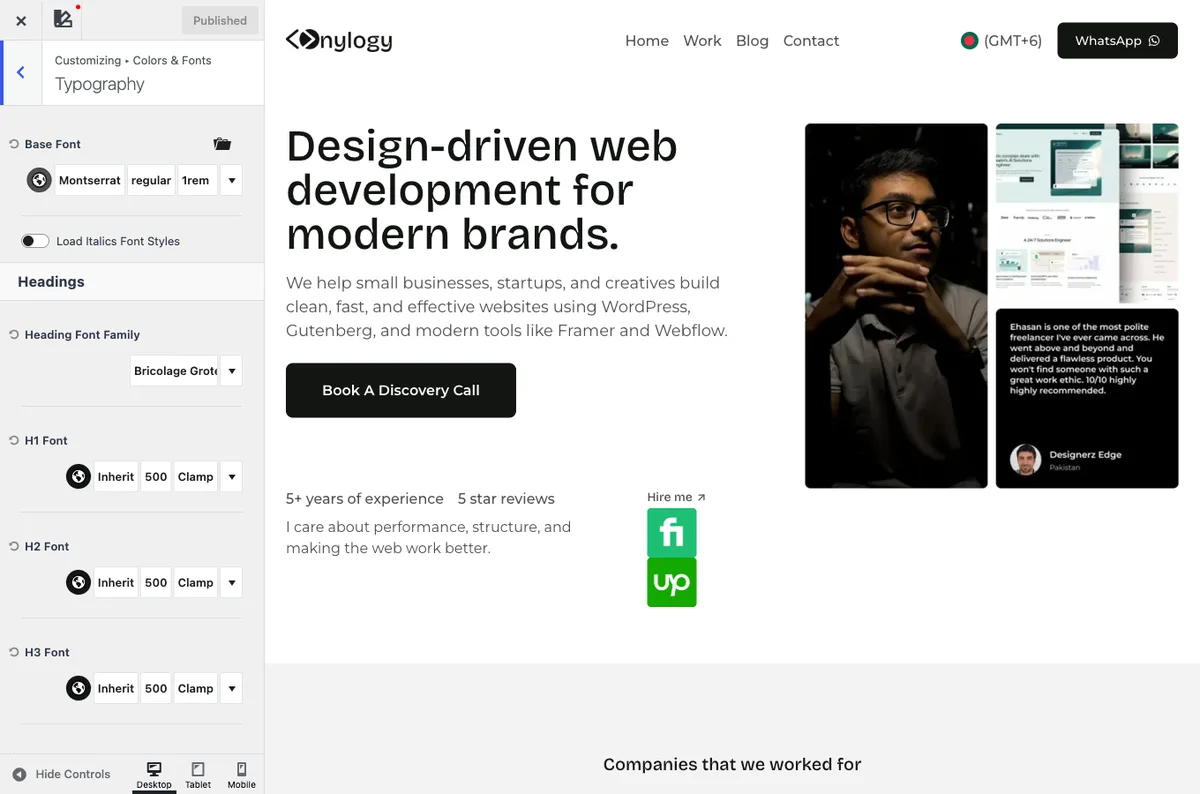
Body text is Montserrat, regular weight, 1rem, line-height 1.5, colored palette5. Headings are Bricolage Grotesque at weight 500, all levels, colored palette3.
That pairing is this site’s. Your client’s fonts will differ. The structure below is what carries over.
Every heading level has a base size and a clamp range, so it scales between 320px and 1200px viewports without a single media query in the block markup:
| Level | Base | Clamp (rem) | Line height |
|---|---|---|---|
| H1 | 32px | 2.5 to 3.25 | 1 |
| H2 | 28px | 2 to 3 | 1.083 |
| H3 | 24px | 1.75 to 2.5 | 1.1 |
| H4 | 22px | 1.5 to 2 | 1.188 |
| H5 | 20px | 1.25 to 1.5 | 1.167 |
| H6 | 18px | 1 to 1.25 | 1.2 |
Those are onylogy.com’s numbers, September 2026. Yours will differ.
What shouldn’t differ is that they live here, once, and nowhere else. Set them, and you’re done with typography for the life of the site.
Two smaller toggles worth turning on: Font Rendering (Kadence’s antialiasing option) and Load Google Fonts Locally, which serves font files from your own server and keeps visitor IP addresses away from Google.
Buttons and Container
Buttons: background palette3, text palette9, hover flips to palette1, radius 8px, weight 600. Set once, and every Advanced Button block you insert is that button.
Container width: 1248px, on almost every build.
Nine colors, two fonts, six heading sizes, a button, a number. That’s your whole configuration.
Everything after this is about not undoing it.
Never Set a Font Size on a Block
Here’s the one rule to remember.
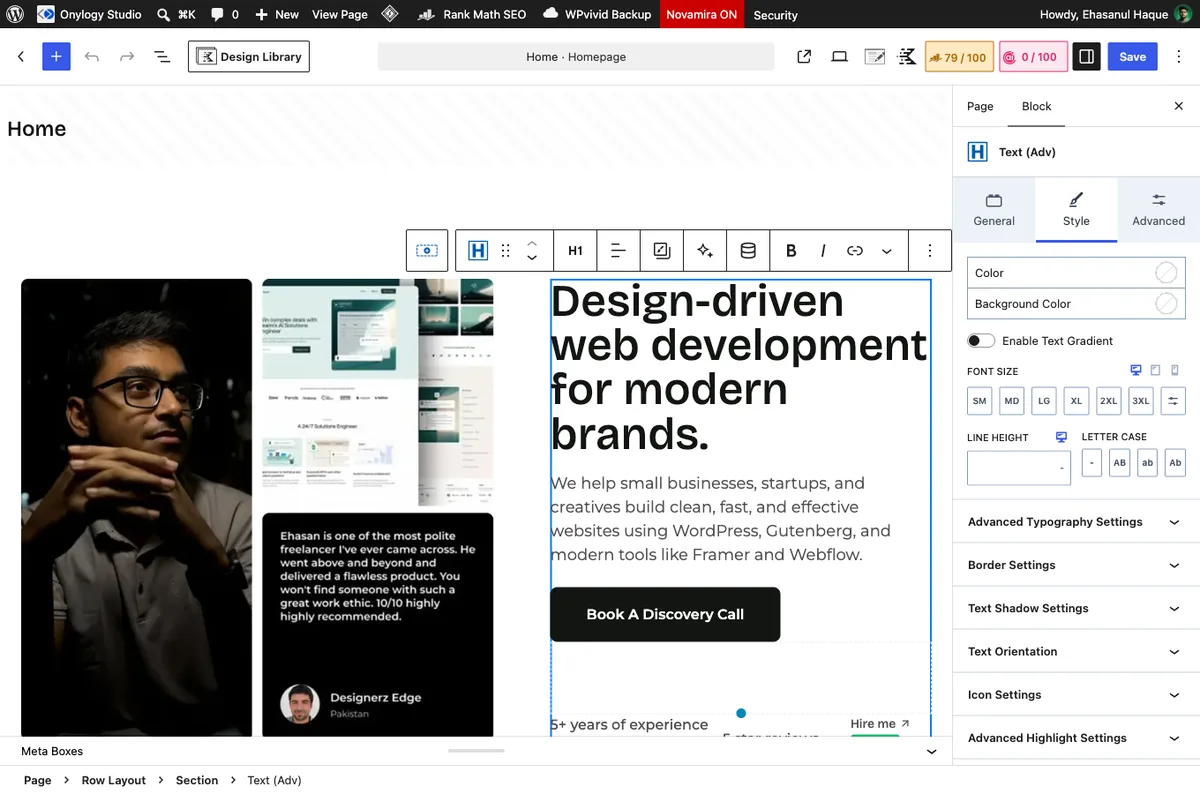
Do not set a font size, line height, or color on a heading by hand. Set its HTML tag and let the Customizer do the rest.
On this site’s homepage, the H1 and every section heading carry no size at all. The only hand-set sizes are on a lead paragraph, two subtitles, and a few small labels.
Headings inherit. Always.
The moment you type a size into a heading’s sidebar, that block stops listening to the Customizer. Do it on twelve pages, and you no longer have a design system. You have twelve pages.
Already got a site with 40 pages of manual sizes? Your fix is a slow afternoon of deleting overrides, not a plugin. It’s worth it.
Three Traps in the Advanced Text Block
If you only ever use the editor, you can skim this section. If you ever build pages from block specs, scripts, or an AI tool, read it twice. Three things in the Advanced Text block’s render code will surprise you.
1. The HTML tag defaults to “heading,” not to a tag
In block.json the htmlTag attribute defaults to the literal string "heading", and the real tag comes from a separate level attribute that defaults to 2.
So an Advanced Text block you never touched is an H2. A paragraph of body copy that nobody set to p is an H2.
Set htmlTag explicitly on every block you insert: h1 once per page, h2 for sections, h3 for subsections, p for sentences. Screen readers and Google both depend on it (the beginner SEO guide explains why).
2. The unit falls back to px
In the render code (class-kadence-blocks-advanced-heading-block.php, 3.7.10), the unit defaults to px whenever sizeType isn’t saved, and Gutenberg doesn’t save attributes equal to their default.
So if anything writes a fontSize of 1.5 without sizeType: "rem", your browser gets font-size: 1.5px.
From the editor you’d never do that. From a block spec or an AI tool, it’s a one-line mistake that gives you a heading you need a magnifying glass to read.
3. The line-height code path that still bites
Same file, a few lines down, the legacy lineHeight attribute is glued to its unit with plain string concatenation. If lineHeight is ever an array, PHP throws an “Array to string conversion” warning on every render of that block.
It happened on this site during an About page rebuild through a block spec.
Today’s editor writes responsive line heights to a different attribute, fontHeight, which the PHP handles correctly. So the rule for you is simple: never set lineHeight at all. Use fontHeight if you ever need an override, and let the Customizer handle the rest.
Does Any of This Need Pro?
No. Everything above is Kadence theme Customizer settings plus free Kadence Blocks.
Pro is installed here, and the blocks it adds (Post Grid, Portfolio Grid, Modal, Split Content, Video Popup) inherit the same Customizer values.
You’ll want Pro when your site actually needs one of those blocks. Which ones, and when free is enough, is the Free vs Pro post.
Which of This Should You Copy?
- Starting a new site on the Kadence theme? Set the palette roles, two fonts, the heading scale, and the container width in the Customizer before you insert a single block.
- Already have a site with sizes set on individual blocks? Pick the worst page, delete every override on it, and watch the Customizer take over.
- Building pages from block specs, scripts, or an AI tool? Set
htmlTagon every Advanced Text block, never writefontSizewithoutsizeType, and never writelineHeight. - On a different theme? Most of this applies to any theme with global palette and typography settings, but the inheritance is a Kadence theme feature. If you’re deciding between themes, start with the KadenceWP overview.
Final Thoughts
Set nine colors, two fonts, six heading sizes, a button, and a container width in the Customizer. Then leave the Kadence Blocks screen alone.
That one sentence has held up on roughly 120 sites. It will hold up on yours too, and you’ll spend your time building pages instead of fixing them.
Configure the theme once. Build from blocks that already match. Plain and simple.
Over to you: what’s set on your blocks right now that should have been set once in the Customizer? Let me know in the comments.
Frequently Asked Questions
Do I need to change any Kadence Blocks settings after installing?
No. Kadence Blocks inherits the theme’s palette, fonts, and container width, so a fresh install with the Kadence theme configured is already set up.
Should I disable Kadence blocks I don’t use to speed up my site?
It won’t make your pages faster. Kadence only loads the CSS and JavaScript for blocks that actually appear on a page, so an unused block costs nothing.
Where do I set the Kadence Blocks color palette?
In the Kadence theme Customizer under Colors, not in the block plugin. The nine palette slots you set there become the color options inside every Kadence block.
Why do my headings look different on some pages?
Almost always because a font size or color was set directly on those blocks, which overrides the Customizer. Remove the per-block override and the block goes back to the global heading style.
Does Kadence Blocks Pro change the default settings?
No. Pro adds blocks and features (Post Grid, Modal, dynamic content, form actions) but uses the same Customizer inheritance.
What container width should I use for Kadence?
1248px suits most layouts on a 1440px screen, and it’s what nearly every Onylogy build uses. If you change it, change it in the Customizer so every block follows.
Is “Load Google Fonts Locally” worth turning on?
Yes, for most sites. Fonts are served from your own server instead of Google’s, which removes a third-party connection and keeps visitor IP addresses away from Google.
You May Also Like
-

Kadence Blocks for WordPress
Building your WordPress site with Kadence Blocks? Good choice. It’s… -
Build a Homepage with Kadence Blocks
Ready to build a homepage with Kadence Blocks and not… -
Kadence Blocks vs Spectra vs Stackable
Looking for the best Gutenberg block plugins and finding the…