

- WordPress
sitemap.xml in WordPress: The Complete Guide for Beginners
By Ehasanul Haque
Posted on October 1, 2026

Your SEO plugin keeps mentioning a sitemap, Search Console wants you to submit one, and nobody has explained what it actually is.
Let’s fix that.
A sitemap is one of the simplest ideas in search, and your site almost certainly has one already without you doing a thing.
You don’t need to be technical to sort this out. Ten minutes and it’s done properly, for good.
This guide covers your sitemap.xml file end to end: what it is, who makes it, what belongs in it, how to submit it, and the handful of things that go wrong.
Let’s get into it.
Key Takeaways
- What it is: a machine readable list of the pages on your site that you want search engines to find.
- You already have one. WordPress has built sitemaps into core since version 5.5, at
/wp-sitemap.xml. - Your SEO plugin replaces it. Rank Math and Yoast each generate their own and switch the core one off.
- The only job you have: submit it once in Google Search Console and keep low value pages out of it.
What Is a sitemap.xml File?
A sitemap is a file that lists the URLs on your site you want search engines to know about.
That’s the whole concept. A list of addresses, in a format built for machines rather than people.
It is written in XML, which means every value sits inside a named tag. If that format is new to you, our guide to what is an XML file covers it in two minutes.
A single entry looks like this:
<url>
  <loc>https://example.com/wordpress/what-is-wordpress/</loc>
  <lastmod>2026-09-14</lastmod>
</url>
An address, and the date it last changed.
Multiply that by every page on your site and you have a sitemap.
Google describes a sitemap as a file where “you provide information about the pages, videos, and other files on your site, and the relationships between them” (Google Search Central, checked September 2026).
What Is a Sitemap For?
It helps search engines find pages they might otherwise miss.
Crawlers discover pages by following links. That works well for anything linked from your menu or your homepage.
It works badly for pages buried five clicks deep, pages nobody links to yet, and brand new posts on a site with few inbound links.
A sitemap short circuits all of that. Here is everything, in one list, with dates.
Two honest caveats, because plenty of articles oversell this.
A sitemap does not guarantee indexing.
It is a suggestion, not an instruction. Google decides what it indexes.
And it does not improve your rankings.
A page listed in a sitemap does not rank higher than one that is not. Discovery and ranking are different things.
So why bother? Because a page that is never discovered can never rank at all. That is the value, and it is real.
How Is a sitemap.xml File Made?
Automatically, by WordPress or by your SEO plugin. You never write one by hand.
WordPress core makes one
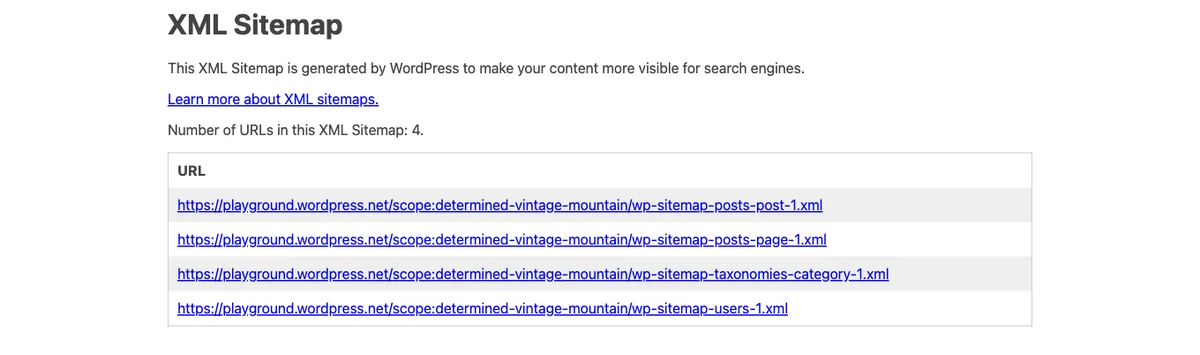
Since WordPress 5.5, core has generated XML sitemaps on its own (WordPress Developer Resources, checked September 2026). No plugin needed.
Your core sitemap index lives at:
https://yourdomain.com/wp-sitemap.xmlOpen that address on your own site right now. If you see a list of links, that is it working.
The core version is basic but perfectly functional. It covers posts, pages, custom post types, categories, tags, and author archives.
Your SEO plugin makes a better one
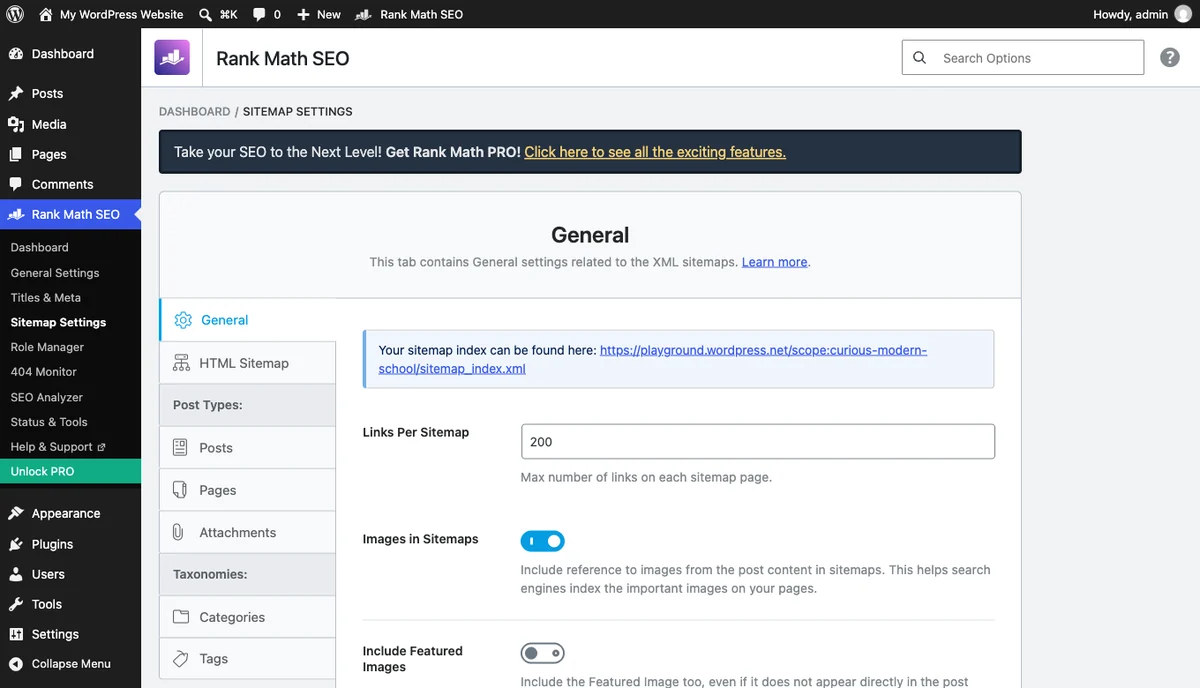
Install Rank Math or Yoast and it switches off the core sitemap and generates its own, usually at /sitemap_index.xml.
Why bother replacing it? Because the plugin version gives you control. You choose which post types appear, exclude individual pages, and anything you mark noindex drops out automatically.
That last part matters more than it sounds, and we’ll come back to it.
Our SEO plugins roundup compares the options if you have not picked one yet.
What Is a Sitemap Index?
Here is the bit that confuses people the first time they open one.
Click your sitemap and you probably won’t see a list of your posts. You’ll see a list of other sitemaps.
That’s a sitemap index.
It is completely normal.
The reason is a hard limit: a single sitemap file can hold at most 50,000 URLs or 50MB uncompressed. Rather than one giant file, the standard splits things up.
So your index points at post-sitemap.xml, page-sitemap.xml, category-sitemap.xml, and so on. Each of those holds the actual addresses.
You submit the index. Search engines follow it to the rest.
You never touch the individual files.
What Should Be in Your sitemap.xml?
Only pages you would be happy for someone to land on from Google.
That is the entire test, and it’s a better rule than any checklist.
Include
- Your posts and pages
- Your product or portfolio pages
- Category archives, if they have real content and you want them found
- Images, if you get traffic from image search
Leave out
- Thank you and confirmation pages. Nobody should arrive at these cold.
- Login, cart, and checkout pages. No search value at all.
- Tag archives with one or two posts. Thin pages that compete with your real content.
- Author archives on a one person blog. They duplicate your blog listing exactly.
- Anything marked noindex. This one is important enough for its own section.
The noindex rule
Never list a noindex page in your sitemap.
You are sending two contradictory messages: “please crawl this” and “please don’t list this”. Search Console will flag it, and you’ll waste time working out why.
Rank Math and Yoast both handle this for you. Mark a page noindex and it leaves the sitemap on its own.
How to Submit Your Sitemap to Google
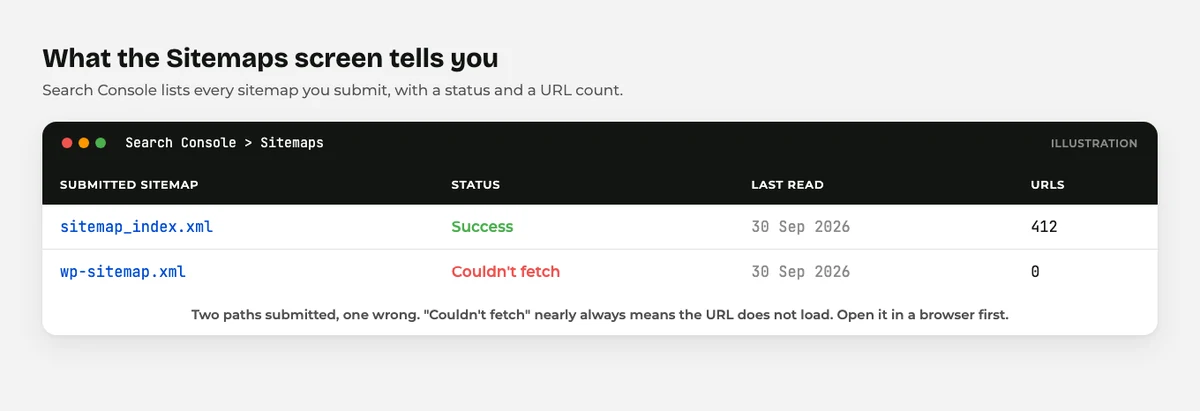
This is the one active job you have. It takes about two minutes.
- Open Google Search Console and select your property.
- Click Sitemaps in the left menu.
- Type your sitemap path, usually
sitemap_index.xmlorwp-sitemap.xml. - Click Submit.
- Come back in a day or two and check the status says Success.
That’s it. You never need to do it again, because Google re checks the file on its own from then on.
Do the same in Bing Webmaster Tools while you are at it. It is the same process and it covers Bing and anything built on it.
Add it to robots.txt too
One line in your robots.txt points every crawler at your sitemap, not just the ones you submitted to:
Sitemap: https://yourdomain.com/sitemap_index.xmlGood news: WordPress already does this for you. Core’s sitemaps feature has appended a Sitemap: line to the virtual robots.txt since version 5.5, and Rank Math and Yoast point it at their own sitemap instead.
The one case where you have to add it by hand is when you create a physical robots.txt file, because that replaces the virtual one entirely. Our robots.txt guide covers the rest of that file.
What About HTML Sitemaps?
Different thing, easily confused.
An XML sitemap is for machines. An HTML sitemap is a normal page on your site listing your content for human visitors.
Do you need one? Usually not. If your navigation and internal linking are good, an HTML sitemap adds very little.
Large sites with deep structures sometimes still find them useful. Small sites almost never do.
The Other Kinds of sitemap.xml
Most sites only ever need the standard one. It is worth knowing the others exist, though, in case one applies to you.
Image sitemaps. These list the images on each page so they can appear in image search. Rank Math and Yoast both fold image data into the normal sitemap rather than making a separate file, so you usually get this for free.
Video sitemaps. If you host video on your own site, a video sitemap gives search engines the title, duration, and thumbnail. Embedding a YouTube video does not need one, because YouTube handles it.
News sitemaps. Only for sites accepted into Google News. They cover articles from the last 48 hours and follow a stricter format.
Multilingual sitemaps. A translated site needs its alternate language versions declared. WPML and Polylang both handle this alongside your SEO plugin.
Do you need any of them? Almost certainly not, unless you publish news or host your own video. The standard sitemap covers the rest.
How Often Does Your Sitemap Update?
Immediately, in practice.
Your sitemap is generated when someone requests it, not saved as a static file and left to go stale. Publish a post and it appears the next time a crawler asks.
That is why you submit the file once and then leave it alone. There is no “regenerate” button to remember.
Two things can get in the way.
A caching plugin may serve an old copy. Most exclude sitemaps automatically, but if yours looks out of date, clear the cache and reload.
A CDN can do the same thing at its own layer. Purge it if the sitemap looks frozen.
What about lastmod dates?
The <lastmod> tag tells search engines when a page last changed, and Google does pay attention to it.
Here is the catch. It only helps if it is honest.
Some plugins update every lastmod date whenever anything on the site changes, which tells Google everything changed at once. That is noise, and Google learns to ignore it.
Leave the default behaviour alone and it will be accurate. Do not go looking for a plugin that “refreshes” your dates.
Common sitemap.xml Mistakes
Six problems cover nearly everything you’ll run into.
Submitting the wrong URL. You submit wp-sitemap.xml while your SEO plugin serves sitemap_index.xml. Search Console reports “couldn’t fetch”. The fix: open both addresses in a browser and submit whichever actually loads.
Listing noindex pages. Contradictory signals, flagged in Search Console. The fix: let your SEO plugin manage the sitemap rather than building one by hand.
Blocking the sitemap in robots.txt. If a crawler cannot fetch the file, submitting it achieves nothing. The fix: check the path is not covered by a disallow rule.
Leaving a staging site’s sitemap live. Your test site gets crawled and competes with the real one. The fix: block staging properly with a password, not just robots.txt.
Expecting it to fix indexing. A page that is thin, duplicated, or low value will not get indexed because it appears in a sitemap. The fix: improve the page. The sitemap was never the problem.
Both core and plugin sitemaps running. Rare, but it happens after a plugin change, and you end up with two competing lists. The fix: confirm only one address returns a real sitemap.
Sitemaps on a Big Site or a Shop
Everything above applies whatever your size. A few things change once a site gets large.
WooCommerce shops generate a lot of URLs. Products, product categories, product tags, and attribute archives all pile up fast.
Keep the products. Think hard about the rest.
Product tag archives in particular are usually thin, and a shop with three hundred tags has three hundred weak pages competing with the products themselves. Exclude them in your WordPress sitemap xml settings and nothing of value is lost.
Sites over 50,000 URLs hit the per file limit and get split automatically. You still submit only the index, so there is nothing extra to do.
Filtered and faceted URLs are the real danger. Colour, size, and price filters can multiply into thousands of near identical addresses. Those should never be in a sitemap, and most plugins keep them out by default.
Here’s the underlying principle, and it scales to any size of site.
Your sitemap is a recommendation list, not an inventory. You are not trying to list everything that exists. You are telling a search engine which pages are worth its time.
A shop with 400 genuinely useful URLs in its sitemap does better than one with 8,000 that includes every filter combination. Fewer, better entries win.
If you are not sure what is in yours, open it and scroll. It takes two minutes and it is usually revealing.
Why Isn’t My Sitemap Working?
Four checks, in order.
Does the URL load? Visit it in a browser. A 404 means the path is wrong or the plugin is off.
Did you flush your permalinks? Go to Settings > Permalinks and click Save. This fixes a surprising number of sitemap 404s.
Is a caching plugin serving an old copy? Clear your cache and reload. Sitemaps update when you publish, and an aggressive cache can hide that.
Is it empty? A sitemap with no URLs usually means every post type has been excluded in your plugin’s settings. Check the sitemap tab.
If all four look fine and Search Console still complains, give it a few days. “Couldn’t fetch” often resolves itself once Google retries.
Final Thoughts
Your WordPress sitemap xml file is a list of addresses for search engines. Nothing more complicated than that.
WordPress builds one automatically, and your SEO plugin builds a better one. The work on your side is small: submit it once in Search Console, keep junk pages out of it, and never list anything marked noindex.
Just keep your expectations honest. A sitemap helps pages get found. It does not make them rank, and it will not rescue a page that is not worth indexing.
Get it submitted, then spend your energy on the pages themselves. That’s where the results are.
For the wider picture, our guide to WordPress file types covers every file on your site, and WordPress SEO for beginners covers what to do next.
Over to you: is your sitemap submitted in Search Console yet? Go and check, then let me know in the comments.
Frequently Asked Questions
Where is my sitemap.xml file in WordPress?
Try yourdomain.com/wp-sitemap.xml for the core version, or yourdomain.com/sitemap_index.xml if you run Rank Math or Yoast. One of the two will load.
Does WordPress create a sitemap automatically?
Yes. WordPress has generated XML sitemaps in core since version 5.5, so every modern site has one whether or not you installed a plugin.
Do I need an SEO plugin for a sitemap?
No, but it helps. The core sitemap works fine, while a plugin lets you exclude pages and keeps noindex content out automatically.
How do I submit a sitemap.xml to Google?
Open Google Search Console, choose Sitemaps in the left menu, enter your sitemap path, and click Submit. You only need to do this once.
Will a sitemap improve my rankings?
No. It helps search engines discover your pages, but discovery and ranking are separate things. A listed page does not outrank an unlisted one.
Why does Search Console say my sitemap could not be fetched?
Usually the URL is wrong, or the file is blocked in robots.txt. Load the address in a browser first, and if it works there, resubmit and wait a few days.
Should tag and author pages be in my sitemap?
Usually not on a small site. Thin tag archives and a single author’s archive duplicate content you already have, so most people exclude them.
You May Also Like
-

What Is Web Hosting
Want a website but have no idea where it actually… -
WordPress File Types Explained
Your WordPress site is made of files. Dozens of them,… -
What Is a JSON File?
You clicked a download button, and out came a file…