

- WordPress
SVG Files in WordPress: Can You Upload Them, and Should You?
By Ehasanul Haque
Posted on October 1, 2026

Your designer sent over a logo as an .svg file.
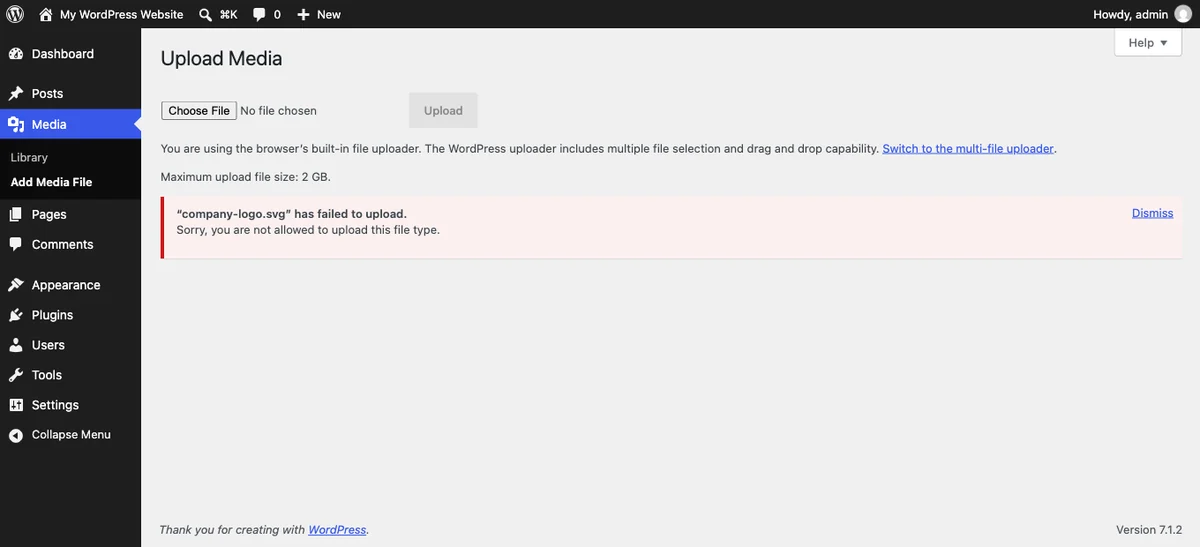
You dragged it into the Media Library and WordPress threw it straight back at you: “Sorry, you are not allowed to upload this file type.”
Frustrating, right?
Here’s the thing. That error is not a bug, and it is not your host being awkward. WordPress is protecting you from something real.
Good news: you can absolutely use SVG files in WordPress, and the safe way takes about two minutes to set up.
In this post you’ll learn what an SVG actually is, how one gets made, why WordPress blocks it, and exactly how to enable them without opening a hole in your site.
Let’s get into it.
What Is an SVG File?
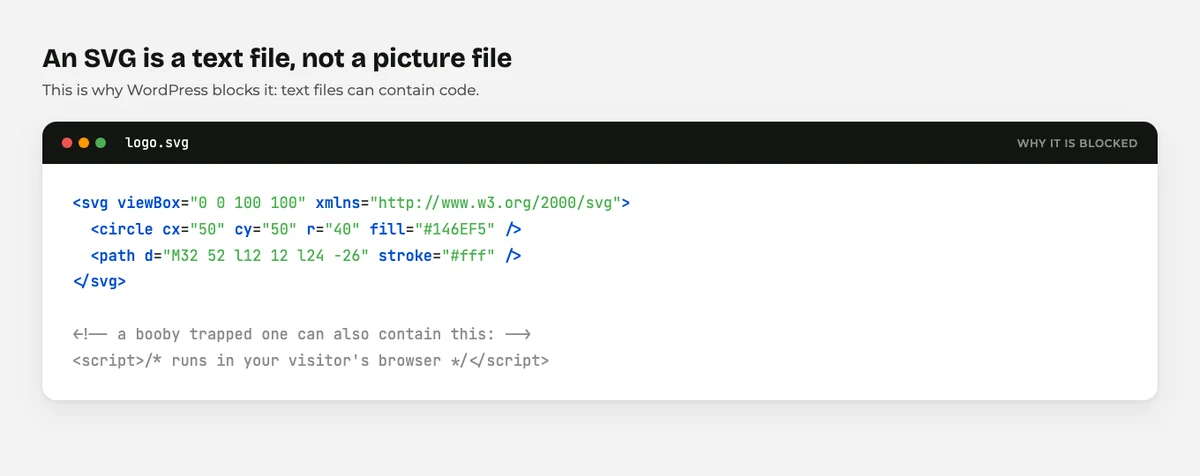
An SVG file is an image stored as instructions rather than pixels.
SVG stands for Scalable Vector Graphics. That word “scalable” is the whole point.
A normal photo is a grid of coloured dots. Blow it up and the dots get bigger, so the picture goes blurry.
An SVG holds no dots at all. It holds directions: draw a circle here, fill it blue, put this line from here to there.
Your browser follows those directions at whatever size it needs. Two hundred pixels wide or two thousand, it redraws perfectly either way.
That’s why logos are almost always SVG.
Here’s the part that surprises people. An SVG is a text file, not a picture file. Open one in Notepad and you can read it:
<svg viewBox="0 0 100 100">
  <circle cx="50" cy="50" r="40" fill="#146EF5" />
</svg>
Hold onto that fact. It explains everything that comes next.
How Is an SVG File Made?
In design software, almost always.
Illustrator, Figma, Inkscape, and Affinity Designer all export SVG. You draw shapes, you choose Export as SVG, and out comes the file.
Icon libraries hand them out too. Most free icon sites let you download any icon as an SVG.
And because it is just text, you can write one by hand. The example above took ten seconds to type.
What you cannot do is turn a photograph into a useful SVG. Vectors are made of shapes, and a photo is not made of shapes.
What Are SVG Files For?
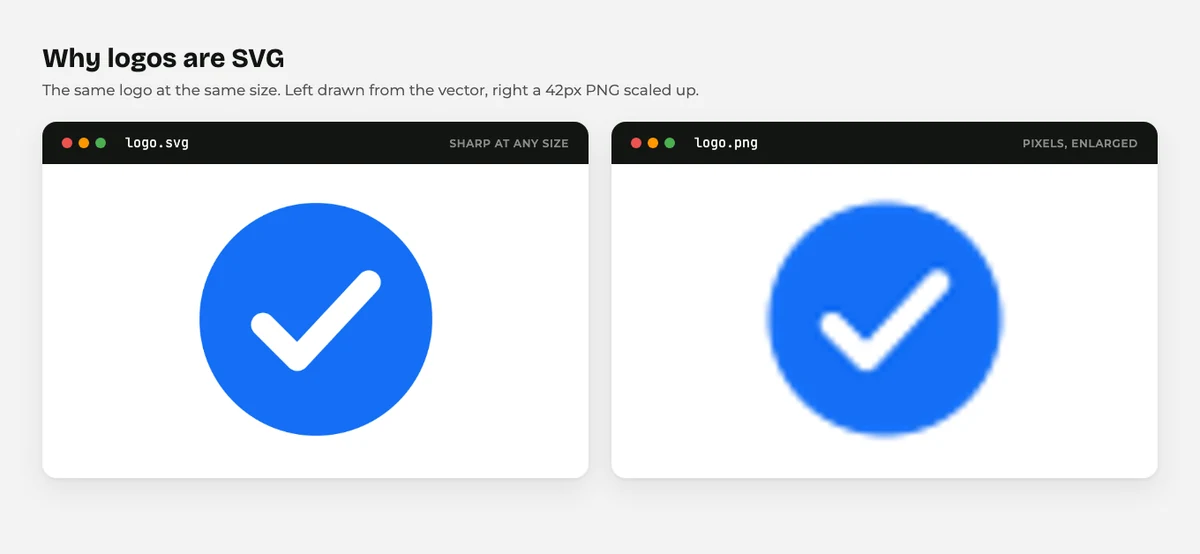
SVG exists for graphics that need to stay sharp at any size.
Think about where that actually matters on a website: your logo in the header, icons next to your features, a simple illustration, a chart.
All of those are flat shapes. All of them appear at different sizes on phones and desktops.
Two other things make SVG worth having. The files are tiny, often a fraction of a PNG of the same graphic. And you can change their colour with CSS, which you cannot do with a PNG.
For photographs, none of this applies. Those need JPEG, WebP, or AVIF, which we compare in WebP vs JPEG vs PNG.
Why Does WordPress Block SVG Files?
Because an SVG is a text file that can contain code.
That is the whole reason, and it is a fair one. Remember the tags in that example? SVG is built on XML, and XML files can carry a <script> tag.
A picture cannot run code. An SVG can.
So if someone uploads a booby trapped SVG to your site, and a visitor opens it, that script runs in the visitor’s browser. That’s a cross site scripting attack, and it is a genuine risk on any site where other people can upload things.
WordPress solves this bluntly: it keeps a fixed list of allowed upload types and SVG is not on it. You can confirm that yourself in wp_get_mime_types(), checked September 2026. WebP and AVIF are on the list. SVG is not.
Is the risk real for your site? If you are the only person who uploads anything, honestly, it is small. If you run a membership site or accept user uploads, it is not small at all.
How to Use SVG Files in WordPress Safely
Use a plugin that sanitises the file. That is the short answer.
Sanitising means the plugin reads the SVG, strips out anything that could run code, and only then lets it into your Media Library. You get the logo. You don’t get the script.
Several plugins do this, and the well known ones are free. Look for the word “sanitise” or “sanitize” in the description, because that is the feature that matters.
Three rules to go with it:
- Only allow SVG uploads for administrators. A good plugin has this setting. Turn it on.
- Only upload files you made or were sent by someone you trust. Never an SVG downloaded from a random site.
- Turn the plugin off if you stop needing it. If you uploaded one logo two years ago, the plugin does not need to stay active.
You’ll find more of this thinking in our guide on how to secure your WordPress site.
What About Editing the Allowed File Types Yourself?
You’ll find snippets online that add SVG to the allowed list with a few lines in functions.php.
They work. They also skip the sanitising step entirely, which is the only part that was protecting you.
A snippet says “let SVGs in”. A sanitiser says “let safe SVGs in”. Those are very different promises.
Use the plugin.
What Goes Wrong With SVG Files
Five things, and none of them are dangerous.
The upload is rejected. No SVG plugin is active yet. That is the error doing its job.
The image uploads but shows as a broken icon. Usually the file was exported with no viewBox, so the browser has no idea what size to draw it. Re export it from your design tool.
It looks enormous, or vanishes. Same cause. SVGs have no fixed pixel size, so without a viewBox or CSS width they behave unpredictably.
No thumbnail in the Media Library. WordPress cannot generate previews for SVG the way it does for photos. Most sanitising plugins add preview support.
The file is bigger than the PNG it replaced. Design tools sometimes export SVGs stuffed with editor metadata. Run it through an SVG optimiser and it usually shrinks a lot.
Final Thoughts
SVG files in WordPress are genuinely worth using for logos and icons. Sharp at every size, tiny, and colourable with CSS.
The block you hit is not WordPress being difficult. It is WordPress refusing to let a file that can run code into a public folder without checking it first.
Install a sanitising plugin, limit uploads to admins, and only use files you trust. That’s it. You’re covered.
For everything else on your site, our guide to WordPress file types is the map, and the image optimization plugins roundup covers the photo side.
Over to you: is it a logo you’re trying to upload? Let me know in the comments.
Frequently Asked Questions
Can you upload SVG files in WordPress by default?
No. SVG is not on WordPress core’s list of allowed upload types, so the Media Library rejects it until you install a plugin that permits and sanitises it.
Are SVG files in WordPress a security risk?
They can be, because an SVG is a text file that can contain a script. A sanitising plugin removes that code before the file is saved, which is why you should use one.
What is the best way to add SVG support to WordPress?
Install a plugin that sanitises SVG uploads and restricts them to administrators. Avoid code snippets that only add the file type without cleaning the file.
Why is my SVG not showing in WordPress?
Most often the file was exported without a viewBox, so the browser cannot work out what size to draw it. Export it again from your design tool.
Should I use SVG or PNG for my logo?
Use SVG if you have it, because it stays sharp at every size and the file is usually smaller. Keep a PNG copy as a fallback for email and social profiles.
Can I convert a photo to SVG?
Not usefully. SVG stores shapes rather than pixels, so photographs should stay as JPEG, WebP, or AVIF.
Do SVG files help my site speed?
Usually yes, because they are small and never need multiple sizes generated. An oversized SVG exported straight from a design tool can be the exception.
You May Also Like
-

What Is Web Hosting
Want a website but have no idea where it actually… -
WordPress File Types Explained
Your WordPress site is made of files. Dozens of them,… -
What Is a JSON File?
You clicked a download button, and out came a file…