
- WordPress
WordPress SEO for Beginners: A Simple Starter Guide
By Ehasanul Haque
Posted on September 16, 2026
Want people to actually find your website?
Then you need SEO. And if that word makes you nervous, here’s the reassuring part: WordPress SEO for beginners is much smaller than the internet makes it look.
Find out what people are actually searching for, answer it better and more clearly than the pages already ranking, and make sure nothing on your site is technically stopping Google from seeing it.
That’s the whole of it, in one sentence.
The rest of this guide is the practical version: six settings that take an hour, a handful of writing habits, and a short list of things you can safely ignore.
You don’t need to know what a canonical tag is. You need the settings done and the habits formed.
Let’s dive in.
Key Takeaways
- Technical SEO for a beginner is six settings. Permalinks, the indexing checkbox, an SEO plugin, HTTPS, a sitemap in Search Console, and speed. One afternoon.
- Search intent decides what ranks. Match what the searcher wants (a list, a how-to, a definition) and you’re ahead of most pages.
- Titles and descriptions are the only part of your page Google shows before the click. Write them on purpose.
- Ignore keyword density, plugin scores, and anything promising fast results. Those are the things that don’t move rankings.
What SEO Actually Is (Without the Jargon)
Search engine optimization is the work of making your pages easy for Google to find, understand, and prefer over other pages answering the same question.
Three parts, and beginners usually only hear about the first:
- Findable: Google’s crawler can reach the page and isn’t being told to ignore it.
- Understandable: the page’s title, headings, and structure make it obvious what question it answers.
- Preferable: the content is genuinely more useful than what’s already ranking, and other sites link to it because of that.
WordPress runs about 41 percent of all websites (W3Techs, September 2026). That means the platform itself is well understood by Google and does most of the “findable” part out of the box.
Your job is mostly the other two.
The Six Settings (Do These Once)
Everything in this section is a one-time job. Do it in this order.
1. Set Your Permalinks to “Post name”
Go to Settings > Permalinks and choose Post name.
Your URLs become yoursite.com/how-to-back-up-wordpress/ instead of yoursite.com/?p=123. The readable version tells both the searcher and Google what the page is about before they open it.
Do this before you publish anything, because changing it later breaks every link that already points at you.
The dashboard tour shows where the Settings menu lives if you haven’t found it yet.
2. Check the Indexing Checkbox
This one has saved more than one site.
Under Settings > Reading there’s a checkbox labelled “Discourage search engines from indexing this site.” Developers tick it while a site is being built so Google doesn’t index half-finished pages. Then the site launches and nobody unticks it. Six months later the owner asks why they have zero search traffic.
Check it’s off. Right now.
3. Install One SEO Plugin
WordPress has no built-in place to write the title and description Google shows in results. That’s the biggest thing an SEO plugin adds.
Install exactly one. Rank Math is the best free option and what this site runs. Yoast Premium is the best paid one. The SEO plugins roundup compares six.
Run the setup wizard, connect Google Search Console when it offers, and stop there. Don’t spend the afternoon in the settings.
4. Make Sure You’re on HTTPS
Your address bar should show a padlock and your URL should start with https://.
Every host in the hosting roundup provides a free SSL certificate. Turn it on in the hosting panel if it isn’t already, then set Settings > General so both the WordPress Address and Site Address start with https://.
Google has treated HTTPS as a ranking signal since 2014, and browsers now flag plain HTTP as “not secure,” which costs you visitors before it costs you rankings.
5. Submit Your Sitemap to Google Search Console
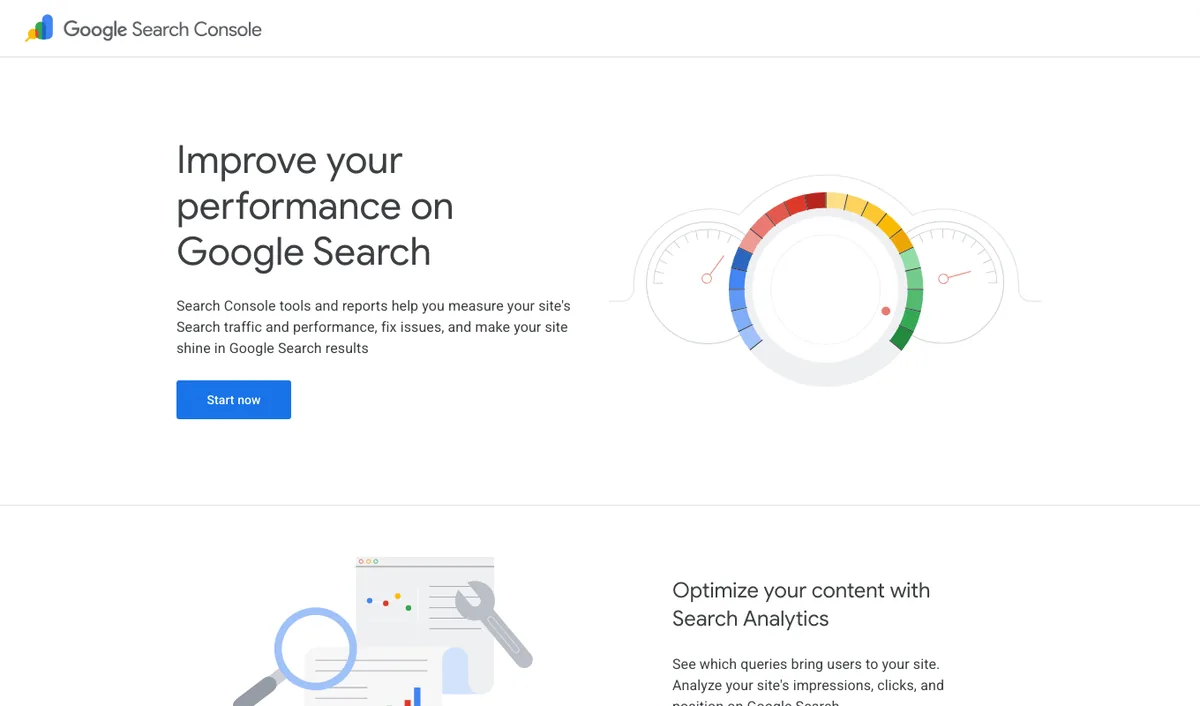
Google Search Console is Google’s free tool that shows which of your pages are indexed, which searches bring people to your site, and any errors stopping pages from ranking.
Set it up at search.google.com/search-console, verify you own the site (the SEO plugin usually makes this one click), then submit your sitemap.
WordPress has generated one on its own since version 5.5 at yoursite.com/wp-sitemap.xml. Your SEO plugin replaces it with a better one at yoursite.com/sitemap_index.xml (Rank Math and Yoast both use that address). Submit whichever one is active.
Then leave Search Console alone for a month and come back. It’s the only place you’ll see real data about what you’re ranking for, and it takes time to fill up.
6. Make It Fast Enough
Speed is a ranking factor through Core Web Vitals, and a slow site loses visitors before Google gets involved.
The speed guide covers what the numbers mean. The short version for a new site: decent hosting, a caching plugin, and resized images (the image optimization roundup picks one for you).
You don’t need a perfect score. You need to not be slow.
That’s the six. An hour, once. Everything from here is writing.
Search Intent: The Thing That Actually Decides Rankings
Search intent is what the person typing a query actually wants to find: a list, a step-by-step, a definition, a comparison, a product to buy.
Google has become very good at figuring this out and ranking the format that matches.
Here’s a real example. The most-read post on this site isn’t the pillar guide or the tutorials with the most screenshots. It’s a hosting roundup, because “best WordPress hosting for beginners” is a list-wanting query, and that post is a list, in the order people want it.
Before you write anything, type your topic into Google and look at what’s on page one.
- If the results are all “Top 10” lists, write a list.
- If they’re all step-by-step tutorials, write a tutorial.
- If they’re all short definition pages, write a clear definition and don’t pad it.
- If they’re all product pages, you’re looking at a buying query, and a blog post won’t rank for it no matter how good.
Matching the format is the cheapest ranking win available to you. Fighting the format almost never works.
Titles and Descriptions: Write Them on Purpose
Two things appear in a Google result: the title and the description.
They’re the only part of your page a searcher sees before deciding whether to click, and your SEO plugin gives you a box for each on every post.
The routine on this site is smaller than you’d expect. In Rank Math’s snippet editor, the Title field stays empty, so it inherits the global pattern (post title, separator, site name) and stays consistent across the whole site. Then the description gets 130 to 145 characters.
Not 160. Rank Math measures descriptions in pixels as well as characters, and a description with wide letters can show as over the limit at 150 characters. Plain commas and colons, some headroom, done.
What goes in the description? The primary phrase the post targets, the benefit, and a reason to click, in plain words. Not a keyword list. Not a sentence copied from the intro.
It’s a two-line advert for the page.
The post title itself (your H1) should say what the page is and who it’s for. “How to Back Up Your WordPress Site (and Restore It)” tells the searcher and Google the same thing. The first post guide covers where the title and headings live in the editor.
Headings, Links, and Images: The Habits
None of these are settings. They’re things you do every time you write, and together they matter more than any plugin.
Use headings like an outline. One H1 (the post title), H2s for main sections, H3s inside them. Google reads the heading structure to understand what the page covers, and a skimming reader does the same. Question-shaped headings (“How often should you back up?”) match how people search.
Link your own posts to each other. Every post on this site links up to the What Is WordPress pillar and across to related posts, with descriptive link text (“beginner-friendly WordPress hosting,” not “click here”). Internal links show Google which pages are related and which are important, and they keep readers on the site. Three to six per post is plenty.
Write alt text for every image. Alt text describes the image for screen readers and for Google, which can’t see pictures. “Rank Math snippet editor with the description field filled in” is alt text. “image1” is not.
It’s tedious on a big library, which is why Onylogy built a free plugin, Onylogy Image Alt Text, to generate it.
Name image files before uploading. wordpress-permalink-settings.png beats Screenshot 2026-09-12.png, for the same reason readable URLs beat ?p=123.
What to Ignore
Blunt list, because these waste more beginner hours than anything else.
- Keyword density. Google hasn’t counted keyword repetitions as a ranking factor in over a decade. Use the phrase where it’s natural, and move on.
- The plugin’s content score. It checks whether you filled in the boxes. It doesn’t predict rankings. A green light on a thin post is still a thin post.
- Anyone promising page one in 30 days. New sites take months. Anyone guaranteeing faster is either lying or about to get you penalised.
- Buying links. Google’s guidelines are explicit that paid links intended to pass ranking are a violation. The risk is real and the benefit is usually nothing.
- Submitting to 500 directories. That was 2008.
- Rewriting old posts every week to “refresh” them. Update a post when the information changed. Changing the date without changing the content does nothing.
How Long Does It Take?
Here’s the honest answer: longer than you’d like, and nobody can give you a number.
A brand new site with no links usually takes months before Google trusts it enough to rank anything competitive. Nothing reliably shortens that beyond publishing genuinely useful pages consistently.
If you want a rule, publish for six months before judging anything. And use Search Console, not your gut, to judge it.
Don’t worry. That’s normal for everyone, not a sign you’re doing it wrong.
Which of This Should You Do First?
- Site not launched yet? Permalinks, HTTPS, and the indexing checkbox, before the first post.
- Site live but no SEO plugin? Install Rank Math, run the wizard, connect Search Console, submit the sitemap. Today.
- Everything set up, no traffic? Check Search Console for errors, then check whether your posts match the intent of what’s ranking. Usually it’s intent.
- Some traffic, want more? Write the next post for a query you can see people already reaching you with in Search Console. That’s the cheapest growth there is.
Final Thoughts
Six settings, an afternoon.
Then write for the person searching, in the format they want, with a title and description you chose on purpose. Everything else in SEO is a refinement of that or a distraction from it.
You don’t need to be an expert. You need the basics done and the habit of writing for real questions. Plain and simple.
Over to you: go and check the “Discourage search engines” box right now, then let me know in the comments whether it was ticked.
Frequently Asked Questions
Do I need to pay for an SEO plugin?
No. Rank Math’s free version covers titles, descriptions, sitemaps, and schema, which is everything a beginner needs. Pay only when a specific feature (redirects, advanced schema) becomes a real need.
How do I know if Google has indexed my site?
Search site:yoursite.com in Google. If pages appear, you’re indexed. For detail, use Google Search Console’s Pages report, which lists what’s indexed and why anything isn’t.
Do I need to submit every new post to Google?
No. Once your sitemap is in Search Console, Google finds new posts on its own, usually within days. You can request indexing of a specific URL in Search Console if you’re impatient.
Does site speed really affect SEO?
Yes, through Core Web Vitals, but it’s a tiebreaker rather than the main event. A fast site with poor content won’t rank; a slow site with great content ranks worse than it should. Fix the obvious speed problems and move on.
Should I put keywords in my domain name?
No. Google reduced the value of keyword-matched domains in 2012. Choose the domain for the brand; the domain name guide explains why.
How many internal links should a post have?
Three to six relevant ones, with descriptive link text, is a good habit. More isn’t better; relevance is.
Is WordPress good for SEO?
Yes. Clean URLs, automatic sitemaps, mobile-friendly themes, and mature SEO plugins are all standard. The platform handles the technical basics; what you publish decides the rest.
You May Also Like
-

Kadence Blocks Default Settings
Just installed Kadence Blocks and wondering which Kadence Blocks settings… -
Kadence Blocks for WordPress
Building your WordPress site with Kadence Blocks? Good choice. It’s… -
Build a Homepage with Kadence Blocks
Ready to build a homepage with Kadence Blocks and not…